> ## Documentation Index
> Fetch the complete documentation index at: https://help.coachiq.io/llms.txt
> Use this file to discover all available pages before exploring further.
# Creating Your Availability Schedule
> Set up your coaching availability with weekly patterns, specific dates, or using Copilot AI
## What you'll accomplish
By the end of this guide, you'll have functional availability templates that define when you can coach. These templates become the foundation for all your bookable sessions.
**Success criteria**: Your availability templates are created and ready to be connected to schedulers, generating bookable time slots for athletes.
**New to availability?** Read [How Availability Works](/scheduling/how-avaliability-works) first to understand the concepts. This article focuses on the practical "how-to" steps.
## Before you begin
Decide on your approach before you start configuring:
**Most coaches start here** (Recommended):
* One to two availability schedules (ex: separate availabilities for group sessions and private sessions)
* Weekly recurring pattern (same days/times each week)
* Regular coaching hours
**Advanced setup** (Add later if needed):
* Multiple availability schedules (different locations or contexts)
* Specific date availability (irregular schedules)
* Complex patterns across templates
**First-timer tip**: Create ONE simple weekly recurring availability template to start. You can always create more later when you have a clear reason to do so.
## Method 1: Weekly recurring availability (Recommended)
This is the most common and easiest approach. Set your regular weekly schedule once, and it continues forward automatically.
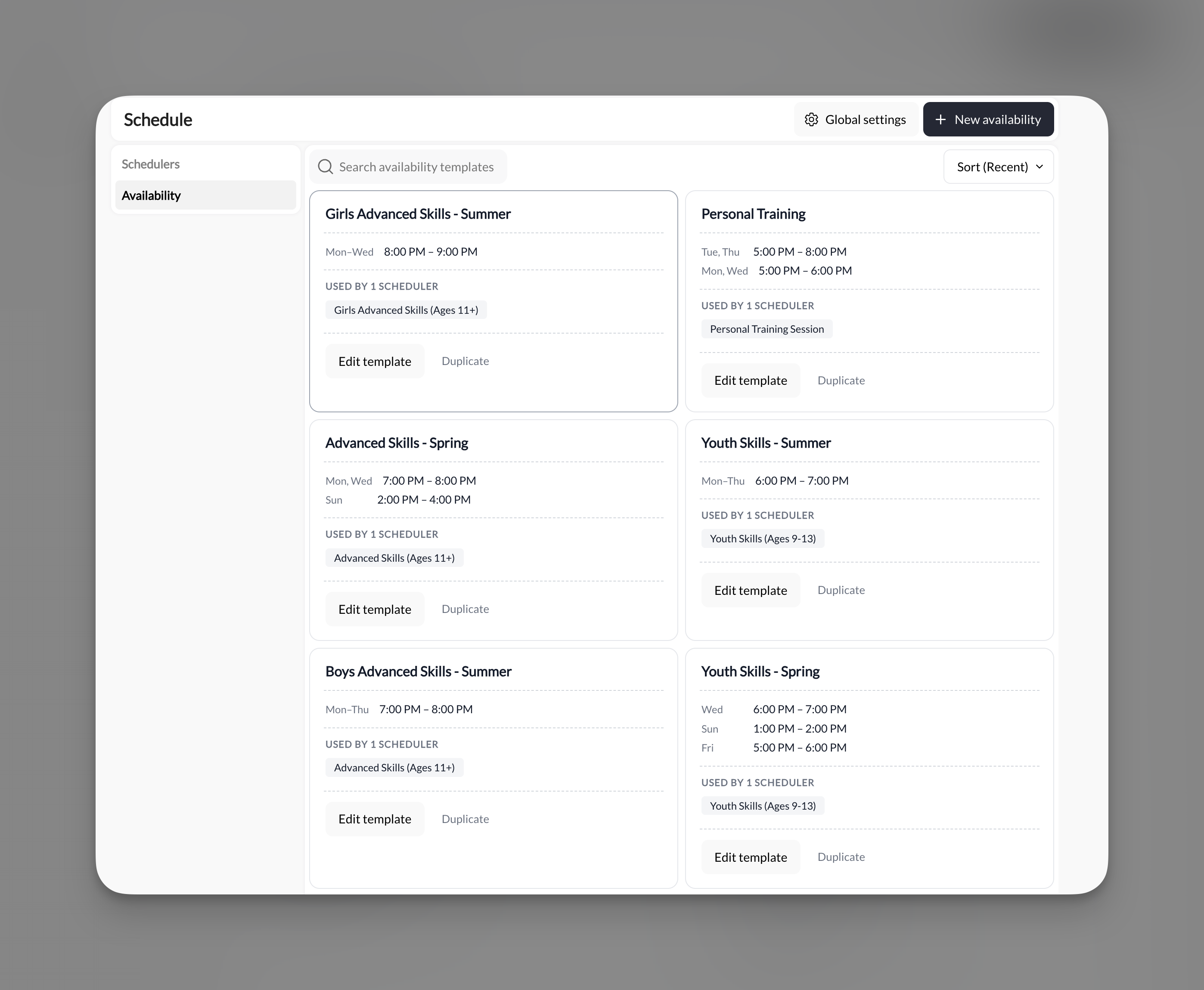
From your dashboard:
1. Click **Scheduling** in the main navigation
2. Click **Schedule** from the submenu
3. Select the **Availability** tab in the left sidebar
Click **+ New availability** to open the availability builder.
 Check the boxes for the days you're available to coach:
**Example 1: Weekday Coach**
* ✅ Monday
* ✅ Tuesday
* ✅ Wednesday
* ✅ Thursday
* ✅ Friday
**Example 2: Weekend Specialist**
* ✅ Saturday
* ✅ Sunday
**Example 3: Flexible Schedule**
* ✅ Monday
* ✅ Wednesday
* ✅ Friday
* ✅ Saturday
Check the boxes for the days you're available to coach:
**Example 1: Weekday Coach**
* ✅ Monday
* ✅ Tuesday
* ✅ Wednesday
* ✅ Thursday
* ✅ Friday
**Example 2: Weekend Specialist**
* ✅ Saturday
* ✅ Sunday
**Example 3: Flexible Schedule**
* ✅ Monday
* ✅ Wednesday
* ✅ Friday
* ✅ Saturday
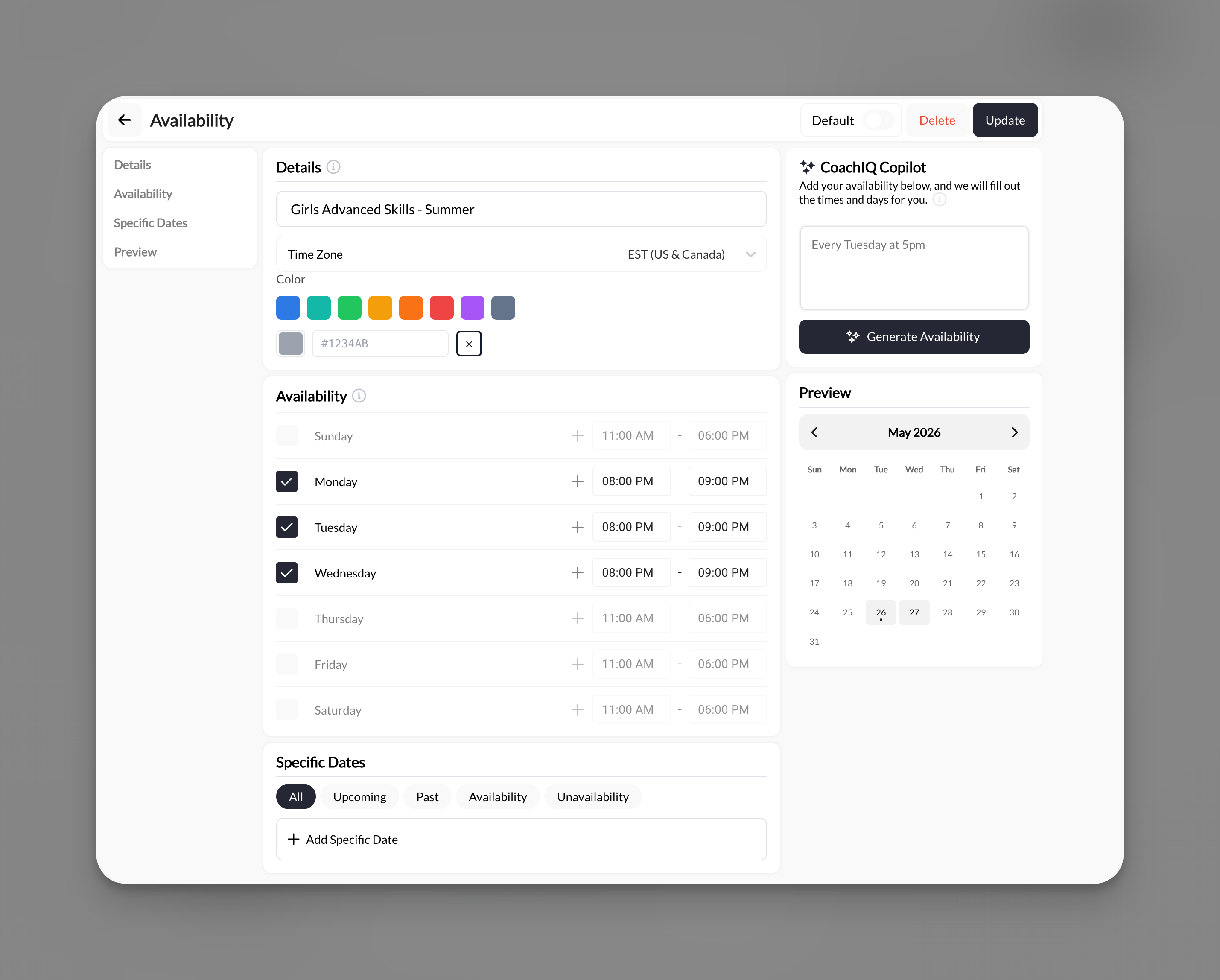 For each day you selected, set your available hours.
**You can set different hours per day** if needed:
* Monday: 4:00 PM - 8:00 PM
* Wednesday: 3:00 PM - 9:00 PM
* Friday: 4:00 PM - 8:00 PM
* Saturday: 9:00 AM - 2:00 PM
**Or same hours across all days**:
* All selected days: 3:00 PM - 8:00 PM
**Time selection tip**: Use the dropdown or type times directly. Most systems support 15-minute increments (3:00, 3:15, 3:30, 3:45, etc.).
**Important math**: Make sure your time available corresponds with the time slots you want to create later so your scheduler populates properly
**Example**:
* Avalability set from 5 - 9 pm
* ✅ Sessions are 60 minutes
* 5 - 6 pm
* 6 - 7 pm
* 7 - 8 pm
* 8 - 9 pm
* ❌ Sessions are 1 hour and 30 minutes
* 5 - 6:30 pm
* 6:30 - 8 pm
* Not enough time with the availabilty set to end at 9 pm
**Why this matters**: If your availability doesn't fit with the time slots offered, this will cut into your availability window, potentially preventing the last session from being bookable.
**Good template names**:
* "Private Training Sessions at Location 1"
* "Group Training Sessions at Location 2"
**Avoid generic names**:
* "Availability 1"
* "Schedule A"
* "Template 1"
If naming isn't available at this stage, don't worry—the availability will still work perfectly.
Before saving, verify:
* ✅ Days selected are correct
* ✅ Time ranges match your intended schedule
* ✅ End times account for buffer time
* ✅ All days have time ranges set
Click **Save** or continue with the rest of your scheduler configuration.
**Success!** You've created a weekly recurring availability template. This pattern will automatically generate available slots every week going forward.
## Method 2: Specific dates availability
Use this when you have irregular schedules, seasonal coaching, or want to test time slots for a limited period.
On the Scheduler page, navigate to the **Availability** section (same as Method 1, Steps 1-2).
Look for and select **Specific Dates**
This allows you to manually pick exact dates rather than recurring weekly patterns.
Use the date picker or calendar to select specific dates you're available.
**Example use cases**:
**Summer camp availability**:
* July 10, 11, 12, 13, 14 (week 1)
* July 17, 18, 19, 20, 21 (week 2)
* July 24, 25, 26, 27, 28 (week 3)
**Testing new day**:
* Every Saturday in October
* October 7, 14, 21, 28
**Irregular schedule**:
* Pick specific dates that fit your variable schedule
For each day you selected, set your available hours.
**You can set different hours per day** if needed:
* Monday: 4:00 PM - 8:00 PM
* Wednesday: 3:00 PM - 9:00 PM
* Friday: 4:00 PM - 8:00 PM
* Saturday: 9:00 AM - 2:00 PM
**Or same hours across all days**:
* All selected days: 3:00 PM - 8:00 PM
**Time selection tip**: Use the dropdown or type times directly. Most systems support 15-minute increments (3:00, 3:15, 3:30, 3:45, etc.).
**Important math**: Make sure your time available corresponds with the time slots you want to create later so your scheduler populates properly
**Example**:
* Avalability set from 5 - 9 pm
* ✅ Sessions are 60 minutes
* 5 - 6 pm
* 6 - 7 pm
* 7 - 8 pm
* 8 - 9 pm
* ❌ Sessions are 1 hour and 30 minutes
* 5 - 6:30 pm
* 6:30 - 8 pm
* Not enough time with the availabilty set to end at 9 pm
**Why this matters**: If your availability doesn't fit with the time slots offered, this will cut into your availability window, potentially preventing the last session from being bookable.
**Good template names**:
* "Private Training Sessions at Location 1"
* "Group Training Sessions at Location 2"
**Avoid generic names**:
* "Availability 1"
* "Schedule A"
* "Template 1"
If naming isn't available at this stage, don't worry—the availability will still work perfectly.
Before saving, verify:
* ✅ Days selected are correct
* ✅ Time ranges match your intended schedule
* ✅ End times account for buffer time
* ✅ All days have time ranges set
Click **Save** or continue with the rest of your scheduler configuration.
**Success!** You've created a weekly recurring availability template. This pattern will automatically generate available slots every week going forward.
## Method 2: Specific dates availability
Use this when you have irregular schedules, seasonal coaching, or want to test time slots for a limited period.
On the Scheduler page, navigate to the **Availability** section (same as Method 1, Steps 1-2).
Look for and select **Specific Dates**
This allows you to manually pick exact dates rather than recurring weekly patterns.
Use the date picker or calendar to select specific dates you're available.
**Example use cases**:
**Summer camp availability**:
* July 10, 11, 12, 13, 14 (week 1)
* July 17, 18, 19, 20, 21 (week 2)
* July 24, 25, 26, 27, 28 (week 3)
**Testing new day**:
* Every Saturday in October
* October 7, 14, 21, 28
**Irregular schedule**:
* Pick specific dates that fit your variable schedule
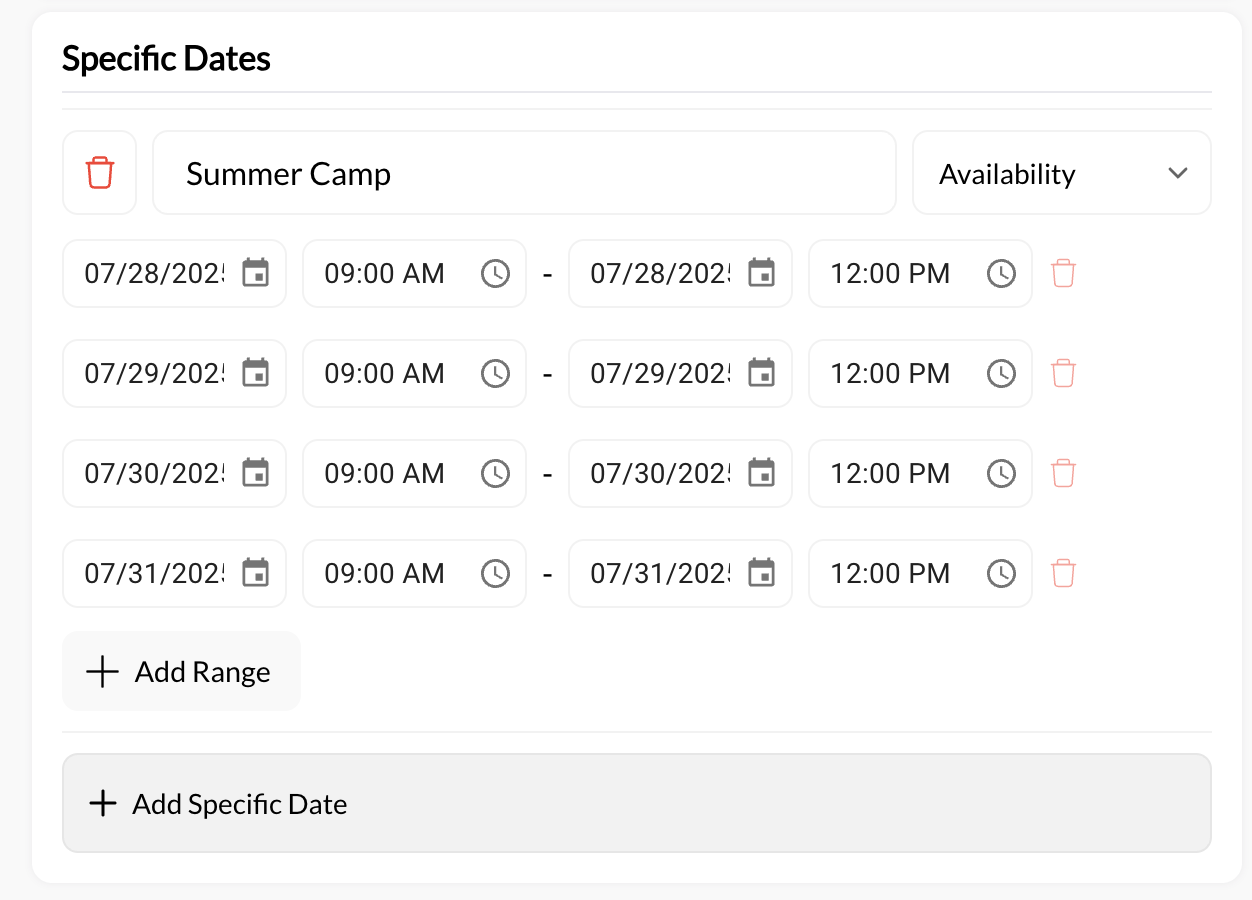 **Bulk selection**: Many date pickers allow you to select multiple dates at once or select date ranges. Look for "Select Range" or similar options to avoid clicking individual dates.
After selecting dates, set the time ranges for those dates.
**Option A: Same time for all dates**
* All selected dates: 9:00 AM - 5:00 PM
**Option B: Different times per date** (if supported)
* July 10: 9:00 AM - 5:00 PM
* July 11: 10:00 AM - 3:00 PM
* July 12: 9:00 AM - 5:00 PM
Verify:
* ✅ All intended dates are selected
* ✅ No accidental dates included
* ✅ Time ranges are correct
* ✅ Dates extend far enough into future
Click **Save** to create this specific-date availability.
**Ongoing maintenance required**: Unlike weekly recurring patterns, specific dates don't extend automatically. You'll need to add more dates as time goes on.
## Method 3: Using Copilot to generate availability
CoachIQ's Copilot AI can generate availability patterns based on plain language descriptions.
Look for a **Copilot** panel on the side in the Availability Builder.
Tell Copilot your schedule using natural language.
**Example prompts that work well**:
**Simple weekly pattern**:
> "I'm available Monday, Wednesday, and Friday from 3 PM to 8 PM"
**Multiple time blocks**:
> "I coach weekday afternoons 3-8 PM and Saturday mornings 9 AM to 1 PM"
**Specific exclusions**:
> "Available every weekday 2-7 PM except Thursdays"
**Pro tip**: Be specific with times and days. The more detail you provide, the better Copilot can generate your availability.
Copilot will generate an availability pattern based on your description.
**What to verify**:
* ✅ Days are correct
* ✅ Times match your intent
* ✅ AM/PM is correct (not 3 AM when you meant 3 PM)
* ✅ Pattern type (recurring vs specific dates) is right
If Copilot didn't get it quite right:
* **Edit directly**: Manually adjust days or times
* **Regenerate**: Try rephrasing your prompt and ask Copilot again
* **Accept and tweak**: Accept the generated availability and fine-tune manually
**Copilot learning**: The more you use Copilot, the better it understands your patterns and preferences.
Once you're satisfied with the generated availability, click \*\*Create \*\*to save your availability
## Adding blackout days (blocking time off)
Blackout days prevent bookings on specific dates without deleting your entire availability pattern.
Look for options called:
* **Blackout Days**
* **Unavailable Dates**
* **Block Time Off**
* **Exceptions**
This is typically in the Availability section or a separate Unavailable section.
Use the date picker to select dates you want to block out:
**Common blackout uses**:
* Vacation: July 15-30
* Holidays: Thanksgiving Day, Christmas week
* Personal days: Doctor appointments, family events
* Facility closures: Gym maintenance days
**Add holidays now**: When first setting up, add all known holidays and vacation days for the next 6-12 months. This prevents athletes from booking during times you can't coach.
Click **Save** or **Add Blackout Days** to apply these exceptions.
**Result**: Your regular availability continues on all other dates, but the blackout days will show no available slots to athletes.
Check your calendar to ensure:
* ✅ Blackout days show no available slots
* ✅ Days before and after blackout still have availability
* ✅ All intended dates are blocked
**Existing bookings**: Blackout days don't automatically cancel existing bookings. If athletes already booked during dates you're now blocking, you'll need to manually cancel those bookings.
## Creating multiple availability templates
As your business grows, you may need multiple availability templates for different contexts.
**Your situation**: You coach at two facilities with different schedules.
**Solution**:
1. Create first scheduler with "Location A Availability"
* Downtown Gym: Monday/Wednesday 5-9 PM
2. Create second scheduler with "Location B Availability"
* Community Center: Tuesday/Thursday 4-8 PM, Saturday 9 AM-1 PM
**Result**: Location-specific schedulers pull from location-specific availability, preventing double-booking across locations.
**Your situation**: You only offer group classes on weekends but private training during weekdays.
**Solution**:
1. Create "Private Training" scheduler with weekday availability
* Monday-Friday: 3-8 PM
2. Create "Group Bootcamp" scheduler with weekend availability
* Saturday/Sunday: 9 AM-12 PM
**Result**: Each session type has appropriate availability without overlap or confusion.
**Your situation**: You want to test offering early morning sessions without committing long-term.
**Solution**:
1. Keep existing scheduler with regular hours
* "Regular Sessions": Monday/Wednesday/Friday 3-8 PM
2. Create new scheduler with trial hours
* "Early Morning Sessions": Tuesday/Thursday 6-8 AM (specific dates only for next month)
**Result**: You can test demand for early mornings and easily remove if it doesn't work out, without affecting your core schedule.
**Remember**: Each scheduler can have its own availability configuration. You create multiple templates by creating multiple schedulers with different availability settings.
## Editing existing availability
Your schedule will change. Here's how to update availability for existing schedulers.
1. Go to **Scheduling → Schedule → Schedulers tab**
2. Find the scheduler you want to edit
3. Click to open or click **Edit**
Scroll to the **Availability** section of the scheduler.
You'll see your current availability configuration displayed.
**Common edits**:
**Adding a day**:
* Check an additional day box
* Set time range for that new day
* Save
**Changing hours**:
* Adjust start/end times for existing days
* Save
**Removing a day**:
* Uncheck the day box
* Save
**Adding blackout dates**:
* Select new blackout days
* Save
Click **Save** or **Update Scheduler**.
**Changes applied**: Future available slots will reflect your updated availability. Existing bookings remain unchanged.
Navigate to **Schedule → Calendar** and verify:
* ✅ New availability shows correct slots
* ✅ Changed hours reflect properly
* ✅ Removed days no longer show availability
* ✅ Existing bookings are still there
**Changes are forward-looking only**: Editing availability affects future bookable slots but doesn't change or cancel existing bookings.
## Connecting availability to multiple schedulers
The real power of availability templates: one template powering multiple session types.
### The reusability workflow
Follow Method 1 above to create your first scheduler with your regular availability (e.g., M/W/F 3-8 PM).
Save this scheduler.
When creating a second scheduler:
1. Navigate to Availability section
2. Look for option to **Use Existing Availability** or **Select Availability Template**
If this option exists, select your previously created availability.
**System behavior note**: Different versions of CoachIQ may handle this differently. Some automatically share availability across schedulers; others require explicit selection.
After saving your second scheduler:
1. Check calendar in Week view
2. Both schedulers should show available slots during the same time windows
3. Both should reflect any changes you make to the shared availability
**Success!** You're now managing one availability pattern that powers multiple schedulers.
### When schedulers should have SEPARATE availability
Create different availability for each scheduler when:
* ✅ They're at different physical locations
* ✅ One is weekday-only, another is weekend-only
* ✅ Different session types are genuinely available at different times
* ✅ You're testing new time slots for one session type
**Don't create separate availability when**:
* ❌ Different session types are offered during the same hours (same availability, different schedulers)
* ❌ Only the price or duration differs (same availability works fine)
* ❌ You want to limit bookings (use booking limits instead, not separate availability)
## Common availability patterns by coaching type
**Typical Setup**:
* **One availability template**: "Regular Coaching Hours"
* Days: Monday/Wednesday/Friday
* Times: 4:00 PM - 8:00 PM
* Buffer: 15 minutes
**Schedulers using this availability**:
* 30-Min Quick Session - \$50
* 60-Min Full Training - \$90
* Free 30-Min Assessment
**Why it works**: All services offered during same hours, manage schedule in one place.
**Typical Setup**:
* **Template 1**: "Coach Mike Hours"
* M/W/F: 3-8 PM
* **Template 2**: "Coach Sarah Hours"
* T/Th: 4-9 PM, Sat: 9 AM-2 PM
* **Template 3**: "Any Coach Available"
* Combines both schedules
**Schedulers**:
* "Private with Coach Mike" → Uses Template 1
* "Private with Coach Sarah" → Uses Template 2
* "Private with Any Available Coach" → Uses Template 3
**Why it works**: Clear separation by coach, plus flexibility for athletes who don't care which coach.
**Typical Setup**:
* **Template 1**: "Team Practice Slots"
* Monday/Wednesday: 6:00-7:30 PM only
* **Template 2**: "Individual Sessions"
* Tuesday/Thursday/Saturday: Variable hours
**Schedulers**:
* "Rising Stars Team Practice" (no self-booking, coach manually books entire team)
* "1-on-1 Skill Development" (self-booking enabled)
**Why it works**: Separates team commitments from individual athlete scheduling.
**Typical Setup**:
* **Specific dates only**: Not recurring weekly
* Summer Camp Dates: June 12-16, June 19-23, June 26-30
* Times: 9:00 AM - 3:00 PM (full day camps)
**Schedulers**:
* "Summer Camp - Week 1"
* "Summer Camp - Week 2"
* "Summer Camp - Week 3"
**Why it works**: Limited engagement, specific dates, doesn't need ongoing weekly pattern.
## Availability best practices summary
One availability template, weekly recurring pattern. Add complexity only when you have a clear problem to solve.
15 minutes between sessions prevents burnout and gives you breathing room. Athletes never see buffer time.
Add blackout days for all known holidays, vacations, and time off when you first set up. Prevents problem bookings.
One availability template powering multiple schedulers = easier management and fewer conflicts.
Set availability end time 15-30 minutes past when you want your last session to end (accounts for buffer time).
"Downtown Gym M/W/F" is better than "Availability 1" when you have multiple templates.
Always check your calendar after editing availability to verify slots appear correctly.
Create a test scheduler with your availability and verify time slots generate as expected before going live.
## Troubleshooting availability issues
**Possible causes**:
1. Availability days/times not set
2. Availability end date is in the past
3. All time slots are blocked by blackout days
4. Buffer time + session duration exceeds availability window
**How to fix**:
* Edit scheduler and verify availability is set
* Check end date extends into future
* Review blackout days for conflicts
* Calculate: (session duration + buffer) × number of desired slots = minimum availability window needed
**Possible cause**: Buffer time is consuming your availability window.
**Example problem**:
* Availability: 3:00 PM - 5:00 PM (2 hours)
* Session duration: 60 min
* Buffer: 30 min
* Expected slots: 2
* Actual slots: 1 (only 3:00 PM works; 4:00 PM session would end at 5:00 PM but buffer would end at 5:30 PM)
**How to fix**: Extend your availability end time to accommodate buffer after last session.
**Possible causes**:
1. Changes not saved
2. Browser cache showing old data
3. Looking at wrong date range
4. Changes only affect future, not past
**How to fix**:
* Re-save the scheduler
* Refresh browser (hard refresh: Cmd+Shift+R or Ctrl+Shift+R)
* Navigate to future dates to see new availability
* Remember: existing bookings don't change, only future slots
**Possible causes**:
1. Multiple schedulers with different availability
2. Another coach's availability overlapping
3. Buffer time miscalculated
4. Availability wider than intended
**How to fix**:
* Review all schedulers' availability settings
* Check if multiple coaches have overlapping availability
* Verify start/end times are correct (not AM/PM errors)
* Double-check all checked day boxes match intent
**System limitation**: Some versions of CoachIQ create availability per-scheduler rather than as reusable templates.
**Workaround**:
* Manually configure same availability in each scheduler
* Be extra careful to keep them in sync when making changes
* Consider using Copilot with same prompt for each scheduler to ensure consistency
## Quick reference: Time calculation formulas
When planning your availability, use these formulas:
### How many slots will I have?
**Formula**:
```
Available slots = (Availability window) ÷ (Session duration + Buffer time)
```
**Example**:
* Availability: 3:00 PM - 8:00 PM = 5 hours = 300 minutes
* Session: 60 minutes
* Buffer: 15 minutes
* Calculation: 300 ÷ 75 = 4 slots
**Result**: 4 bookable time slots per day
### When should I end my availability?
**Formula**:
```
Availability end time = Desired last session start time + Session duration + Buffer time
```
**Example**:
* Last session start: 7:00 PM
* Session: 60 minutes
* Buffer: 15 minutes
* Calculation: 7:00 PM + 60 min + 15 min = 8:15 PM
**Result**: Set availability to end at 8:15 PM
### How much availability do I need?
**Formula**:
```
Minimum availability window = (Desired number of slots) × (Session duration + Buffer)
```
**Example**:
* Want 5 slots per day
* Session: 60 minutes
* Buffer: 15 minutes
* Calculation: 5 × 75 = 375 minutes = 6.25 hours
**Result**: Need at least 6.25 hours of availability to offer 5 bookable slots
**Pro tip**: Add 15-30 minutes to calculated minimums as safety buffer for real-world schedule flexibility.
## What's next
Now that your availability is set up, you're ready to create schedulers that use this availability.
Use your availability to create bookable session types
Advanced guide to blocking time off and managing exceptions
Set up availability for teams and multiple coaches
Advanced availability management across all schedulers
## Related articles
Understand availability concepts and why they matter
Complete guide to creating your first bookable session
Optimize spacing and booking windows
Complete overview of the scheduling system
Navigate and manage your booking calendar
Fix common availability and scheduling problems
**Need help planning your availability strategy?** Our support team can help you design the optimal setup for your coaching business. [Contact Support](https://coachiq.com/support)
**Bulk selection**: Many date pickers allow you to select multiple dates at once or select date ranges. Look for "Select Range" or similar options to avoid clicking individual dates.
After selecting dates, set the time ranges for those dates.
**Option A: Same time for all dates**
* All selected dates: 9:00 AM - 5:00 PM
**Option B: Different times per date** (if supported)
* July 10: 9:00 AM - 5:00 PM
* July 11: 10:00 AM - 3:00 PM
* July 12: 9:00 AM - 5:00 PM
Verify:
* ✅ All intended dates are selected
* ✅ No accidental dates included
* ✅ Time ranges are correct
* ✅ Dates extend far enough into future
Click **Save** to create this specific-date availability.
**Ongoing maintenance required**: Unlike weekly recurring patterns, specific dates don't extend automatically. You'll need to add more dates as time goes on.
## Method 3: Using Copilot to generate availability
CoachIQ's Copilot AI can generate availability patterns based on plain language descriptions.
Look for a **Copilot** panel on the side in the Availability Builder.
Tell Copilot your schedule using natural language.
**Example prompts that work well**:
**Simple weekly pattern**:
> "I'm available Monday, Wednesday, and Friday from 3 PM to 8 PM"
**Multiple time blocks**:
> "I coach weekday afternoons 3-8 PM and Saturday mornings 9 AM to 1 PM"
**Specific exclusions**:
> "Available every weekday 2-7 PM except Thursdays"
**Pro tip**: Be specific with times and days. The more detail you provide, the better Copilot can generate your availability.
Copilot will generate an availability pattern based on your description.
**What to verify**:
* ✅ Days are correct
* ✅ Times match your intent
* ✅ AM/PM is correct (not 3 AM when you meant 3 PM)
* ✅ Pattern type (recurring vs specific dates) is right
If Copilot didn't get it quite right:
* **Edit directly**: Manually adjust days or times
* **Regenerate**: Try rephrasing your prompt and ask Copilot again
* **Accept and tweak**: Accept the generated availability and fine-tune manually
**Copilot learning**: The more you use Copilot, the better it understands your patterns and preferences.
Once you're satisfied with the generated availability, click \*\*Create \*\*to save your availability
## Adding blackout days (blocking time off)
Blackout days prevent bookings on specific dates without deleting your entire availability pattern.
Look for options called:
* **Blackout Days**
* **Unavailable Dates**
* **Block Time Off**
* **Exceptions**
This is typically in the Availability section or a separate Unavailable section.
Use the date picker to select dates you want to block out:
**Common blackout uses**:
* Vacation: July 15-30
* Holidays: Thanksgiving Day, Christmas week
* Personal days: Doctor appointments, family events
* Facility closures: Gym maintenance days
**Add holidays now**: When first setting up, add all known holidays and vacation days for the next 6-12 months. This prevents athletes from booking during times you can't coach.
Click **Save** or **Add Blackout Days** to apply these exceptions.
**Result**: Your regular availability continues on all other dates, but the blackout days will show no available slots to athletes.
Check your calendar to ensure:
* ✅ Blackout days show no available slots
* ✅ Days before and after blackout still have availability
* ✅ All intended dates are blocked
**Existing bookings**: Blackout days don't automatically cancel existing bookings. If athletes already booked during dates you're now blocking, you'll need to manually cancel those bookings.
## Creating multiple availability templates
As your business grows, you may need multiple availability templates for different contexts.
**Your situation**: You coach at two facilities with different schedules.
**Solution**:
1. Create first scheduler with "Location A Availability"
* Downtown Gym: Monday/Wednesday 5-9 PM
2. Create second scheduler with "Location B Availability"
* Community Center: Tuesday/Thursday 4-8 PM, Saturday 9 AM-1 PM
**Result**: Location-specific schedulers pull from location-specific availability, preventing double-booking across locations.
**Your situation**: You only offer group classes on weekends but private training during weekdays.
**Solution**:
1. Create "Private Training" scheduler with weekday availability
* Monday-Friday: 3-8 PM
2. Create "Group Bootcamp" scheduler with weekend availability
* Saturday/Sunday: 9 AM-12 PM
**Result**: Each session type has appropriate availability without overlap or confusion.
**Your situation**: You want to test offering early morning sessions without committing long-term.
**Solution**:
1. Keep existing scheduler with regular hours
* "Regular Sessions": Monday/Wednesday/Friday 3-8 PM
2. Create new scheduler with trial hours
* "Early Morning Sessions": Tuesday/Thursday 6-8 AM (specific dates only for next month)
**Result**: You can test demand for early mornings and easily remove if it doesn't work out, without affecting your core schedule.
**Remember**: Each scheduler can have its own availability configuration. You create multiple templates by creating multiple schedulers with different availability settings.
## Editing existing availability
Your schedule will change. Here's how to update availability for existing schedulers.
1. Go to **Scheduling → Schedule → Schedulers tab**
2. Find the scheduler you want to edit
3. Click to open or click **Edit**
Scroll to the **Availability** section of the scheduler.
You'll see your current availability configuration displayed.
**Common edits**:
**Adding a day**:
* Check an additional day box
* Set time range for that new day
* Save
**Changing hours**:
* Adjust start/end times for existing days
* Save
**Removing a day**:
* Uncheck the day box
* Save
**Adding blackout dates**:
* Select new blackout days
* Save
Click **Save** or **Update Scheduler**.
**Changes applied**: Future available slots will reflect your updated availability. Existing bookings remain unchanged.
Navigate to **Schedule → Calendar** and verify:
* ✅ New availability shows correct slots
* ✅ Changed hours reflect properly
* ✅ Removed days no longer show availability
* ✅ Existing bookings are still there
**Changes are forward-looking only**: Editing availability affects future bookable slots but doesn't change or cancel existing bookings.
## Connecting availability to multiple schedulers
The real power of availability templates: one template powering multiple session types.
### The reusability workflow
Follow Method 1 above to create your first scheduler with your regular availability (e.g., M/W/F 3-8 PM).
Save this scheduler.
When creating a second scheduler:
1. Navigate to Availability section
2. Look for option to **Use Existing Availability** or **Select Availability Template**
If this option exists, select your previously created availability.
**System behavior note**: Different versions of CoachIQ may handle this differently. Some automatically share availability across schedulers; others require explicit selection.
After saving your second scheduler:
1. Check calendar in Week view
2. Both schedulers should show available slots during the same time windows
3. Both should reflect any changes you make to the shared availability
**Success!** You're now managing one availability pattern that powers multiple schedulers.
### When schedulers should have SEPARATE availability
Create different availability for each scheduler when:
* ✅ They're at different physical locations
* ✅ One is weekday-only, another is weekend-only
* ✅ Different session types are genuinely available at different times
* ✅ You're testing new time slots for one session type
**Don't create separate availability when**:
* ❌ Different session types are offered during the same hours (same availability, different schedulers)
* ❌ Only the price or duration differs (same availability works fine)
* ❌ You want to limit bookings (use booking limits instead, not separate availability)
## Common availability patterns by coaching type
**Typical Setup**:
* **One availability template**: "Regular Coaching Hours"
* Days: Monday/Wednesday/Friday
* Times: 4:00 PM - 8:00 PM
* Buffer: 15 minutes
**Schedulers using this availability**:
* 30-Min Quick Session - \$50
* 60-Min Full Training - \$90
* Free 30-Min Assessment
**Why it works**: All services offered during same hours, manage schedule in one place.
**Typical Setup**:
* **Template 1**: "Coach Mike Hours"
* M/W/F: 3-8 PM
* **Template 2**: "Coach Sarah Hours"
* T/Th: 4-9 PM, Sat: 9 AM-2 PM
* **Template 3**: "Any Coach Available"
* Combines both schedules
**Schedulers**:
* "Private with Coach Mike" → Uses Template 1
* "Private with Coach Sarah" → Uses Template 2
* "Private with Any Available Coach" → Uses Template 3
**Why it works**: Clear separation by coach, plus flexibility for athletes who don't care which coach.
**Typical Setup**:
* **Template 1**: "Team Practice Slots"
* Monday/Wednesday: 6:00-7:30 PM only
* **Template 2**: "Individual Sessions"
* Tuesday/Thursday/Saturday: Variable hours
**Schedulers**:
* "Rising Stars Team Practice" (no self-booking, coach manually books entire team)
* "1-on-1 Skill Development" (self-booking enabled)
**Why it works**: Separates team commitments from individual athlete scheduling.
**Typical Setup**:
* **Specific dates only**: Not recurring weekly
* Summer Camp Dates: June 12-16, June 19-23, June 26-30
* Times: 9:00 AM - 3:00 PM (full day camps)
**Schedulers**:
* "Summer Camp - Week 1"
* "Summer Camp - Week 2"
* "Summer Camp - Week 3"
**Why it works**: Limited engagement, specific dates, doesn't need ongoing weekly pattern.
## Availability best practices summary
One availability template, weekly recurring pattern. Add complexity only when you have a clear problem to solve.
15 minutes between sessions prevents burnout and gives you breathing room. Athletes never see buffer time.
Add blackout days for all known holidays, vacations, and time off when you first set up. Prevents problem bookings.
One availability template powering multiple schedulers = easier management and fewer conflicts.
Set availability end time 15-30 minutes past when you want your last session to end (accounts for buffer time).
"Downtown Gym M/W/F" is better than "Availability 1" when you have multiple templates.
Always check your calendar after editing availability to verify slots appear correctly.
Create a test scheduler with your availability and verify time slots generate as expected before going live.
## Troubleshooting availability issues
**Possible causes**:
1. Availability days/times not set
2. Availability end date is in the past
3. All time slots are blocked by blackout days
4. Buffer time + session duration exceeds availability window
**How to fix**:
* Edit scheduler and verify availability is set
* Check end date extends into future
* Review blackout days for conflicts
* Calculate: (session duration + buffer) × number of desired slots = minimum availability window needed
**Possible cause**: Buffer time is consuming your availability window.
**Example problem**:
* Availability: 3:00 PM - 5:00 PM (2 hours)
* Session duration: 60 min
* Buffer: 30 min
* Expected slots: 2
* Actual slots: 1 (only 3:00 PM works; 4:00 PM session would end at 5:00 PM but buffer would end at 5:30 PM)
**How to fix**: Extend your availability end time to accommodate buffer after last session.
**Possible causes**:
1. Changes not saved
2. Browser cache showing old data
3. Looking at wrong date range
4. Changes only affect future, not past
**How to fix**:
* Re-save the scheduler
* Refresh browser (hard refresh: Cmd+Shift+R or Ctrl+Shift+R)
* Navigate to future dates to see new availability
* Remember: existing bookings don't change, only future slots
**Possible causes**:
1. Multiple schedulers with different availability
2. Another coach's availability overlapping
3. Buffer time miscalculated
4. Availability wider than intended
**How to fix**:
* Review all schedulers' availability settings
* Check if multiple coaches have overlapping availability
* Verify start/end times are correct (not AM/PM errors)
* Double-check all checked day boxes match intent
**System limitation**: Some versions of CoachIQ create availability per-scheduler rather than as reusable templates.
**Workaround**:
* Manually configure same availability in each scheduler
* Be extra careful to keep them in sync when making changes
* Consider using Copilot with same prompt for each scheduler to ensure consistency
## Quick reference: Time calculation formulas
When planning your availability, use these formulas:
### How many slots will I have?
**Formula**:
```
Available slots = (Availability window) ÷ (Session duration + Buffer time)
```
**Example**:
* Availability: 3:00 PM - 8:00 PM = 5 hours = 300 minutes
* Session: 60 minutes
* Buffer: 15 minutes
* Calculation: 300 ÷ 75 = 4 slots
**Result**: 4 bookable time slots per day
### When should I end my availability?
**Formula**:
```
Availability end time = Desired last session start time + Session duration + Buffer time
```
**Example**:
* Last session start: 7:00 PM
* Session: 60 minutes
* Buffer: 15 minutes
* Calculation: 7:00 PM + 60 min + 15 min = 8:15 PM
**Result**: Set availability to end at 8:15 PM
### How much availability do I need?
**Formula**:
```
Minimum availability window = (Desired number of slots) × (Session duration + Buffer)
```
**Example**:
* Want 5 slots per day
* Session: 60 minutes
* Buffer: 15 minutes
* Calculation: 5 × 75 = 375 minutes = 6.25 hours
**Result**: Need at least 6.25 hours of availability to offer 5 bookable slots
**Pro tip**: Add 15-30 minutes to calculated minimums as safety buffer for real-world schedule flexibility.
## What's next
Now that your availability is set up, you're ready to create schedulers that use this availability.
Use your availability to create bookable session types
Advanced guide to blocking time off and managing exceptions
Set up availability for teams and multiple coaches
Advanced availability management across all schedulers
## Related articles
Understand availability concepts and why they matter
Complete guide to creating your first bookable session
Optimize spacing and booking windows
Complete overview of the scheduling system
Navigate and manage your booking calendar
Fix common availability and scheduling problems
**Need help planning your availability strategy?** Our support team can help you design the optimal setup for your coaching business. [Contact Support](https://coachiq.com/support)