> ## Documentation Index
> Fetch the complete documentation index at: https://help.coachiq.io/llms.txt
> Use this file to discover all available pages before exploring further.
# Checking In Athletes
> Track attendance by checking in athletes when they arrive for sessions
Mark athletes as checked in when they arrive for sessions. Check-in data is timestamped and saved to each booking, giving you a clear attendance record.
**Where to find this**: Schedule → Calendar → Click any booking
## Check in from the calendar
Open your calendar and click on any scheduled session. The booking details modal appears showing all participants.
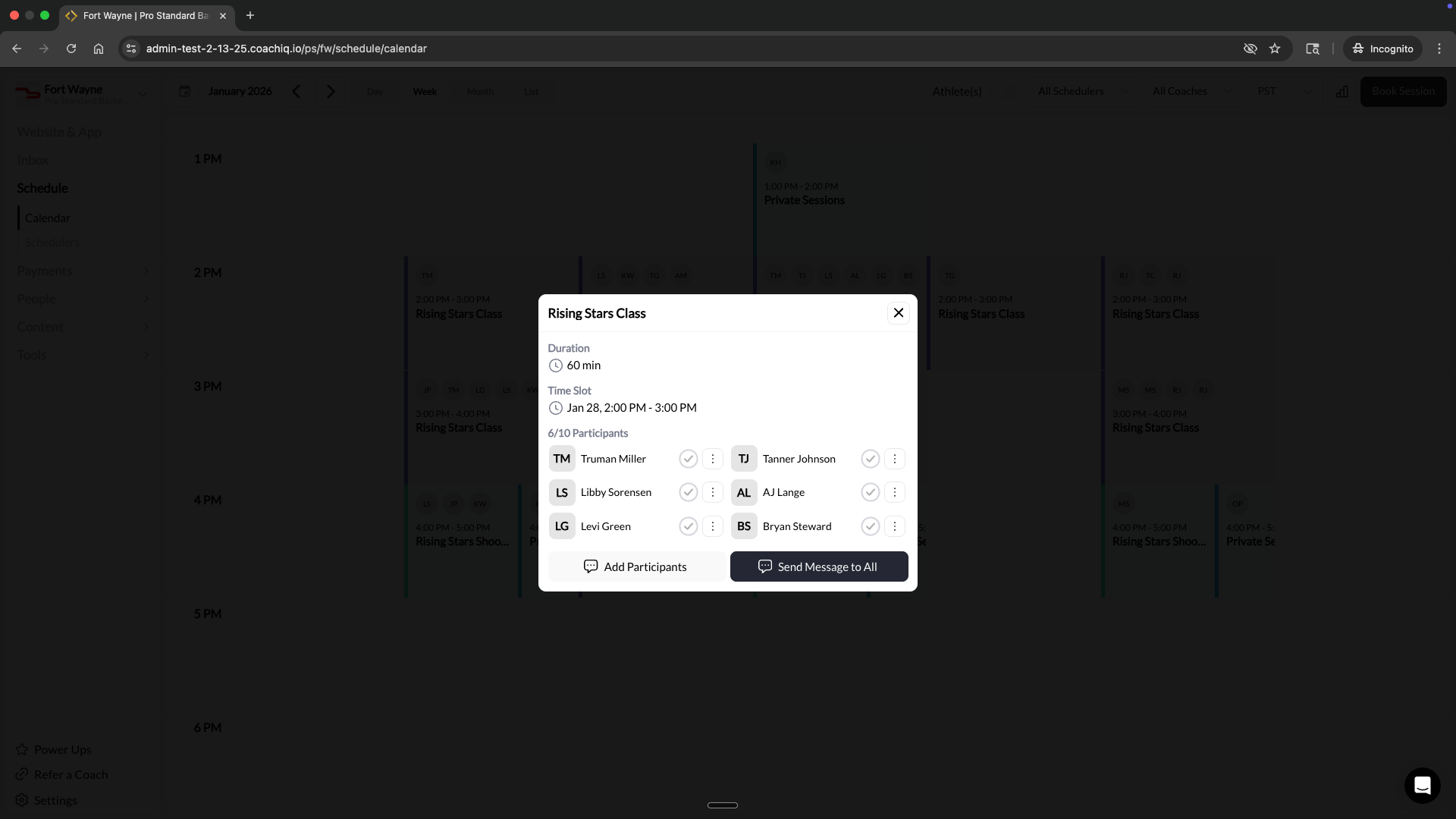 Each participant has a circle next to their name. Click it to mark them as checked in.
* **Gray circle** = Not checked in
* **Green checkmark** = Checked in
The header updates to show how many athletes are checked in (e.g., "6/10 Participants - 3 Checked In").
Each participant has a circle next to their name. Click it to mark them as checked in.
* **Gray circle** = Not checked in
* **Green checkmark** = Checked in
The header updates to show how many athletes are checked in (e.g., "6/10 Participants - 3 Checked In").
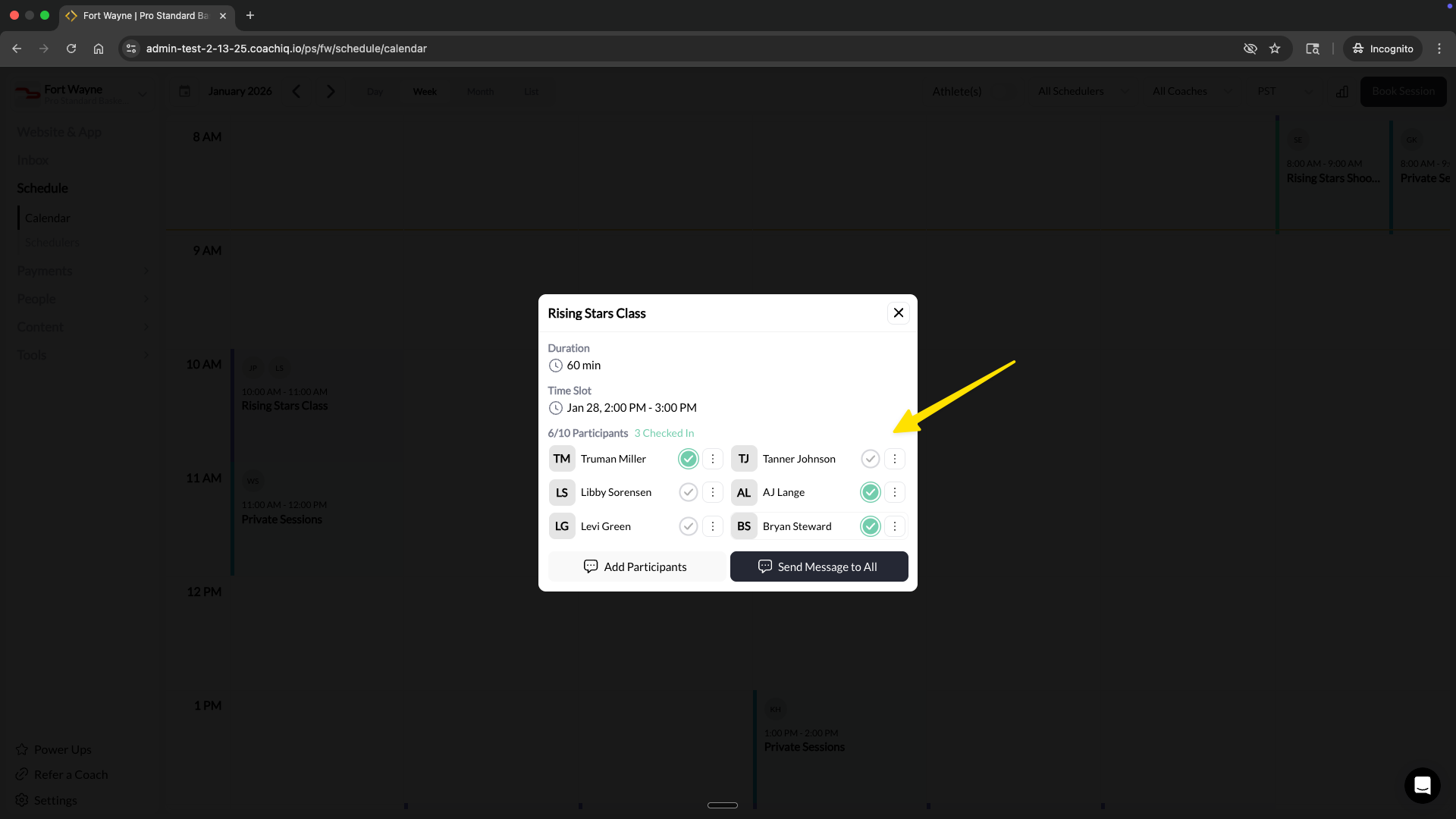 Clicked by accident? Click the checkmark again to undo the check-in.
## Check in from the edit booking page
You can also check in athletes from the individual booking edit page.
Click a booking on the calendar, then click **Edit** (or double-click the booking).
In the booking header, click **Checked In** to mark the athlete as arrived.
Clicked by accident? Click the checkmark again to undo the check-in.
## Check in from the edit booking page
You can also check in athletes from the individual booking edit page.
Click a booking on the calendar, then click **Edit** (or double-click the booking).
In the booking header, click **Checked In** to mark the athlete as arrived.
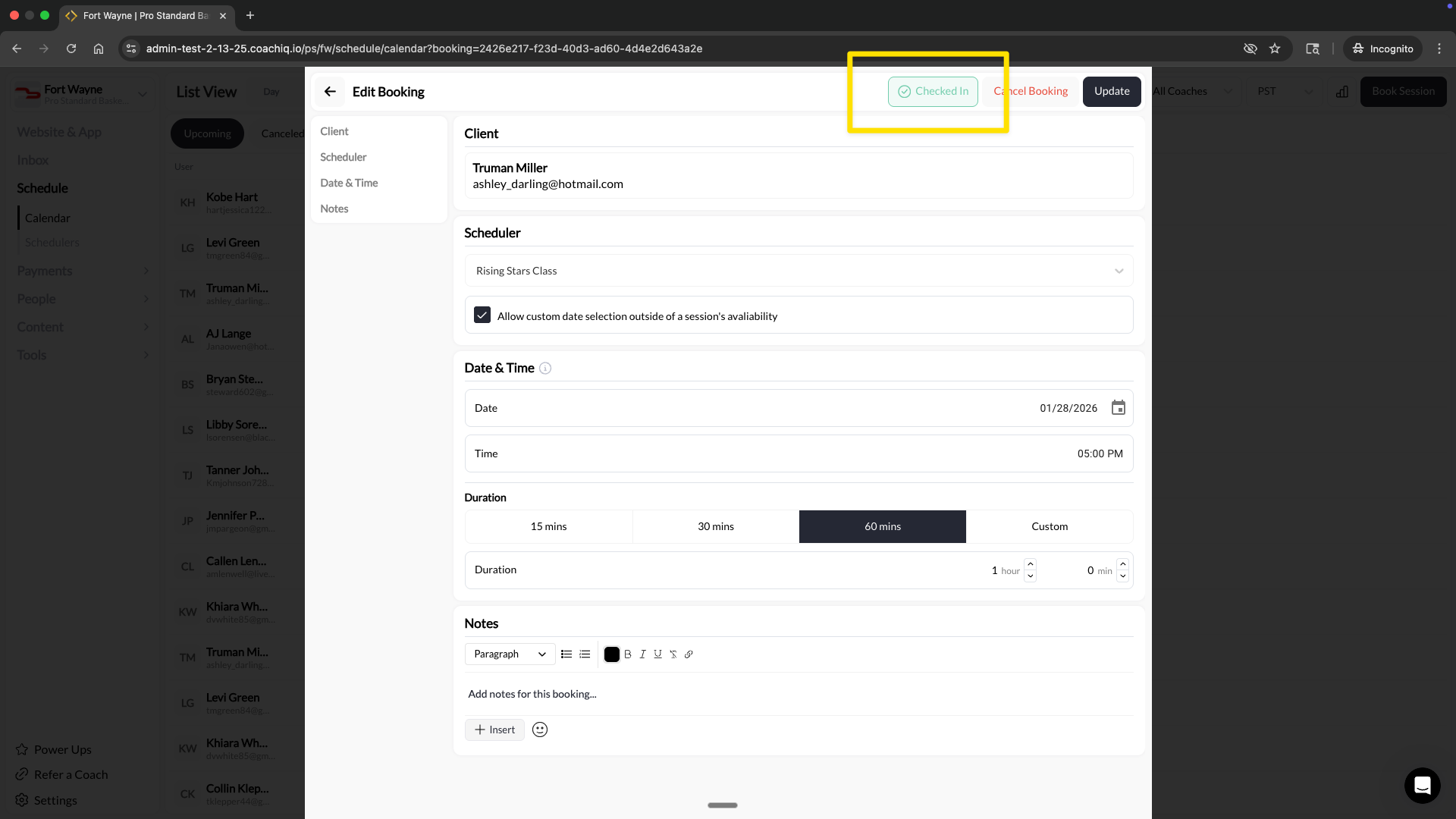 **Done.** The check-in is timestamped and saved to the booking.
## View check-in data
Check-in timestamps appear in two places:
### Calendar list view
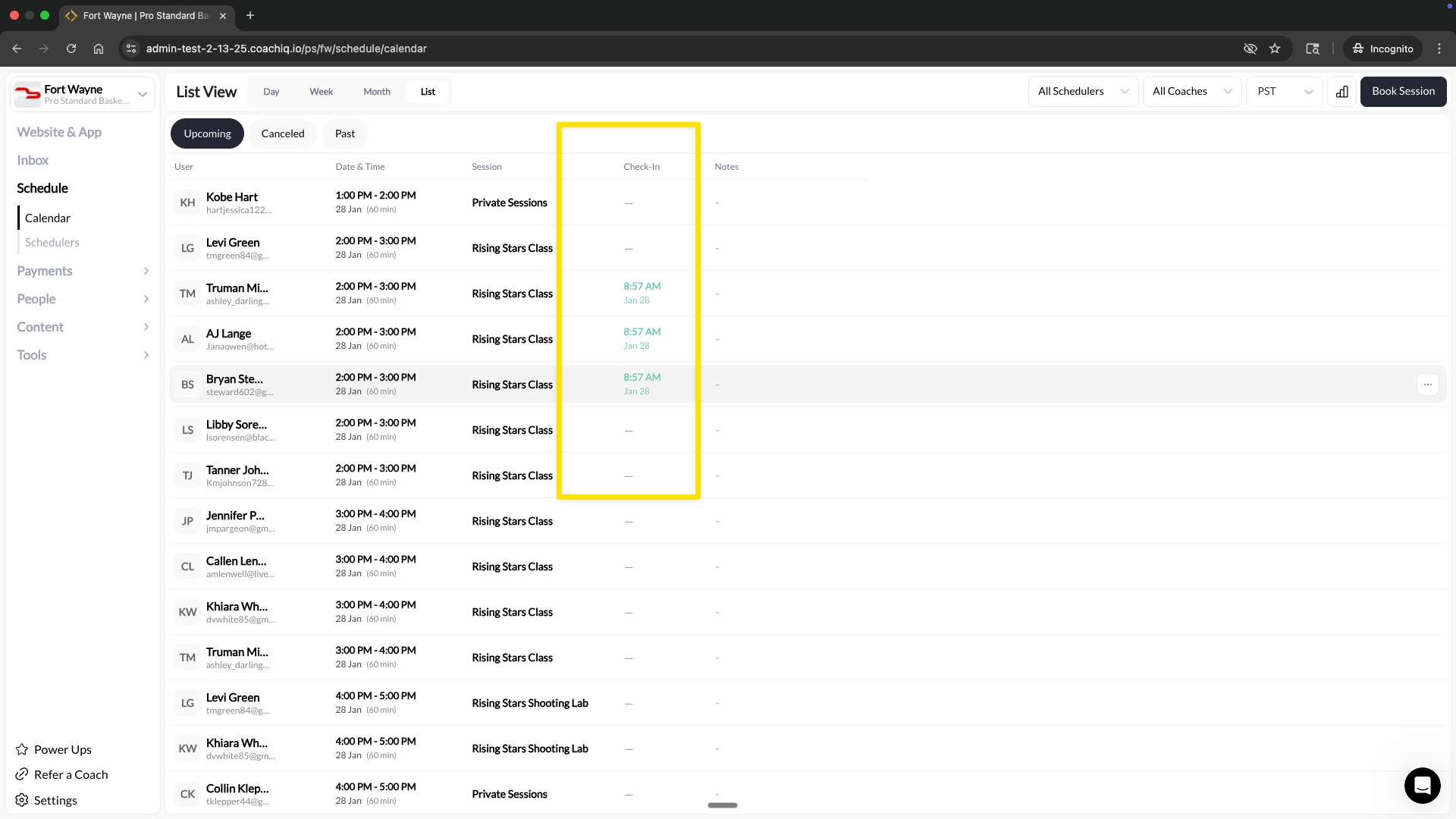
Switch to list view to see a dedicated Check-In column showing the timestamp for each booking.
**Done.** The check-in is timestamped and saved to the booking.
## View check-in data
Check-in timestamps appear in two places:
### Calendar list view
Switch to list view to see a dedicated Check-In column showing the timestamp for each booking.
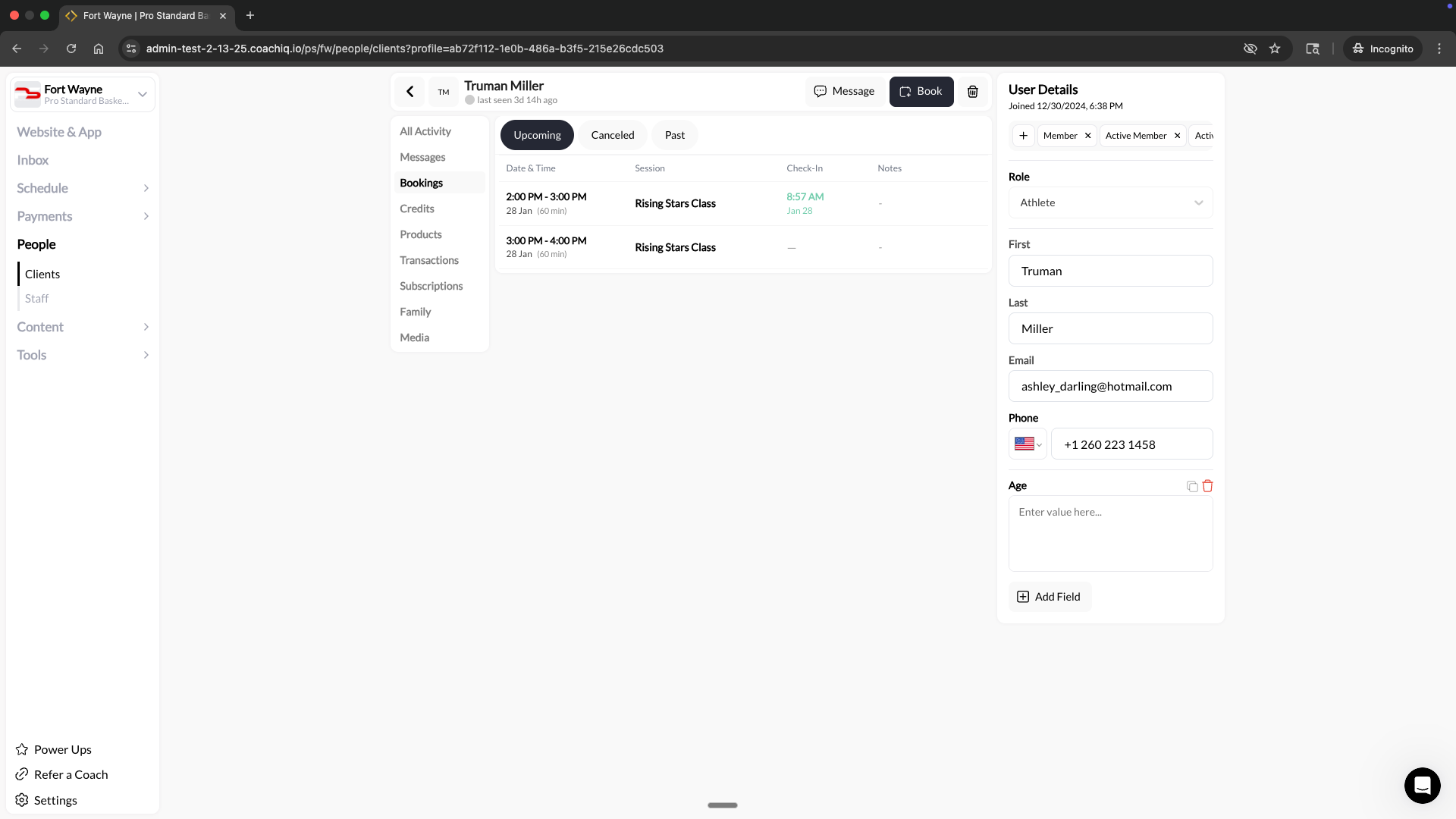
 ### Client profile
Go to **People** → select a client → **Bookings** tab. The Check-In column shows when each session was checked in.
### Client profile
Go to **People** → select a client → **Bookings** tab. The Check-In column shows when each session was checked in.
 ## Export check-in data
When you export scheduling data, check-in information is included automatically. Use this for attendance reports or record-keeping.
## Common questions
Not currently. Check in each athlete individually by clicking their checkmark.
Yes. Click the green checkmark again to remove the check-in status.
No. Check-in is purely for attendance tracking. Credits are deducted when the booking is created, not when the athlete checks in.
Any coach or admin with calendar access can check in athletes.
Not currently. Only coaches and admins can mark athletes as checked in.
## Related articles
Navigate and manage your calendar
Modify booking details
## Export check-in data
When you export scheduling data, check-in information is included automatically. Use this for attendance reports or record-keeping.
## Common questions
Not currently. Check in each athlete individually by clicking their checkmark.
Yes. Click the green checkmark again to remove the check-in status.
No. Check-in is purely for attendance tracking. Credits are deducted when the booking is created, not when the athlete checks in.
Any coach or admin with calendar access can check in athletes.
Not currently. Only coaches and admins can mark athletes as checked in.
## Related articles
Navigate and manage your calendar
Modify booking details