> ## Documentation Index
> Fetch the complete documentation index at: https://help.coachiq.io/llms.txt
> Use this file to discover all available pages before exploring further.
# Canceling Bookings: Process and Outcomes
> Quick guide to canceling sessions, understanding credit refunds, and managing cancellation notifications
**Quick navigation**: Schedule → Calendar → Click booking → Cancel
## Who can cancel bookings?
**Full cancellation control:**
* Cancel any booking at any time
* Cancel single sessions or entire recurring patterns
* Override cancellation policies
* No restrictions
**Use cases**: Schedule conflicts, coach illness, facility issues, athlete requests
**Limited by your cancellation policy:**
* Can only cancel their own bookings (if product allows)
* Subject to time restrictions (e.g., 24-hour notice)
* May lose credits based on policy
* Cannot cancel past sessions
**Access**: Through athlete portal/app or booking confirmation link
***
## Controlling whether athletes can cancel
You can enable or disable athlete self-cancellation on a per-scheduler basis. When disabled, only coaches and admins can cancel bookings — athletes must contact you directly.
Find this in your scheduler under **Settings → Booking Rules → Allow athletes to cancel**.
You can also control whether credits are refunded on cancellation with the **Refund credits used on cancelation** toggle in the same section. See [Scheduler Settings: Limits and Permissions](/scheduling/scheduler-settings-limits-and-permissions) for all Booking Rules options.
***
## How to cancel a booking
**Two ways to access:**
1. **From Calendar**: Schedule → Calendar → Click the booking
2. **From Athlete Profile**: People → Clients → Select athlete → Upcoming Bookings
Choose whichever is most convenient.
Click on the specific booking to open the details panel.
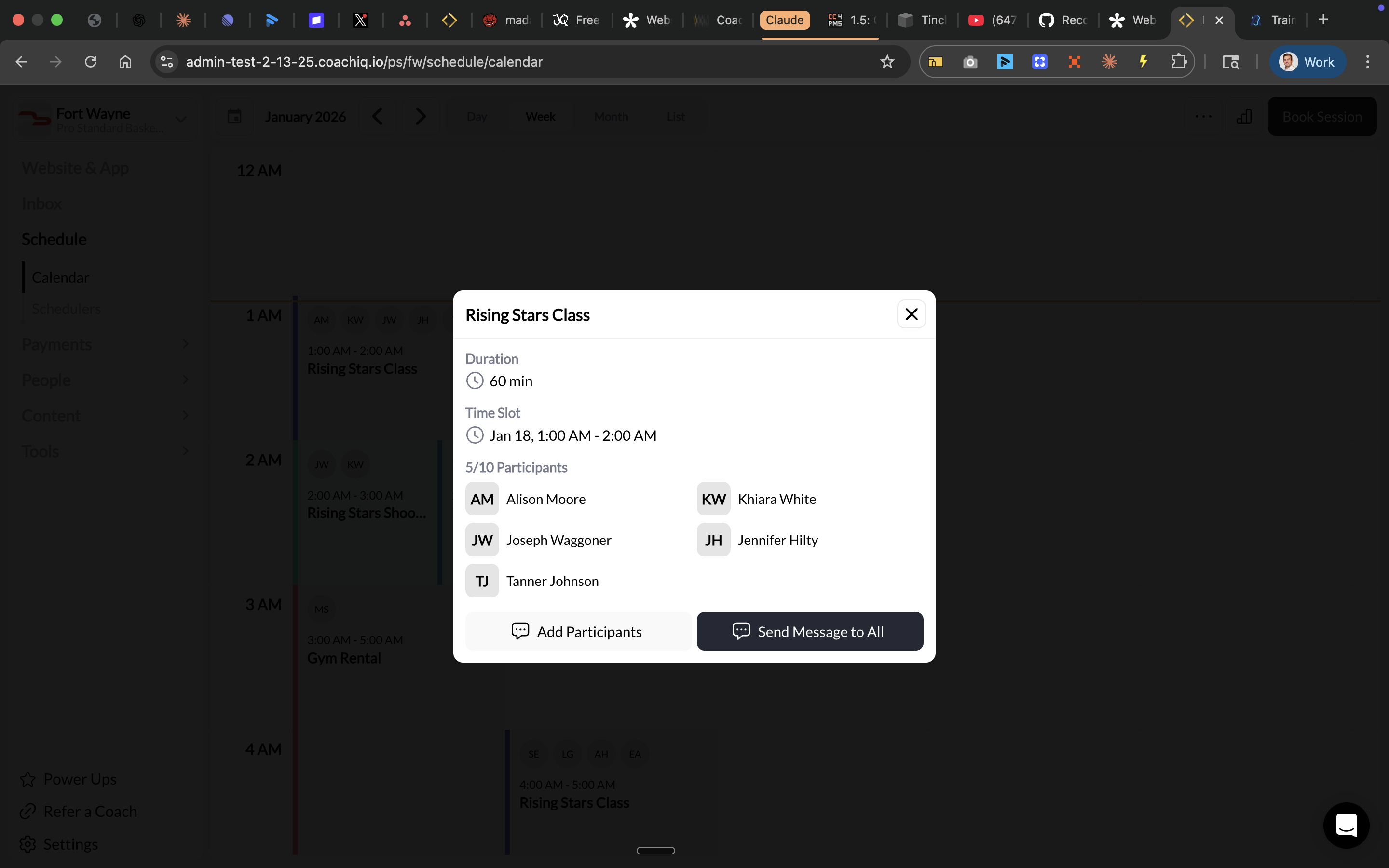 You'll see:
* Athlete name and participants list
* Session time/date
* Scheduler type
* Action buttons including **Send Message to All**
Look for the **Cancel** button (usually red or in actions menu).
Click it to initiate cancellation.
Note: Before cancelling be sure to notify your clients of cancellation and your reason. Look for the Send Message to All button to message all participants in a session.
System asks for confirmation to prevent accidental cancellations.
Note: If a client booked with a credit the system will prompt you to refund the credit to their account or not.
You'll see:
* Athlete name and participants list
* Session time/date
* Scheduler type
* Action buttons including **Send Message to All**
Look for the **Cancel** button (usually red or in actions menu).
Click it to initiate cancellation.
Note: Before cancelling be sure to notify your clients of cancellation and your reason. Look for the Send Message to All button to message all participants in a session.
System asks for confirmation to prevent accidental cancellations.
Note: If a client booked with a credit the system will prompt you to refund the credit to their account or not.
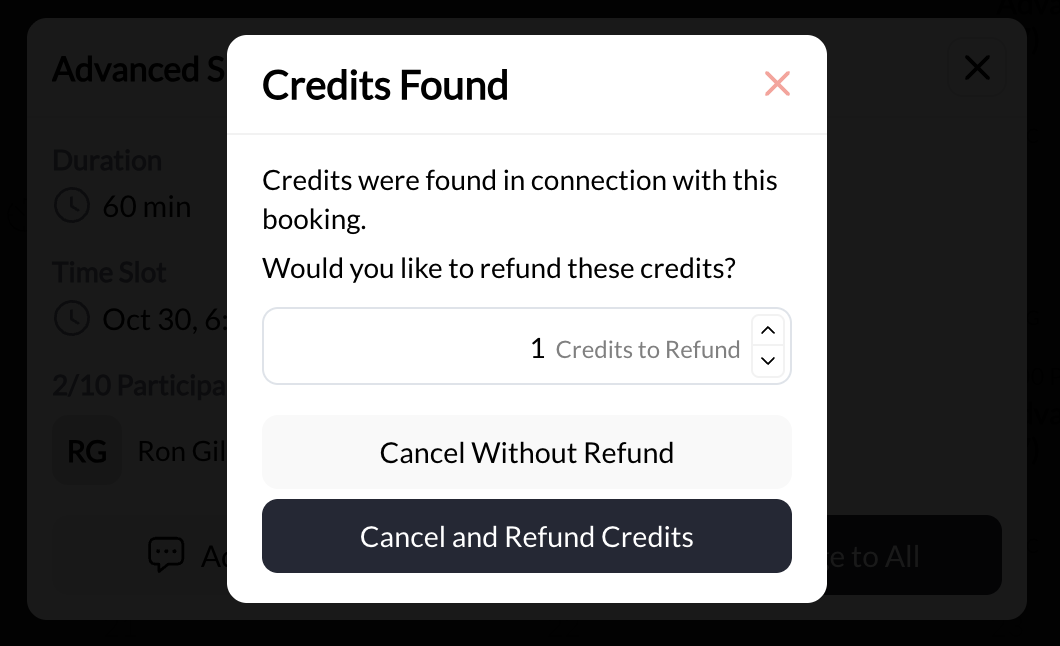 **Cancel** to complete the cancellation.
**Booking canceled!** Session removed from calendar, athlete notified, credits handled per policy.
**Bulk cancellation**: To cancel multiple sessions at once (like an entire week), cancel each individually from the calendar. There's no bulk cancel currently—filter your calendar to the specific date range to speed this up.
***
## What happens when you cancel?
**Immediate changes:**
* Booking removed from your calendar
* Time slot becomes available again
* Athlete's calendar updated
* Capacity opens up (for group sessions)
**Who gets notified:**
* Athlete receives cancellation email/SMS
* You receive confirmation
* Any followers/coaches assigned to session
**Message includes**: Canceled session details
**Depends on your policy:**
* **With proper notice**: Credits refunded
* **Late cancellation**: Credits forfeited
* **Free sessions**: No credit impact
See credit policies section below.
**For recurring sessions:**
* Canceling ONE occurrence: Only that session canceled
* Canceling ENTIRE pattern: All future sessions removed
* Already-completed sessions: Unaffected
See [Recurring Bookings](/scheduling/recurring-bookings) for details.
***
## Cancellation scenarios and outcomes
**Scenario**: You cancel athlete's session 48 hours in advance
**What happens:**
* ✅ Booking removed from calendar
* ✅ Athlete notified immediately
* ✅ Credits refunded (if credit-based)
* ✅ Athlete can rebook another time
* ✅ Professional courtesy maintained
**Best practice**: Offer alternative times in cancellation message
**Example message**: "Hi Jake, need to cancel Tuesday's session due to facility maintenance. Can we reschedule for Wednesday 5pm or Thursday 6pm?"
**Scenario**: You cancel session on same day (emergency)
**What happens:**
* ✅ Booking removed
* ✅ Athlete notified
* ✅ Credits refunded (coach cancellations typically refund regardless of timing)
* ⚠️ May impact athlete satisfaction
**Best practice**:
* Call/text athlete directly (don't rely only on auto-notification)
* Offer priority rebooking
* Consider offering extra session or discount for inconvenience
**Example**: "Jake, I'm so sorry but I'm sick and need to cancel today's 6pm session. Credits fully refunded. Can I offer you a free 15-min extension on your next session?"
**Scenario**: Athlete cancels 24+ hours before session (within your policy)
**What happens:**
* ✅ Booking removed
* ✅ You're notified
* ✅ Credits refunded to athlete
* ✅ Time slot opens for other bookings
* ✅ No penalty
**Coach action needed**: None (system handles automatically)
**Optional**: Send quick confirmation message acknowledging cancellation
**Scenario**: Athlete cancels with only 6 hours notice (policy requires 24 hours)
**What happens:**
* ✅ Booking removed
* ❌ Credits NOT refunded (forfeited per policy)
* ✅ You're notified
* ⚠️ Time slot might be too late to fill
**Coach decision points**:
* **Strict enforcement**: No refund, credits lost
* **One-time courtesy**: Manually refund credits, warn about future
* **Consider circumstances**: Legit emergency? Offer flexibility
* **Edit Scheduler:** Adjust your minimum cancellation notice to your policy to avoid cancellation through the system
**Example strict message**: "Hi Sarah, I see you canceled today's session. Per our 24-hour policy, the credit has been forfeited. Please make sure to cancel earlier next time!"
**Example flexible message**: "Hi Sarah, I see you canceled today's session last-minute. I'll refund the credit this time as a courtesy, but please note our 24-hour cancellation policy for future sessions."
**Scenario**: Athlete doesn't show up and doesn't cancel
**What happens:**
* ✅ Session time passes
* ❌ Credits NOT refunded (forfeited)
* ⚠️ Wasted time slot
* ⚠️ Potential revenue loss
**Coach action required**:
2. Message athlete/parent to check in
3. Enforce no-show policy
4. Consider pattern (multiple no-shows = conversation needed)
**Example message**: "Hey Chris, I noticed you didn't make it to today's 5pm session. Everything okay? Per our policy, the credit has been used."
**Scenario**: You need to cancel a group class with 8 athletes booked
**What happens:**
* ✅ All athletes can be notified at once
* ✅ Credits refunded to all participants
* ✅ Full capacity opens up
**Best practice**:
* Send group message explaining cancellation
* Offer alternative date/time
* Consider posting on social media if you have regular group classes
**Example**: "Hey team, tonight's 6pm bootcamp is canceled due to weather. Rescheduled for tomorrow same time. All credits refunded—see you tomorrow!"
**Scenario**: Athlete's recurring Tuesday sessions, need to cancel just Oct 15
**What happens:**
* ✅ Single session removed
* ✅ All other Tuesdays remain scheduled
* ✅ Credits refunded (if applicable)
* ✅ Recurring pattern continues
**How to do it**:
* Click Oct 15 session → Cancel
* OR use "Skip" in Occurrences view (see [Recurring Bookings](/scheduling/recurring-bookings))
**Note**: This doesn't affect the recurring pattern itself—future sessions continue as scheduled.
**Scenario**: Athlete discontinues training, needs to cancel all future sessions
**What happens:**
* ✅ All remaining recurring sessions deleted
* ✅ Athlete notified once
* ✅ Credits NOT automatically refunded (handle manually if needed)
* ✅ Calendar cleared of all future occurrences
**How to do it**:
1. Click any session in recurring series
2. Open Occurrences view
3. Delete entire pattern
**Important**: Past completed sessions remain unaffected.
See [Recurring Bookings](/scheduling/recurring-bookings) for full details.
***
## Understanding cancellation policies
Your cancellation policy determines credit refund rules. Configure this in your scheduler settings.
### Common policy structures
**Configuration**:
* Cancel 24+ hours before: Credits refunded
* Cancel 24 hours: Credits forfeited
* No-show: Credits forfeited
**Best for**: Most coaches, balanced fairness
**Why it works**:
* Gives you time to fill the slot
* Fair to athletes who plan ahead
* Industry standard
**Configuration**:
* Cancel by 6am on session day: Credits refunded
* Cancel after 6am: Credits forfeited
* No-show: Credits forfeited + possible penalty
**Best for**: High-demand schedules, waitlists common
**Why it works**:
* Protects premium time slots
* Reduces last-minute cancellations
* Maximizes booking efficiency
**Configuration**:
* Cancel anytime: Credits always refunded
* No-show: Credits forfeited (only exception)
**Best for**: New businesses, building clientele, trial periods
**Why it works**:
* Low barrier for new athletes
* Builds goodwill
* Competitive advantage in crowded markets
**Risk**: Higher cancellation rates, harder to plan
**Configuration**:
* 48+ hours: Full refund
* 24-48 hours: 50% credit refund
* Less than 24 hours: No refund
* No-show: No refund + \$10 fee
**Best for**: Premium services, established businesses
**Why it works**:
* Graduated consequences
* Incentivizes early cancellation
* Protects business while offering flexibility
### Setting your policy
**Where to configure**:
1. Go to scheduler settings
2. Find "Cancellation Policy" section
3. Set time window (e.g., 24 hours)
4. Choose refund behavior
**Communicate clearly**:
* Display policy on booking page
* Include in confirmation emails
* Remind athletes periodically
**Policy enforcement**: The system can enforce policies automatically, but you always have manual override ability. Use discretion for legitimate emergencies.
***
## Credit refund scenarios
**Important**: Credit refunds depend on your cancellation policy configuration. These are typical scenarios—your actual setup may differ.
| Scenario | Credits Refunded? | Notes |
| ------------------------------------- | ----------------- | --------------------------------------------------------------------------------------- |
| Coach cancels anytime | ✅ Yes (always) | Regardless of timing, coach cancellations refund credits |
| Athlete cancels with proper notice | ✅ Yes | Within policy window (e.g., 24+ hours) |
| Athlete cancels late | ❌ No | Outside policy window = forfeited |
| Athlete no-show | ❌ No | Credits used, session counted |
| Free session canceled | N/A | No credits involved |
| Paid session canceled (proper notice) | ✅ Yes | Refund to original payment method or credit account for an alternative training session |
| Recurring pattern deleted | Manual | Handle refunds on case-by-case basis |
***
## Best practices for cancellations
**Document and share** your cancellation policy:
* On website booking page
* In welcome packet
* In confirmation emails
* Verbally during onboarding
**Result**: Fewer disputes, clear expectations
**When you cancel**, immediately offer rebooking options:
* "Can we move to Thursday?"
* "Next week same time work?"
**Result**: Maintains momentum, reduces dropout
**Enforce policies consistently** but allow for:
* Legitimate emergencies
* First-time exceptions
* Long-term loyal clients
**Balance**: Fairness + flexibility = retention
**Monitor cancellation rates** by:
* Individual athletes
* Time slots
* Session types
**Action**: Address chronic cancelers, adjust popular times
***
## Quick reference: Cancellation checklist
**When canceling a booking:**
* Cancel as soon as you know (maximize notice time)
* Send personal message (don't rely only on auto-notification)
* Offer alternative times/dates
* Confirm credit refund status with athlete
* Note reason for cancellation (for your records)
* For recurring sessions: Clarify if this is one session or entire pattern
* For group sessions: Consider group message/announcement
* Follow up day after to confirm athlete received notice
***
## Next steps
Understand how cancellations work within recurring patterns
Configure your cancellation policies and rules
Deep dive into how credits work with cancellations
## Related articles
Understand different booking methods
Navigate and filter to find bookings to cancel
Fix common booking and cancellation issues
***
**You now understand**: How to cancel bookings, what happens to credits and notifications, and how to handle various cancellation scenarios professionally.
**Questions about cancellation policies?** Our support team can help you configure the optimal cancellation rules for your coaching business. [Contact Support](https://support.coachiq.com)
Need to move a session instead of canceling? See [Editing & Rescheduling Bookings](/scheduling/editing-rescheduling-bookings).
**Cancel** to complete the cancellation.
**Booking canceled!** Session removed from calendar, athlete notified, credits handled per policy.
**Bulk cancellation**: To cancel multiple sessions at once (like an entire week), cancel each individually from the calendar. There's no bulk cancel currently—filter your calendar to the specific date range to speed this up.
***
## What happens when you cancel?
**Immediate changes:**
* Booking removed from your calendar
* Time slot becomes available again
* Athlete's calendar updated
* Capacity opens up (for group sessions)
**Who gets notified:**
* Athlete receives cancellation email/SMS
* You receive confirmation
* Any followers/coaches assigned to session
**Message includes**: Canceled session details
**Depends on your policy:**
* **With proper notice**: Credits refunded
* **Late cancellation**: Credits forfeited
* **Free sessions**: No credit impact
See credit policies section below.
**For recurring sessions:**
* Canceling ONE occurrence: Only that session canceled
* Canceling ENTIRE pattern: All future sessions removed
* Already-completed sessions: Unaffected
See [Recurring Bookings](/scheduling/recurring-bookings) for details.
***
## Cancellation scenarios and outcomes
**Scenario**: You cancel athlete's session 48 hours in advance
**What happens:**
* ✅ Booking removed from calendar
* ✅ Athlete notified immediately
* ✅ Credits refunded (if credit-based)
* ✅ Athlete can rebook another time
* ✅ Professional courtesy maintained
**Best practice**: Offer alternative times in cancellation message
**Example message**: "Hi Jake, need to cancel Tuesday's session due to facility maintenance. Can we reschedule for Wednesday 5pm or Thursday 6pm?"
**Scenario**: You cancel session on same day (emergency)
**What happens:**
* ✅ Booking removed
* ✅ Athlete notified
* ✅ Credits refunded (coach cancellations typically refund regardless of timing)
* ⚠️ May impact athlete satisfaction
**Best practice**:
* Call/text athlete directly (don't rely only on auto-notification)
* Offer priority rebooking
* Consider offering extra session or discount for inconvenience
**Example**: "Jake, I'm so sorry but I'm sick and need to cancel today's 6pm session. Credits fully refunded. Can I offer you a free 15-min extension on your next session?"
**Scenario**: Athlete cancels 24+ hours before session (within your policy)
**What happens:**
* ✅ Booking removed
* ✅ You're notified
* ✅ Credits refunded to athlete
* ✅ Time slot opens for other bookings
* ✅ No penalty
**Coach action needed**: None (system handles automatically)
**Optional**: Send quick confirmation message acknowledging cancellation
**Scenario**: Athlete cancels with only 6 hours notice (policy requires 24 hours)
**What happens:**
* ✅ Booking removed
* ❌ Credits NOT refunded (forfeited per policy)
* ✅ You're notified
* ⚠️ Time slot might be too late to fill
**Coach decision points**:
* **Strict enforcement**: No refund, credits lost
* **One-time courtesy**: Manually refund credits, warn about future
* **Consider circumstances**: Legit emergency? Offer flexibility
* **Edit Scheduler:** Adjust your minimum cancellation notice to your policy to avoid cancellation through the system
**Example strict message**: "Hi Sarah, I see you canceled today's session. Per our 24-hour policy, the credit has been forfeited. Please make sure to cancel earlier next time!"
**Example flexible message**: "Hi Sarah, I see you canceled today's session last-minute. I'll refund the credit this time as a courtesy, but please note our 24-hour cancellation policy for future sessions."
**Scenario**: Athlete doesn't show up and doesn't cancel
**What happens:**
* ✅ Session time passes
* ❌ Credits NOT refunded (forfeited)
* ⚠️ Wasted time slot
* ⚠️ Potential revenue loss
**Coach action required**:
2. Message athlete/parent to check in
3. Enforce no-show policy
4. Consider pattern (multiple no-shows = conversation needed)
**Example message**: "Hey Chris, I noticed you didn't make it to today's 5pm session. Everything okay? Per our policy, the credit has been used."
**Scenario**: You need to cancel a group class with 8 athletes booked
**What happens:**
* ✅ All athletes can be notified at once
* ✅ Credits refunded to all participants
* ✅ Full capacity opens up
**Best practice**:
* Send group message explaining cancellation
* Offer alternative date/time
* Consider posting on social media if you have regular group classes
**Example**: "Hey team, tonight's 6pm bootcamp is canceled due to weather. Rescheduled for tomorrow same time. All credits refunded—see you tomorrow!"
**Scenario**: Athlete's recurring Tuesday sessions, need to cancel just Oct 15
**What happens:**
* ✅ Single session removed
* ✅ All other Tuesdays remain scheduled
* ✅ Credits refunded (if applicable)
* ✅ Recurring pattern continues
**How to do it**:
* Click Oct 15 session → Cancel
* OR use "Skip" in Occurrences view (see [Recurring Bookings](/scheduling/recurring-bookings))
**Note**: This doesn't affect the recurring pattern itself—future sessions continue as scheduled.
**Scenario**: Athlete discontinues training, needs to cancel all future sessions
**What happens:**
* ✅ All remaining recurring sessions deleted
* ✅ Athlete notified once
* ✅ Credits NOT automatically refunded (handle manually if needed)
* ✅ Calendar cleared of all future occurrences
**How to do it**:
1. Click any session in recurring series
2. Open Occurrences view
3. Delete entire pattern
**Important**: Past completed sessions remain unaffected.
See [Recurring Bookings](/scheduling/recurring-bookings) for full details.
***
## Understanding cancellation policies
Your cancellation policy determines credit refund rules. Configure this in your scheduler settings.
### Common policy structures
**Configuration**:
* Cancel 24+ hours before: Credits refunded
* Cancel 24 hours: Credits forfeited
* No-show: Credits forfeited
**Best for**: Most coaches, balanced fairness
**Why it works**:
* Gives you time to fill the slot
* Fair to athletes who plan ahead
* Industry standard
**Configuration**:
* Cancel by 6am on session day: Credits refunded
* Cancel after 6am: Credits forfeited
* No-show: Credits forfeited + possible penalty
**Best for**: High-demand schedules, waitlists common
**Why it works**:
* Protects premium time slots
* Reduces last-minute cancellations
* Maximizes booking efficiency
**Configuration**:
* Cancel anytime: Credits always refunded
* No-show: Credits forfeited (only exception)
**Best for**: New businesses, building clientele, trial periods
**Why it works**:
* Low barrier for new athletes
* Builds goodwill
* Competitive advantage in crowded markets
**Risk**: Higher cancellation rates, harder to plan
**Configuration**:
* 48+ hours: Full refund
* 24-48 hours: 50% credit refund
* Less than 24 hours: No refund
* No-show: No refund + \$10 fee
**Best for**: Premium services, established businesses
**Why it works**:
* Graduated consequences
* Incentivizes early cancellation
* Protects business while offering flexibility
### Setting your policy
**Where to configure**:
1. Go to scheduler settings
2. Find "Cancellation Policy" section
3. Set time window (e.g., 24 hours)
4. Choose refund behavior
**Communicate clearly**:
* Display policy on booking page
* Include in confirmation emails
* Remind athletes periodically
**Policy enforcement**: The system can enforce policies automatically, but you always have manual override ability. Use discretion for legitimate emergencies.
***
## Credit refund scenarios
**Important**: Credit refunds depend on your cancellation policy configuration. These are typical scenarios—your actual setup may differ.
| Scenario | Credits Refunded? | Notes |
| ------------------------------------- | ----------------- | --------------------------------------------------------------------------------------- |
| Coach cancels anytime | ✅ Yes (always) | Regardless of timing, coach cancellations refund credits |
| Athlete cancels with proper notice | ✅ Yes | Within policy window (e.g., 24+ hours) |
| Athlete cancels late | ❌ No | Outside policy window = forfeited |
| Athlete no-show | ❌ No | Credits used, session counted |
| Free session canceled | N/A | No credits involved |
| Paid session canceled (proper notice) | ✅ Yes | Refund to original payment method or credit account for an alternative training session |
| Recurring pattern deleted | Manual | Handle refunds on case-by-case basis |
***
## Best practices for cancellations
**Document and share** your cancellation policy:
* On website booking page
* In welcome packet
* In confirmation emails
* Verbally during onboarding
**Result**: Fewer disputes, clear expectations
**When you cancel**, immediately offer rebooking options:
* "Can we move to Thursday?"
* "Next week same time work?"
**Result**: Maintains momentum, reduces dropout
**Enforce policies consistently** but allow for:
* Legitimate emergencies
* First-time exceptions
* Long-term loyal clients
**Balance**: Fairness + flexibility = retention
**Monitor cancellation rates** by:
* Individual athletes
* Time slots
* Session types
**Action**: Address chronic cancelers, adjust popular times
***
## Quick reference: Cancellation checklist
**When canceling a booking:**
* Cancel as soon as you know (maximize notice time)
* Send personal message (don't rely only on auto-notification)
* Offer alternative times/dates
* Confirm credit refund status with athlete
* Note reason for cancellation (for your records)
* For recurring sessions: Clarify if this is one session or entire pattern
* For group sessions: Consider group message/announcement
* Follow up day after to confirm athlete received notice
***
## Next steps
Understand how cancellations work within recurring patterns
Configure your cancellation policies and rules
Deep dive into how credits work with cancellations
## Related articles
Understand different booking methods
Navigate and filter to find bookings to cancel
Fix common booking and cancellation issues
***
**You now understand**: How to cancel bookings, what happens to credits and notifications, and how to handle various cancellation scenarios professionally.
**Questions about cancellation policies?** Our support team can help you configure the optimal cancellation rules for your coaching business. [Contact Support](https://support.coachiq.com)
Need to move a session instead of canceling? See [Editing & Rescheduling Bookings](/scheduling/editing-rescheduling-bookings).