> ## Documentation Index
> Fetch the complete documentation index at: https://help.coachiq.io/llms.txt
> Use this file to discover all available pages before exploring further.
# Calendar Analytics
> Track booking performance, fill rates, cancellation patterns, and coach utilization to optimize your schedule
**Where to find this**: Schedule → Calendar → Click the analytics icon (chart) in the top right
## What you'll learn
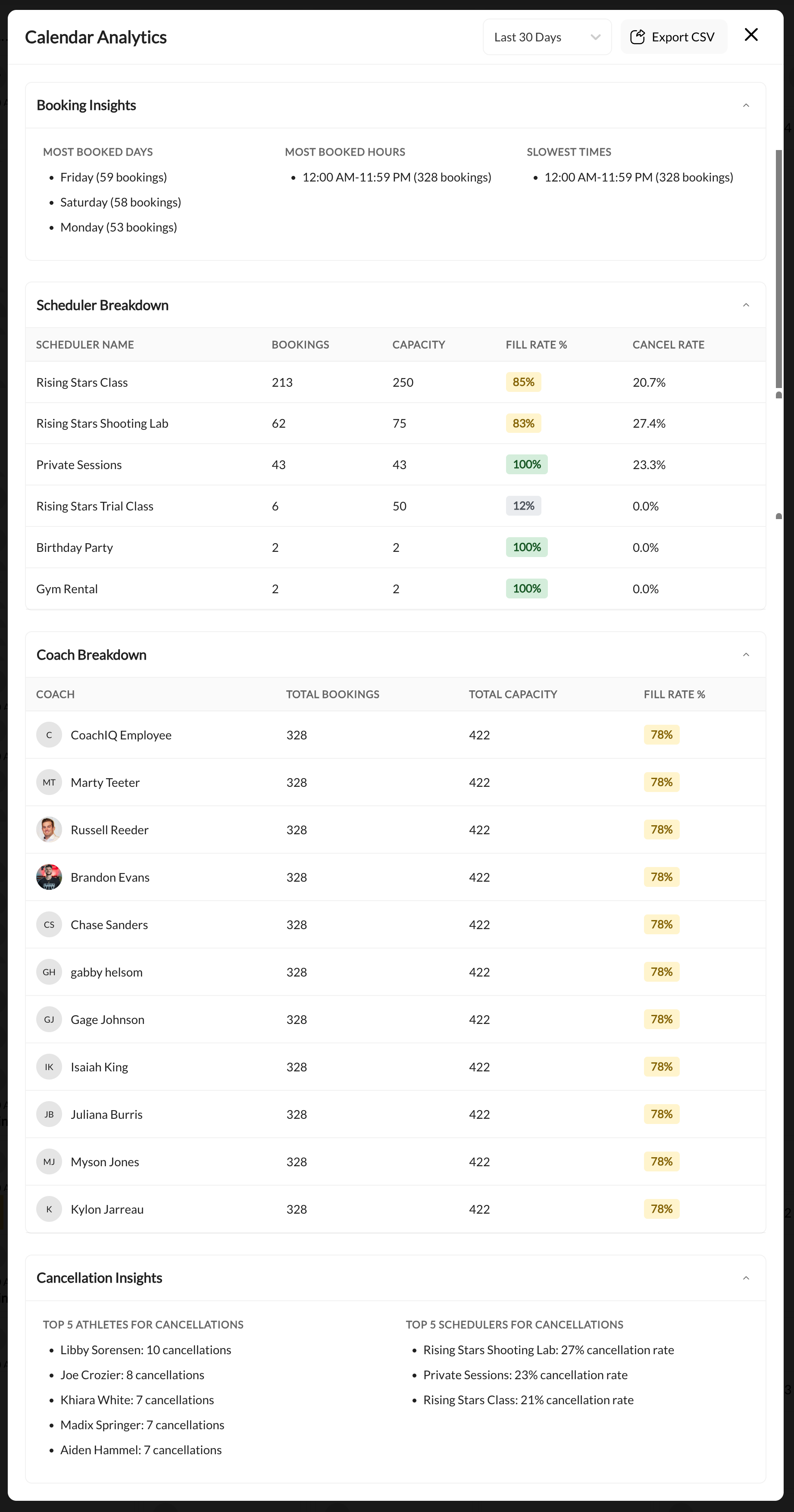
Use Calendar Analytics to understand your booking patterns, identify underperforming schedulers, track coach utilization, and spot cancellation trends—all the data you need to optimize your schedule for maximum revenue.
 ***
## Booking insights
The top section gives you a quick snapshot of your busiest and slowest periods.
### Most booked days
See which days of the week have the highest booking volume.
**Use this to:**
* Schedule important sessions on your busiest days (higher attendance likelihood)
* Identify days to run promotions for slower periods
* Plan your personal schedule around peak demand
### Most booked hours
Identify your peak booking times.
**Use this to:**
* Ensure you have availability during high-demand hours
* Consider premium pricing for peak times
* Staff appropriately for busy periods
### Slowest times
Find gaps in your schedule where demand is low.
**Use this to:**
* Run promotions or discounts for slow periods
* Consider reducing availability during low-demand times
* Target marketing for underutilized slots
***
## Scheduler breakdown
This table shows performance metrics for each of your schedulers.
| Column | What It Shows |
| ------------------ | ------------------------------------------------ |
| **Scheduler Name** | The name of each scheduler |
| **Bookings** | Total number of bookings in the selected period |
| **Capacity** | Total available slots across all sessions |
| **Fill Rate %** | Percentage of available capacity that was booked |
| **Cancel Rate** | Percentage of bookings that were canceled |
### Reading the data
**Example**: 95% fill rate, 5% cancel rate
**What it means**: This scheduler is performing well. Demand is high and athletes are committed.
**Action**: Consider raising prices or adding more availability.
**Example**: 40% fill rate
**What it means**: You have more capacity than demand for this scheduler.
**Possible actions**:
* Reduce availability (fewer time slots)
* Lower price to increase demand
* Improve marketing for this service
* Consider discontinuing if consistently underperforming
**Example**: 30%+ cancel rate
**What it means**: Athletes are booking but frequently canceling.
**Possible actions**:
* Review and tighten cancellation policy
* Send more reminders before sessions
* Investigate if specific athletes are chronic cancelers
* Check if the scheduler timing conflicts with common schedules
**Example**: 100% fill rate every period
**What it means**: You're fully booked—possibly leaving revenue on the table.
**Action**: Add more availability or raise prices to balance demand.
***
## Coach breakdown
If you have multiple coaches, this section shows how bookings are distributed across your team.
| Column | What It Shows |
| ------------------ | -------------------------------------------------- |
| **Coach** | Coach name and avatar |
| **Total Bookings** | Number of sessions booked with this coach |
| **Total Capacity** | Total available slots for this coach |
| **Fill Rate %** | Percentage of the coach's capacity that was booked |
### Using coach data
**Identify top performers**: Coaches with high fill rates are in demand. Consider:
* Having them mentor other coaches
* Raising their session prices
* Giving them more availability
**Support underperformers**: Coaches with low fill rates may need:
* More training or development
* Better marketing/visibility
* Schedule adjustments to more popular times
* Review of athlete feedback
**Balance workload**: Ensure bookings are distributed fairly to prevent burnout and maintain quality.
***
## Cancellation insights
The bottom section highlights cancellation patterns to help you reduce no-shows and lost revenue.
### Top athletes for cancellations
Lists the athletes who cancel most frequently.
**How to use this**:
* Have a conversation with chronic cancelers about commitment
* Consider stricter cancellation policies for repeat offenders
* Investigate if there's a pattern (always cancels Mondays? Specific scheduler?)
* Decide if the athlete is a good fit for your business
### Top schedulers for cancellations
Shows which schedulers have the highest cancellation rates.
**Common causes of high scheduler cancellation rates**:
* **Inconvenient timing**: Sessions at awkward hours
* **Too far in advance**: Athletes forget about sessions booked weeks out
* **Wrong audience**: Scheduler attracting uncommitted athletes
* **Pricing mismatch**: Athletes booking then getting price shock
**Actions to take**:
* Review scheduler settings and timing
* Shorten the booking window (e.g., 14 days instead of 30)
* Add more reminders before sessions
* Require prepayment or deposits
***
## Filtering your data
Use the **date range selector** (top right) to view analytics for specific periods:
* **Last 7 days**: Recent performance snapshot
* **Last 30 days**: Monthly trends (default view)
* **Last 90 days**: Quarterly patterns
* **Custom range**: Specific dates for detailed analysis
**Compare periods**: Check analytics for the same period across different months to identify seasonal patterns. Is summer slower? Do cancellations spike around holidays?
***
## Exporting data
Click **Export CSV** to download your analytics data for deeper analysis in spreadsheets.
**The export includes**:
* All scheduler metrics
* Coach performance data
* Cancellation statistics
* Date range included in filename
**Use exported data for**:
* Creating custom reports
* Tracking month-over-month trends
* Sharing with business partners
* Tax and business planning
***
## Taking action on insights
**Problem**: Schedulers under 60% fill rate
**Actions**:
* Reduce available slots
* Run targeted promotions
* Adjust pricing
* Improve marketing
**Problem**: Cancel rates over 20%
**Actions**:
* Tighten cancellation policy
* Add confirmation reminders
* Address chronic cancelers
* Require deposits
**Problem**: One coach at 95%, others at 50%
**Actions**:
* Promote underbooked coaches
* Adjust scheduling/availability
* Review pricing parity
* Cross-train for popular styles
**Problem**: High demand but limited availability at peak times
**Actions**:
* Add availability during peak hours
* Implement premium pricing
* Hire additional coaches
* Create waitlists
***
## Related articles
Navigate and manage your daily schedule
Configure capacity and cancellation policies
Track credit usage and balances
***
## Booking insights
The top section gives you a quick snapshot of your busiest and slowest periods.
### Most booked days
See which days of the week have the highest booking volume.
**Use this to:**
* Schedule important sessions on your busiest days (higher attendance likelihood)
* Identify days to run promotions for slower periods
* Plan your personal schedule around peak demand
### Most booked hours
Identify your peak booking times.
**Use this to:**
* Ensure you have availability during high-demand hours
* Consider premium pricing for peak times
* Staff appropriately for busy periods
### Slowest times
Find gaps in your schedule where demand is low.
**Use this to:**
* Run promotions or discounts for slow periods
* Consider reducing availability during low-demand times
* Target marketing for underutilized slots
***
## Scheduler breakdown
This table shows performance metrics for each of your schedulers.
| Column | What It Shows |
| ------------------ | ------------------------------------------------ |
| **Scheduler Name** | The name of each scheduler |
| **Bookings** | Total number of bookings in the selected period |
| **Capacity** | Total available slots across all sessions |
| **Fill Rate %** | Percentage of available capacity that was booked |
| **Cancel Rate** | Percentage of bookings that were canceled |
### Reading the data
**Example**: 95% fill rate, 5% cancel rate
**What it means**: This scheduler is performing well. Demand is high and athletes are committed.
**Action**: Consider raising prices or adding more availability.
**Example**: 40% fill rate
**What it means**: You have more capacity than demand for this scheduler.
**Possible actions**:
* Reduce availability (fewer time slots)
* Lower price to increase demand
* Improve marketing for this service
* Consider discontinuing if consistently underperforming
**Example**: 30%+ cancel rate
**What it means**: Athletes are booking but frequently canceling.
**Possible actions**:
* Review and tighten cancellation policy
* Send more reminders before sessions
* Investigate if specific athletes are chronic cancelers
* Check if the scheduler timing conflicts with common schedules
**Example**: 100% fill rate every period
**What it means**: You're fully booked—possibly leaving revenue on the table.
**Action**: Add more availability or raise prices to balance demand.
***
## Coach breakdown
If you have multiple coaches, this section shows how bookings are distributed across your team.
| Column | What It Shows |
| ------------------ | -------------------------------------------------- |
| **Coach** | Coach name and avatar |
| **Total Bookings** | Number of sessions booked with this coach |
| **Total Capacity** | Total available slots for this coach |
| **Fill Rate %** | Percentage of the coach's capacity that was booked |
### Using coach data
**Identify top performers**: Coaches with high fill rates are in demand. Consider:
* Having them mentor other coaches
* Raising their session prices
* Giving them more availability
**Support underperformers**: Coaches with low fill rates may need:
* More training or development
* Better marketing/visibility
* Schedule adjustments to more popular times
* Review of athlete feedback
**Balance workload**: Ensure bookings are distributed fairly to prevent burnout and maintain quality.
***
## Cancellation insights
The bottom section highlights cancellation patterns to help you reduce no-shows and lost revenue.
### Top athletes for cancellations
Lists the athletes who cancel most frequently.
**How to use this**:
* Have a conversation with chronic cancelers about commitment
* Consider stricter cancellation policies for repeat offenders
* Investigate if there's a pattern (always cancels Mondays? Specific scheduler?)
* Decide if the athlete is a good fit for your business
### Top schedulers for cancellations
Shows which schedulers have the highest cancellation rates.
**Common causes of high scheduler cancellation rates**:
* **Inconvenient timing**: Sessions at awkward hours
* **Too far in advance**: Athletes forget about sessions booked weeks out
* **Wrong audience**: Scheduler attracting uncommitted athletes
* **Pricing mismatch**: Athletes booking then getting price shock
**Actions to take**:
* Review scheduler settings and timing
* Shorten the booking window (e.g., 14 days instead of 30)
* Add more reminders before sessions
* Require prepayment or deposits
***
## Filtering your data
Use the **date range selector** (top right) to view analytics for specific periods:
* **Last 7 days**: Recent performance snapshot
* **Last 30 days**: Monthly trends (default view)
* **Last 90 days**: Quarterly patterns
* **Custom range**: Specific dates for detailed analysis
**Compare periods**: Check analytics for the same period across different months to identify seasonal patterns. Is summer slower? Do cancellations spike around holidays?
***
## Exporting data
Click **Export CSV** to download your analytics data for deeper analysis in spreadsheets.
**The export includes**:
* All scheduler metrics
* Coach performance data
* Cancellation statistics
* Date range included in filename
**Use exported data for**:
* Creating custom reports
* Tracking month-over-month trends
* Sharing with business partners
* Tax and business planning
***
## Taking action on insights
**Problem**: Schedulers under 60% fill rate
**Actions**:
* Reduce available slots
* Run targeted promotions
* Adjust pricing
* Improve marketing
**Problem**: Cancel rates over 20%
**Actions**:
* Tighten cancellation policy
* Add confirmation reminders
* Address chronic cancelers
* Require deposits
**Problem**: One coach at 95%, others at 50%
**Actions**:
* Promote underbooked coaches
* Adjust scheduling/availability
* Review pricing parity
* Cross-train for popular styles
**Problem**: High demand but limited availability at peak times
**Actions**:
* Add availability during peak hours
* Implement premium pricing
* Hire additional coaches
* Create waitlists
***
## Related articles
Navigate and manage your daily schedule
Configure capacity and cancellation policies
Track credit usage and balances