> ## Documentation Index
> Fetch the complete documentation index at: https://help.coachiq.io/llms.txt
> Use this file to discover all available pages before exploring further.
# Set Up Your Personalized App
> Start with an Apple Developer Organization membership, verify your business, and invite CoachIQ to launch your branded app.
**Start here: enroll your business as an Organization, not an Individual.**
For your CoachIQ personalized iOS app, choose **Company / Organization** when enrolling in the Apple Developer Program. Do **not** choose **Individual / Sole Proprietor / Single Person Business**. An Individual membership does not give CoachIQ the developer-team access needed for this setup—even if you can send an App Store Connect invitation.
Already enrolled as an Individual? [Correct your membership first](#already-enrolled-as-an-individual).
You prepare your business account and branding; CoachIQ builds your app and coordinates submission. Let the CoachIQ team know whether you need iOS, Android, or both. You can begin the account preparation below directly; no Power-Up request is required. See the [Personalized App overview](/power-ups/personalized-app) for what is included.
The Apple steps below apply to **iOS**. For Google Play, use [Android setup](#android-setup).
## Check your Apple account before you continue
Your **Apple Account** (formerly Apple ID) is your sign-in. Your **Apple Developer Program membership** has an enrollment type. Creating an Apple Account or adding a business name to it does **not** create an Organization membership.
| Your situation | Your next step |
| - | - |
| You have not enrolled in the Apple Developer Program | Prepare the business details below, then enroll as **Company / Organization**. |
| You already have an active **Organization** membership for this business | Check the legal entity, then [invite CoachIQ](#invite-coachiq-to-your-apple-developer-account). |
| Your membership says **Individual** | [Request a conversion through Apple](#already-enrolled-as-an-individual) before inviting CoachIQ. |
| You are unsure which type you have | Sign in to your [Apple Developer account](https://developer.apple.com/account/) and review **Membership details**. If the type is unclear, ask Apple Developer Support to confirm it. |
| You operate as a sole proprietor and do not have an eligible legal entity | Contact CoachIQ before enrolling or paying. Apple requires an eligible legal entity for Organization enrollment; a trading name alone does not qualify. |
**Working alone is different from enrolling as an Individual.** Choose based on your business's legal entity, not how many coaches you employ. Apple verifies whether your business qualifies for Organization enrollment.
## What you'll need for iOS
Gather these before starting enrollment:
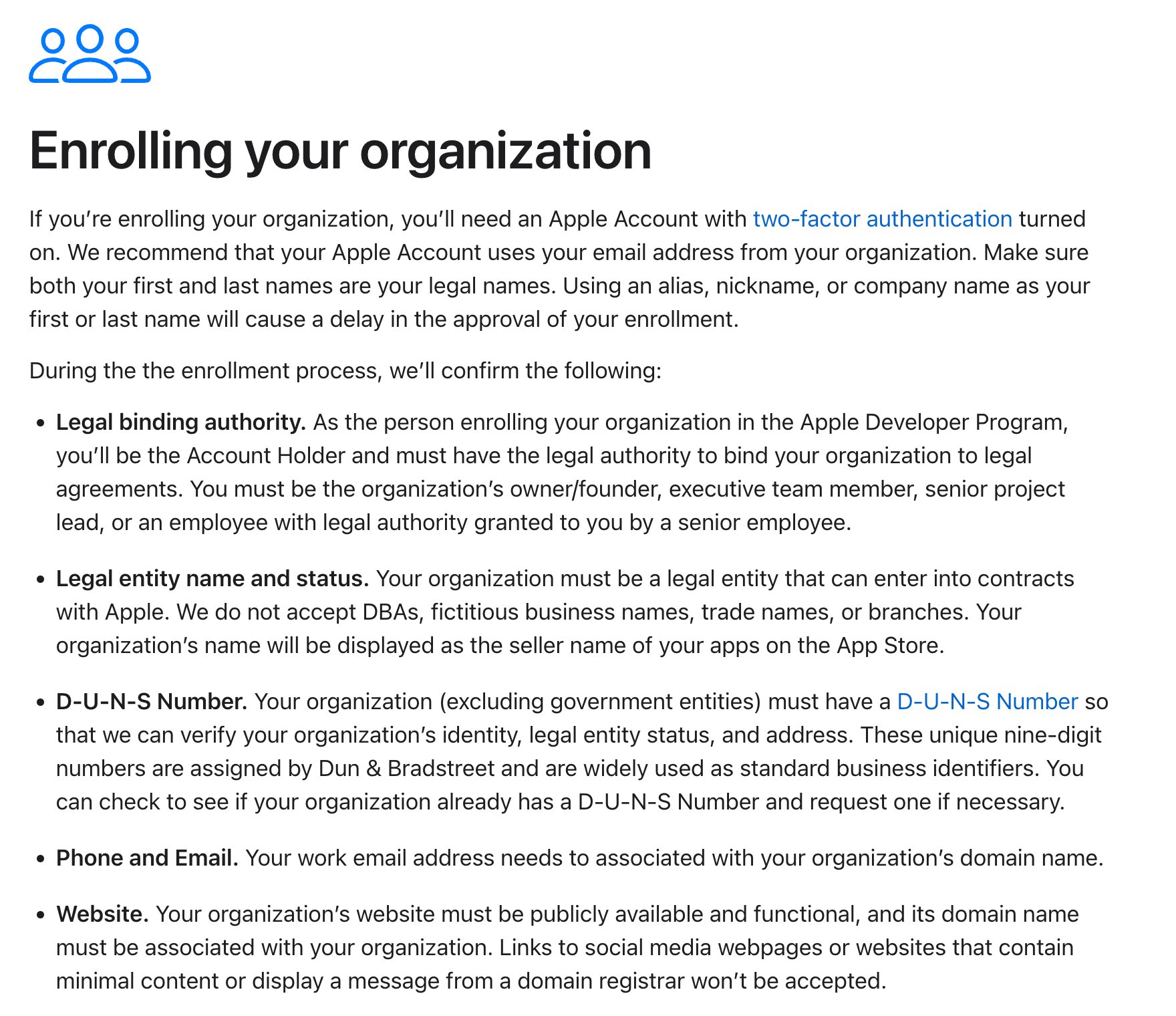
* **Business verification:** legal entity name, address, phone number, and registration documents. Use the legal name on your records, which may differ from your app's brand name.
* **D-U-N-S number:** look up your business through [Apple's D-U-N-S guidance](https://developer.apple.com/help/account/membership/D-U-N-S/). Check that the name, address, and legal status match. If no record exists, follow the request process; if it is incorrect, correct it with Dun & Bradstreet before enrolling.
* **Business website and email:** a working public website on your business domain and an email address using that domain. A social profile or parked domain is insufficient.
* **Account Holder:** someone authorized to enter agreements for the business, with their own Apple Account and two-factor authentication enabled. Use the person's legal name for the sign-in identity.
* **Membership payment:** Apple currently lists USD 99 per membership year, with regional pricing shown during enrollment.
See Apple's [enrollment requirements](https://developer.apple.com/programs/enroll/) before applying. Apple verifies the legal entity; a DBA or brand name alone is not accepted for Organization enrollment.
Start business verification early. D-U-N-S processing, record updates, and Apple's enrollment review are separate from building and reviewing your app. Check [Apple's current D-U-N-S processing guidance](https://developer.apple.com/help/account/membership/D-U-N-S/) when planning your launch.
 ## iOS setup process
Open [Apple Developer Program enrollment](https://developer.apple.com/programs/enroll/), sign in, and start enrollment. Choose **Company / Organization** as the entity type. Use the standard **Apple Developer Program** for an App Store app.
**Check the entity type before submitting or paying: Company / Organization.** If the application is for an Individual or sole proprietor, stop and correct the enrollment route with Apple. Do not continue just to finish setup faster.
Enter the business details you prepared. Respond to Apple's verification requests, then complete the agreement and membership payment when Apple asks you to do so.
**Before continuing:** confirm that Apple has approved your membership, that it is active, and that **Membership details** shows the correct organization. A submitted application or a free developer sign-in is not a completed membership.
Follow the [invitation instructions below](#invite-coachiq-to-your-apple-developer-account). Use **[dev@coachiq.io](mailto:dev@coachiq.io)**, the **Admin** role, and access to **Certificates, Identifiers & Profiles**.
**Before continuing:** ask CoachIQ to confirm that the invitation has been accepted and the required developer access works. Sending the invitation alone does not confirm readiness.
Send the team your desired app name, high-resolution logo, app icon, brand colors, and business description. Identify the person who will review the test build and store listing.
CoachIQ prepares the build and listing with you. Review the branding and test the main actions your athletes use, then send your feedback or approval to the team before submission.
## Invite CoachIQ to your Apple Developer account
**Prerequisite: your business has an active Organization membership.** Sign in as the Account Holder, or an Admin authorized to manage the organization's users.
1. Open [App Store Connect](https://appstoreconnect.apple.com/). If you belong to multiple teams, select the correct business.
2. Open **Users and Access → People**, then click **+**.
3. Enter the required name fields for the CoachIQ team contact and use **[dev@coachiq.io](mailto:dev@coachiq.io)** as the email address. Ask CoachIQ for the contact name if you do not have it.
4. Select the **Admin** role.
5. Confirm access to **Certificates, Identifiers & Profiles**. Apple grants this by default to Admins on an Organization team; if a control is shown, make sure access is enabled.
6. Continue through **Next**, if shown, then click **Invite**.
7. Tell CoachIQ which business sent the invitation so the team can accept and verify access.
## iOS setup process
Open [Apple Developer Program enrollment](https://developer.apple.com/programs/enroll/), sign in, and start enrollment. Choose **Company / Organization** as the entity type. Use the standard **Apple Developer Program** for an App Store app.
**Check the entity type before submitting or paying: Company / Organization.** If the application is for an Individual or sole proprietor, stop and correct the enrollment route with Apple. Do not continue just to finish setup faster.
Enter the business details you prepared. Respond to Apple's verification requests, then complete the agreement and membership payment when Apple asks you to do so.
**Before continuing:** confirm that Apple has approved your membership, that it is active, and that **Membership details** shows the correct organization. A submitted application or a free developer sign-in is not a completed membership.
Follow the [invitation instructions below](#invite-coachiq-to-your-apple-developer-account). Use **[dev@coachiq.io](mailto:dev@coachiq.io)**, the **Admin** role, and access to **Certificates, Identifiers & Profiles**.
**Before continuing:** ask CoachIQ to confirm that the invitation has been accepted and the required developer access works. Sending the invitation alone does not confirm readiness.
Send the team your desired app name, high-resolution logo, app icon, brand colors, and business description. Identify the person who will review the test build and store listing.
CoachIQ prepares the build and listing with you. Review the branding and test the main actions your athletes use, then send your feedback or approval to the team before submission.
## Invite CoachIQ to your Apple Developer account
**Prerequisite: your business has an active Organization membership.** Sign in as the Account Holder, or an Admin authorized to manage the organization's users.
1. Open [App Store Connect](https://appstoreconnect.apple.com/). If you belong to multiple teams, select the correct business.
2. Open **Users and Access → People**, then click **+**.
3. Enter the required name fields for the CoachIQ team contact and use **[dev@coachiq.io](mailto:dev@coachiq.io)** as the email address. Ask CoachIQ for the contact name if you do not have it.
4. Select the **Admin** role.
5. Confirm access to **Certificates, Identifiers & Profiles**. Apple grants this by default to Admins on an Organization team; if a control is shown, make sure access is enabled.
6. Continue through **Next**, if shown, then click **Invite**.
7. Tell CoachIQ which business sent the invitation so the team can accept and verify access.
 Apple's [current invitation instructions](https://developer.apple.com/help/app-store-connect/manage-your-team/add-and-edit-users) use App Store Connect. You do not need to share your Apple password or two-factor authentication codes.
**An invitation from an Individual membership is not enough.** Apple allows Individual members to add App Store Connect users, but those users do not join the Apple Developer Program team. If the required developer access is missing, check the membership type first. See [Apple's roles and access](https://developer.apple.com/help/account/access/roles).
## Already enrolled as an Individual?
Keep your existing account and ask Apple about converting the membership:
1. Sign in as the **Account Holder** and open Apple's [instructions for updating an Individual membership to an Organization](https://developer.apple.com/help/account/membership/updating-your-account-information/).
2. Use the **submit a request** link in that section. Apple requires the founder or cofounder to request the change and may ask for your D-U-N-S number and business documents.
3. Tell CoachIQ that conversion is pending. Wait for Apple to approve the change.
4. Confirm your membership now shows the organization, then send or review CoachIQ's invitation and permissions.
Changing your Apple Account display name does not convert your membership. Avoid purchasing a second membership as a workaround; contact Apple and CoachIQ first.
## What happens next for iOS
| Stage | What to confirm |
| - | - |
| Account ready | Active Organization membership; CoachIQ has accepted the invitation and verified access. |
| Build ready for review | You have supplied branding and reviewed the test version with CoachIQ. |
| Submitted to Apple | CoachIQ confirms submission; Apple reviews the app. |
| Live | CoachIQ confirms the public App Store listing. Open the link and check the business name before sharing it with athletes. |
The team confirms your launch estimate. Account verification, your feedback, and store review can affect the date. Approval of your developer membership does not mean Apple has approved your app.
## Android setup
Android Personalized Apps are available. Tell the CoachIQ team you need Android, including if you already have an iOS app. No Power-Up request is required.
1. Confirm whether you need Android only or both platforms.
2. Provide your app name, logo, app icon, colors, and listing description.
3. Confirm the Google Play publishing-account type, ownership, and access requirements with CoachIQ **before creating or paying for an account**. The Apple Organization enrollment above applies to iOS and does not configure Google Play.
4. Review the Android build and listing with the team.
5. Share the Google Play download link only after CoachIQ confirms the listing is live.
Each platform has a separate release. An existing iOS listing does not automatically publish your Android app.
## Keep your app ready for updates
Keep your Apple Developer membership active and your Account Holder's contact details current. Review renewal settings and respond when Apple asks you to accept updated agreements or verify information. Let CoachIQ know if you change account access or receive a notice that may block an update.
## Troubleshooting
Check the membership type in your Apple Developer account first. An Individual membership can show **Users and Access** without providing developer-team access. If it is Individual, follow the conversion steps above. If it is Organization, confirm that you selected the correct team, invited **[dev@coachiq.io](mailto:dev@coachiq.io)** as **Admin**, and that CoachIQ has accepted the invitation. Share the exact error with CoachIQ if access still fails.
Compare your enrollment details with your D-U-N-S record and registration documents. A trading name or a D-U-N-S number by itself does not establish eligibility. Follow [Apple's D-U-N-S troubleshooting](https://developer.apple.com/help/account/membership/D-U-N-S/) to correct the record. Contact CoachIQ if your business is a sole proprietorship; do not switch to Individual to bypass the issue.
Check **Users and Access** for **[dev@coachiq.io](mailto:dev@coachiq.io)** and tell CoachIQ if it is still pending. Apple invitations expire after three days; resend an expired invitation and let the team know. Confirm acceptance before assuming setup is complete.
Open **App Store Connect**, rather than the regular Apple Account settings page. Confirm the membership is active and you are on the correct business team. Ask the Account Holder to send the invitation if your role cannot manage users.
Tell CoachIQ before creating a new account or app listing. Share the existing store links and confirm who owns the current developer membership. The team needs to review the existing setup before advising on the next steps.
This documentation is built and hosted on [Mintlify](https://mintlify.com), a developer documentation platform.
Apple's [current invitation instructions](https://developer.apple.com/help/app-store-connect/manage-your-team/add-and-edit-users) use App Store Connect. You do not need to share your Apple password or two-factor authentication codes.
**An invitation from an Individual membership is not enough.** Apple allows Individual members to add App Store Connect users, but those users do not join the Apple Developer Program team. If the required developer access is missing, check the membership type first. See [Apple's roles and access](https://developer.apple.com/help/account/access/roles).
## Already enrolled as an Individual?
Keep your existing account and ask Apple about converting the membership:
1. Sign in as the **Account Holder** and open Apple's [instructions for updating an Individual membership to an Organization](https://developer.apple.com/help/account/membership/updating-your-account-information/).
2. Use the **submit a request** link in that section. Apple requires the founder or cofounder to request the change and may ask for your D-U-N-S number and business documents.
3. Tell CoachIQ that conversion is pending. Wait for Apple to approve the change.
4. Confirm your membership now shows the organization, then send or review CoachIQ's invitation and permissions.
Changing your Apple Account display name does not convert your membership. Avoid purchasing a second membership as a workaround; contact Apple and CoachIQ first.
## What happens next for iOS
| Stage | What to confirm |
| - | - |
| Account ready | Active Organization membership; CoachIQ has accepted the invitation and verified access. |
| Build ready for review | You have supplied branding and reviewed the test version with CoachIQ. |
| Submitted to Apple | CoachIQ confirms submission; Apple reviews the app. |
| Live | CoachIQ confirms the public App Store listing. Open the link and check the business name before sharing it with athletes. |
The team confirms your launch estimate. Account verification, your feedback, and store review can affect the date. Approval of your developer membership does not mean Apple has approved your app.
## Android setup
Android Personalized Apps are available. Tell the CoachIQ team you need Android, including if you already have an iOS app. No Power-Up request is required.
1. Confirm whether you need Android only or both platforms.
2. Provide your app name, logo, app icon, colors, and listing description.
3. Confirm the Google Play publishing-account type, ownership, and access requirements with CoachIQ **before creating or paying for an account**. The Apple Organization enrollment above applies to iOS and does not configure Google Play.
4. Review the Android build and listing with the team.
5. Share the Google Play download link only after CoachIQ confirms the listing is live.
Each platform has a separate release. An existing iOS listing does not automatically publish your Android app.
## Keep your app ready for updates
Keep your Apple Developer membership active and your Account Holder's contact details current. Review renewal settings and respond when Apple asks you to accept updated agreements or verify information. Let CoachIQ know if you change account access or receive a notice that may block an update.
## Troubleshooting
Check the membership type in your Apple Developer account first. An Individual membership can show **Users and Access** without providing developer-team access. If it is Individual, follow the conversion steps above. If it is Organization, confirm that you selected the correct team, invited **[dev@coachiq.io](mailto:dev@coachiq.io)** as **Admin**, and that CoachIQ has accepted the invitation. Share the exact error with CoachIQ if access still fails.
Compare your enrollment details with your D-U-N-S record and registration documents. A trading name or a D-U-N-S number by itself does not establish eligibility. Follow [Apple's D-U-N-S troubleshooting](https://developer.apple.com/help/account/membership/D-U-N-S/) to correct the record. Contact CoachIQ if your business is a sole proprietorship; do not switch to Individual to bypass the issue.
Check **Users and Access** for **[dev@coachiq.io](mailto:dev@coachiq.io)** and tell CoachIQ if it is still pending. Apple invitations expire after three days; resend an expired invitation and let the team know. Confirm acceptance before assuming setup is complete.
Open **App Store Connect**, rather than the regular Apple Account settings page. Confirm the membership is active and you are on the correct business team. Ask the Account Holder to send the invitation if your role cannot manage users.
Tell CoachIQ before creating a new account or app listing. Share the existing store links and confirm who owns the current developer membership. The team needs to review the existing setup before advising on the next steps.
This documentation is built and hosted on [Mintlify](https://mintlify.com), a developer documentation platform.