> ## Documentation Index
> Fetch the complete documentation index at: https://help.coachiq.io/llms.txt
> Use this file to discover all available pages before exploring further.
# Your Client Directory: Overview & Navigation
> Your complete guide to managing clients and staff in CoachIQ—understand the People section and quickly find exactly what you need
**Where to find this**: Dashboard → **People** (main navigation)
## What is the People section?
The People section is your client relationship management (CRM) hub—a single place to view, organize, and manage everyone in your coaching business. Think of it as your digital contact list combined with a complete activity history for each person.
Every client interaction, booking, payment, message, and credit transaction lives here. Whether you need to check what sessions someone has attended, see their credit balance, or find all clients tagged "Elite Program," the People section gives you instant answers.
**Quick tip**: The People section shows you WHO is in your business. The Calendar shows you WHEN things are happening. The Inbox shows you WHAT you've communicated. Use them together for complete visibility.
***
## Two ways to view people
CoachIQ organizes people into two main categories:
Athletes, parents, customers—anyone who books sessions, purchases products, or trains with you. This is where you'll spend most of your time managing your coaching relationships.
**You'll see:**
* Athletes and their parents
* Trial clients
* Active members
* Past customers
Your coaching team—anyone who helps run your business and needs access to the platform.
**You'll see:**
* Fellow coaches
* Administrative staff
* Facility managers
* Limited-access team members
***
## Understanding the client list
When you open People → Clients, you'll see a searchable table with everyone in your business:
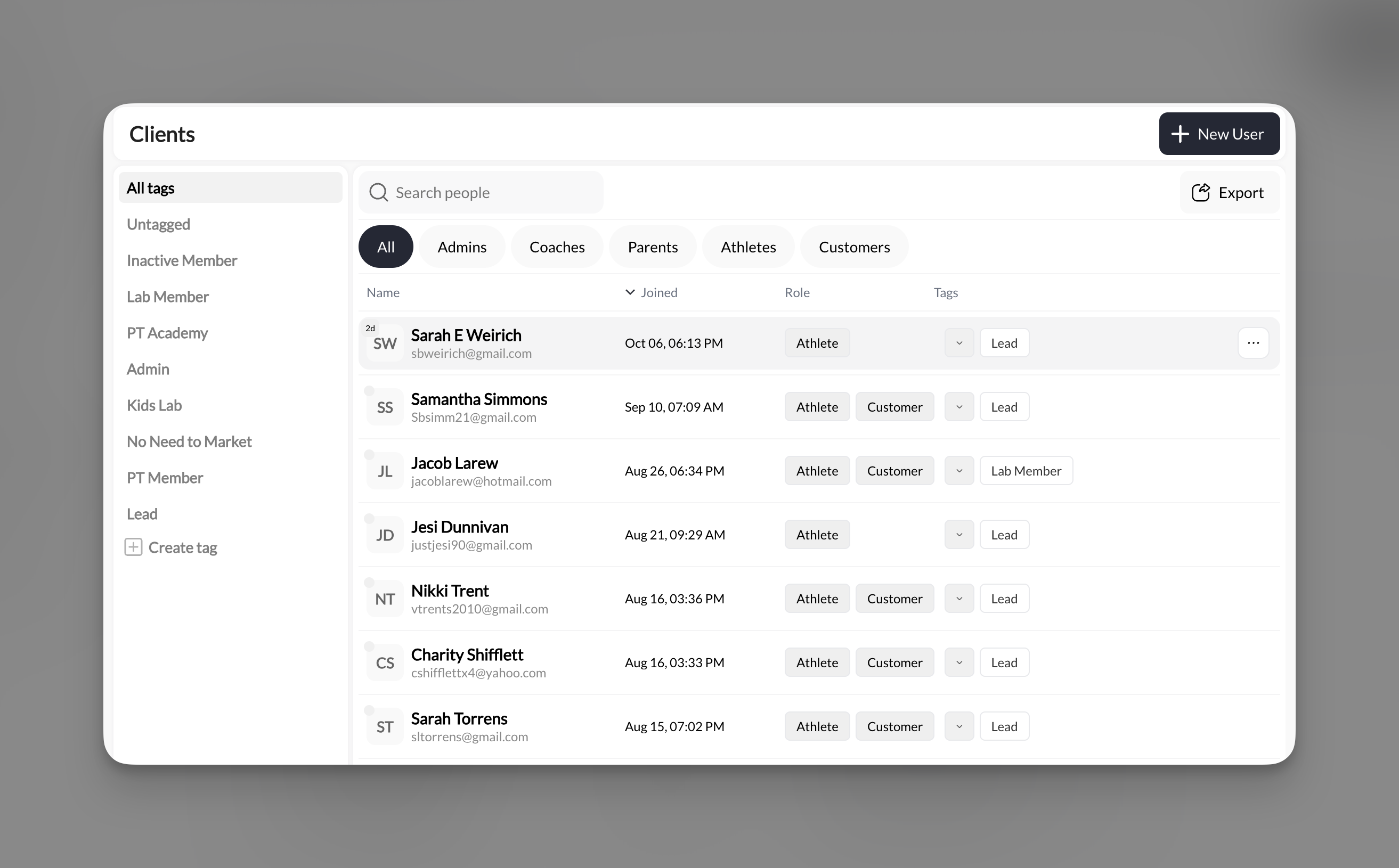 **What you see at a glance:**
* **Name** with avatar or initials
* **Joined date** (when they were added to CoachIQ)
* **Role badges** (Athlete, Coach, Admin, Parent, Customer)
* **Tags** for organization ("Elite Program", "Trial", custom tags)
**Filter quickly:**
* Click role tabs (All, Admins, Coaches, Parents, Athletes, Customers)
* Use tag sidebar to show specific groups
* Search by name, email, or tag in the search bar
Learn how to manually add clients or bulk import from a spreadsheet
Master tags and filters to segment your client base for messaging and management
***
## Understanding roles
Every person in CoachIQ has at least one role. Many clients have multiple roles (for example, someone could be both an "Athlete" and a "Customer").
**Common roles explained:**
| Role | What it means | Typical use |
| ------------ | ---------------------------------- | ------------------------- |
| **Athlete** | Someone who trains with you | Your primary clients |
| **Customer** | Someone who has purchased products | Often same as Athlete |
| **Parent** | Guardian of an athlete | Youth training scenarios |
| **Coach** | Staff member who delivers training | Your coaching team |
| **Admin** | Full platform access | You and business managers |
**Important**: Roles affect what people can see and do in your Athlete Portal (mobile app/web). Admins and Coaches see the full coaching interface, while Athletes and Parents see only their booking and training content.
Set up your coaching team with the right permissions and access levels
***
## Client profiles: The complete picture
Click any client's name to open their full profile—a comprehensive dashboard showing everything about that person's relationship with your business.
**What you see at a glance:**
* **Name** with avatar or initials
* **Joined date** (when they were added to CoachIQ)
* **Role badges** (Athlete, Coach, Admin, Parent, Customer)
* **Tags** for organization ("Elite Program", "Trial", custom tags)
**Filter quickly:**
* Click role tabs (All, Admins, Coaches, Parents, Athletes, Customers)
* Use tag sidebar to show specific groups
* Search by name, email, or tag in the search bar
Learn how to manually add clients or bulk import from a spreadsheet
Master tags and filters to segment your client base for messaging and management
***
## Understanding roles
Every person in CoachIQ has at least one role. Many clients have multiple roles (for example, someone could be both an "Athlete" and a "Customer").
**Common roles explained:**
| Role | What it means | Typical use |
| ------------ | ---------------------------------- | ------------------------- |
| **Athlete** | Someone who trains with you | Your primary clients |
| **Customer** | Someone who has purchased products | Often same as Athlete |
| **Parent** | Guardian of an athlete | Youth training scenarios |
| **Coach** | Staff member who delivers training | Your coaching team |
| **Admin** | Full platform access | You and business managers |
**Important**: Roles affect what people can see and do in your Athlete Portal (mobile app/web). Admins and Coaches see the full coaching interface, while Athletes and Parents see only their booking and training content.
Set up your coaching team with the right permissions and access levels
***
## Client profiles: The complete picture
Click any client's name to open their full profile—a comprehensive dashboard showing everything about that person's relationship with your business.
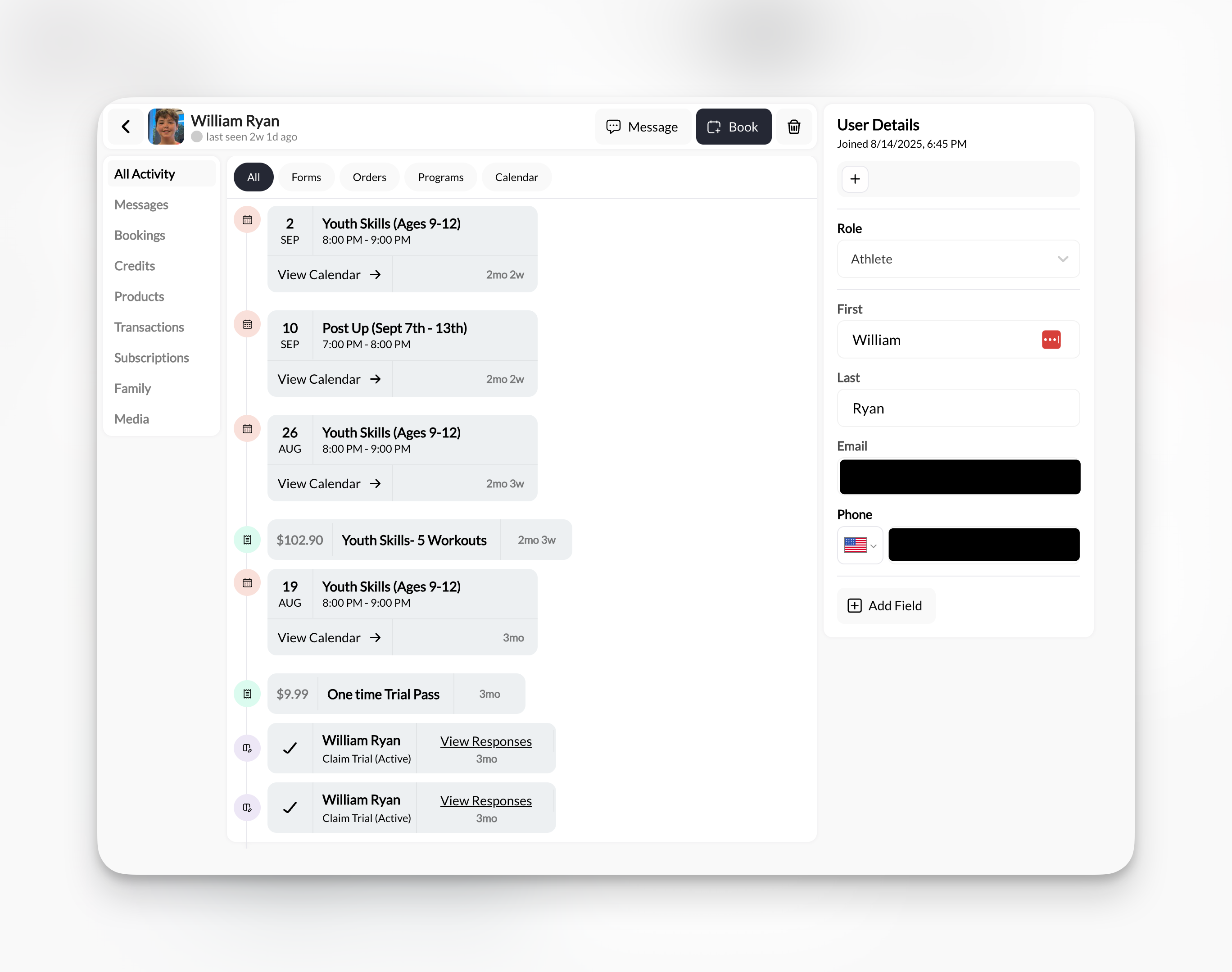 **Every profile includes:**
* Client photo, name, and "last seen" status
* **Message** button → Opens conversation in Inbox
* **Book** button → Manually book them into a session
* **Delete** button → Remove client from system
* **User Details sidebar** → Edit contact info, role, custom fields
Each tab gives you a different view of the client's history:
1. **All Activity** - Unified timeline of everything (bookings, purchases, programs)
2. **Messages** - In-App and SMS conversation history
3. **Bookings** - Upcoming, past, and canceled sessions
4. **Credits** - Complete credit transaction log (purchases, redemptions, expirations)
5. **Products** - What they've purchased and when
6. **Transactions** - Payment history and revenue tracking
7. **Subscriptions** - Active memberships and recurring billing status
8. **Family** - Parent/child account linking for youth training
9. **Media** - Programs and lessons you've shared with them
**Pro tip**: The profile tabs mirror exactly what you need to answer common client questions:
* "When was their last session?" → Bookings tab
* "How many credits do they have left?" → Credits tab
* "Are they still on the monthly membership?" → Subscriptions tab
Complete guide to every tab and feature in client profiles
***
## What you can accomplish in People
The People section lets you handle every aspect of client relationship management:
Search by name, email, filter by role or tag, or use the tag sidebar to segment your client base.
See every booking, purchase, message, and credit transaction in one unified timeline.
Create custom tags like "Trial", "Elite Program", or "Overdue" and filter your entire client list instantly.
View balances, see redemption history, understand expiration dates, and manually adjust credits when needed.
Check transaction history, track subscription status, and see total revenue per client across any time period.
Message, book sessions, or add products directly from any client profile with one click.
***
## Quick navigation guide
**Not sure which article you need? Use this guide:**
Go to: [Adding & Editing Client Information](/people/adding-editing-clients)
Covers manual creation, bulk import, editing details, and custom fields.
Go to: [Client Profiles](/people/client-profiles/client-profiles)
Deep dive into All Activity, Messages, Bookings, Credits, Products, Transactions, Subscriptions, Family, and Media tabs.
Go to: [Organizing Clients with Tags & Filters](/people/tags-filters)
Learn to create tags, apply them, filter your list, and use tags for group messaging.
Go to: [Managing Your Coaching Staff](/people/managing-staff)
Set up team members, assign permissions, and control access levels.
***
## Common questions
**Clients** = People who book sessions, purchase products, and train with you (athletes, parents, customers)
**Staff** = People who help run your business and need access to the CoachIQ platform (coaches, admins, team members)
Most of your time will be spent in the Clients tab managing your training relationships.
Yes! Someone can be tagged as both "Athlete" and "Coach" if they train with you AND help coach others. They'll appear in both tabs and have access to both the coaching interface and their own athlete profile.
Click the **Export** button in the top-right corner of the Clients list. This generates a CSV file with names, emails, phone numbers, roles, tags, and join dates. Useful for backups or importing into external tools.
**Privacy reminder**: Exported data contains personal information. Handle responsibly and in compliance with your privacy policy.
Deleting a client removes them from your People list but preserves their historical data (past bookings, transactions, messages) for record-keeping. They lose access to your Athlete Portal immediately.
**Tip**: Consider using a "Inactive" tag instead of deleting if you think they might return.
No. Clients only see their own profile, bookings, and content you've shared with them. They cannot view or search for other athletes in your business. Only Admins and Coaches with proper permissions can see the full client list.
***
## Related articles
Manual creation and bulk import
Complete activity dashboard guide
Organization and segmentation
Coaching team setup
How to message clients
See bookings by athlete
***
**You now understand**: What the People section is, how it's organized, what you can accomplish, and where to find detailed guides for specific tasks.
**Every profile includes:**
* Client photo, name, and "last seen" status
* **Message** button → Opens conversation in Inbox
* **Book** button → Manually book them into a session
* **Delete** button → Remove client from system
* **User Details sidebar** → Edit contact info, role, custom fields
Each tab gives you a different view of the client's history:
1. **All Activity** - Unified timeline of everything (bookings, purchases, programs)
2. **Messages** - In-App and SMS conversation history
3. **Bookings** - Upcoming, past, and canceled sessions
4. **Credits** - Complete credit transaction log (purchases, redemptions, expirations)
5. **Products** - What they've purchased and when
6. **Transactions** - Payment history and revenue tracking
7. **Subscriptions** - Active memberships and recurring billing status
8. **Family** - Parent/child account linking for youth training
9. **Media** - Programs and lessons you've shared with them
**Pro tip**: The profile tabs mirror exactly what you need to answer common client questions:
* "When was their last session?" → Bookings tab
* "How many credits do they have left?" → Credits tab
* "Are they still on the monthly membership?" → Subscriptions tab
Complete guide to every tab and feature in client profiles
***
## What you can accomplish in People
The People section lets you handle every aspect of client relationship management:
Search by name, email, filter by role or tag, or use the tag sidebar to segment your client base.
See every booking, purchase, message, and credit transaction in one unified timeline.
Create custom tags like "Trial", "Elite Program", or "Overdue" and filter your entire client list instantly.
View balances, see redemption history, understand expiration dates, and manually adjust credits when needed.
Check transaction history, track subscription status, and see total revenue per client across any time period.
Message, book sessions, or add products directly from any client profile with one click.
***
## Quick navigation guide
**Not sure which article you need? Use this guide:**
Go to: [Adding & Editing Client Information](/people/adding-editing-clients)
Covers manual creation, bulk import, editing details, and custom fields.
Go to: [Client Profiles](/people/client-profiles/client-profiles)
Deep dive into All Activity, Messages, Bookings, Credits, Products, Transactions, Subscriptions, Family, and Media tabs.
Go to: [Organizing Clients with Tags & Filters](/people/tags-filters)
Learn to create tags, apply them, filter your list, and use tags for group messaging.
Go to: [Managing Your Coaching Staff](/people/managing-staff)
Set up team members, assign permissions, and control access levels.
***
## Common questions
**Clients** = People who book sessions, purchase products, and train with you (athletes, parents, customers)
**Staff** = People who help run your business and need access to the CoachIQ platform (coaches, admins, team members)
Most of your time will be spent in the Clients tab managing your training relationships.
Yes! Someone can be tagged as both "Athlete" and "Coach" if they train with you AND help coach others. They'll appear in both tabs and have access to both the coaching interface and their own athlete profile.
Click the **Export** button in the top-right corner of the Clients list. This generates a CSV file with names, emails, phone numbers, roles, tags, and join dates. Useful for backups or importing into external tools.
**Privacy reminder**: Exported data contains personal information. Handle responsibly and in compliance with your privacy policy.
Deleting a client removes them from your People list but preserves their historical data (past bookings, transactions, messages) for record-keeping. They lose access to your Athlete Portal immediately.
**Tip**: Consider using a "Inactive" tag instead of deleting if you think they might return.
No. Clients only see their own profile, bookings, and content you've shared with them. They cannot view or search for other athletes in your business. Only Admins and Coaches with proper permissions can see the full client list.
***
## Related articles
Manual creation and bulk import
Complete activity dashboard guide
Organization and segmentation
Coaching team setup
How to message clients
See bookings by athlete
***
**You now understand**: What the People section is, how it's organized, what you can accomplish, and where to find detailed guides for specific tasks.