> ## Documentation Index
> Fetch the complete documentation index at: https://help.coachiq.io/llms.txt
> Use this file to discover all available pages before exploring further.
# Transactions Dashboard
> View all payments, refunds, and revenue activity in one centralized transaction history
**Where to find this**: Payments → Transactions
## What the Transactions page shows
The Transactions dashboard displays every payment event in your coaching business:
* One-time purchases
* Subscription charges
* Refunds issued
* Failed payments
* Revenue totals
Every transaction that touches Stripe appears here with complete details.
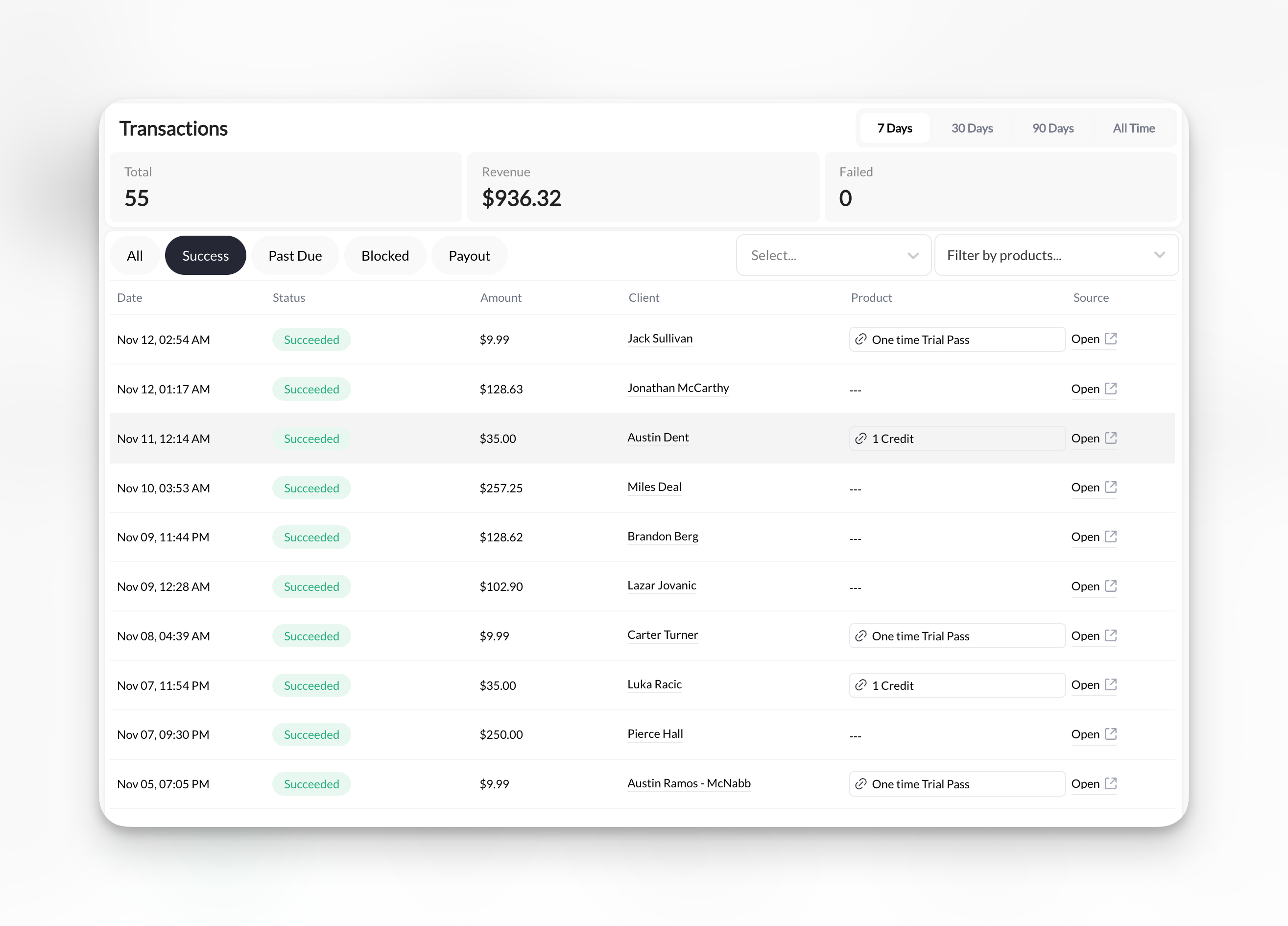 ## Transaction list columns
Each transaction displays:
| Column | What it shows |
| ----------- | ------------------------------------------- |
| **Date** | When transaction occurred |
| **Status** | Succeeded, Blocked, Payout, etc. |
| **Amount** | Transaction amount |
| **Client** | Client name (clickable link to profile) |
| **Product** | Which product was purchased |
| **Source** | How the transaction was created (see below) |
Click any transaction row to view complete details.
## Transaction source types
The **Source** column tells you how a transaction was created:
| Source | What it means |
| ---------- | --------------------------------------------------------------------------------------------------------------------------------------------------------------------------------------------------------------------------------------------------------- |
| **Open** | Transaction has a Stripe ID. Click **Open** to view the charge directly in Stripe. |
| **Admin** | Transaction was created by an admin — no Stripe charge is mapped. This appears when a purchase is manually added through the dashboard (e.g., comping a client, granting a free trial) or when a Stripe ID has been manually removed from a subscription. |
| **Coupon** | A coupon code was applied to the transaction. |
**"Admin" does not mean the admin was charged.** It means an admin created the transaction manually without a Stripe payment. This is normal for comped access, free trials granted by the coach, or manual adjustments.
## Transaction status types
**Succeeded** (green)
* Payment completed successfully
* Money received in Stripe account
* Client has access/credits
**Blocked** (red)
* Payment declined or unsuccessful
* No money received
* Client has no access/credits
**Payout** (blue)
* Shows the amount of money being sent from your Stripe ccount to your bank account
**Refunded** (gray)
* Money returned to client
* Shows as separate refund transaction
* Original transaction remains visible
**Processing Fee** (gray)
* Amount Stripe takes from your account per transaction
**Requires Payment Method** (red)
* Usually displayed when transaction wasn't completed
* Ex: User goes through checkout but doesn't complete the process
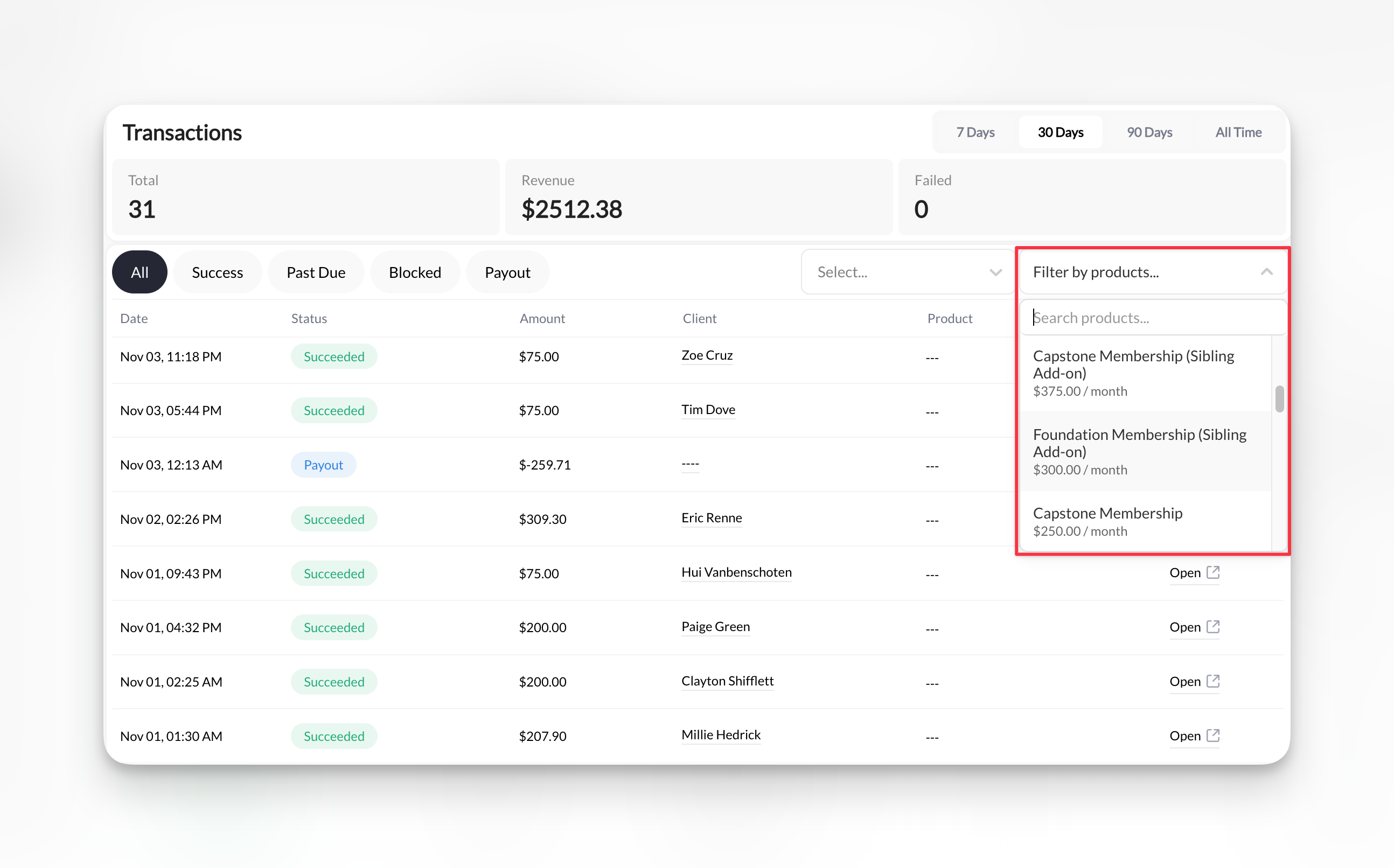
## Filter and search transactions
**Filter by status:**
* All transactions
* Succeeded only
* Past Due only
* Blocked only
**Filter by Product:** Click the product(s) from the drop down view
## Transaction list columns
Each transaction displays:
| Column | What it shows |
| ----------- | ------------------------------------------- |
| **Date** | When transaction occurred |
| **Status** | Succeeded, Blocked, Payout, etc. |
| **Amount** | Transaction amount |
| **Client** | Client name (clickable link to profile) |
| **Product** | Which product was purchased |
| **Source** | How the transaction was created (see below) |
Click any transaction row to view complete details.
## Transaction source types
The **Source** column tells you how a transaction was created:
| Source | What it means |
| ---------- | --------------------------------------------------------------------------------------------------------------------------------------------------------------------------------------------------------------------------------------------------------- |
| **Open** | Transaction has a Stripe ID. Click **Open** to view the charge directly in Stripe. |
| **Admin** | Transaction was created by an admin — no Stripe charge is mapped. This appears when a purchase is manually added through the dashboard (e.g., comping a client, granting a free trial) or when a Stripe ID has been manually removed from a subscription. |
| **Coupon** | A coupon code was applied to the transaction. |
**"Admin" does not mean the admin was charged.** It means an admin created the transaction manually without a Stripe payment. This is normal for comped access, free trials granted by the coach, or manual adjustments.
## Transaction status types
**Succeeded** (green)
* Payment completed successfully
* Money received in Stripe account
* Client has access/credits
**Blocked** (red)
* Payment declined or unsuccessful
* No money received
* Client has no access/credits
**Payout** (blue)
* Shows the amount of money being sent from your Stripe ccount to your bank account
**Refunded** (gray)
* Money returned to client
* Shows as separate refund transaction
* Original transaction remains visible
**Processing Fee** (gray)
* Amount Stripe takes from your account per transaction
**Requires Payment Method** (red)
* Usually displayed when transaction wasn't completed
* Ex: User goes through checkout but doesn't complete the process
## Filter and search transactions
**Filter by status:**
* All transactions
* Succeeded only
* Past Due only
* Blocked only
**Filter by Product:** Click the product(s) from the drop down view
 ## Revenue metrics
Top of page displays key metrics:
**Total Revenue**
* Sum of all successful transactions
* Updates in real-time
* Includes one-time and subscription payments
**Revenue by period**
* Today
* This week
* This month
* Custom date range
Revenue metrics reflect selected date range and filters. Adjust filters to see different calculations.
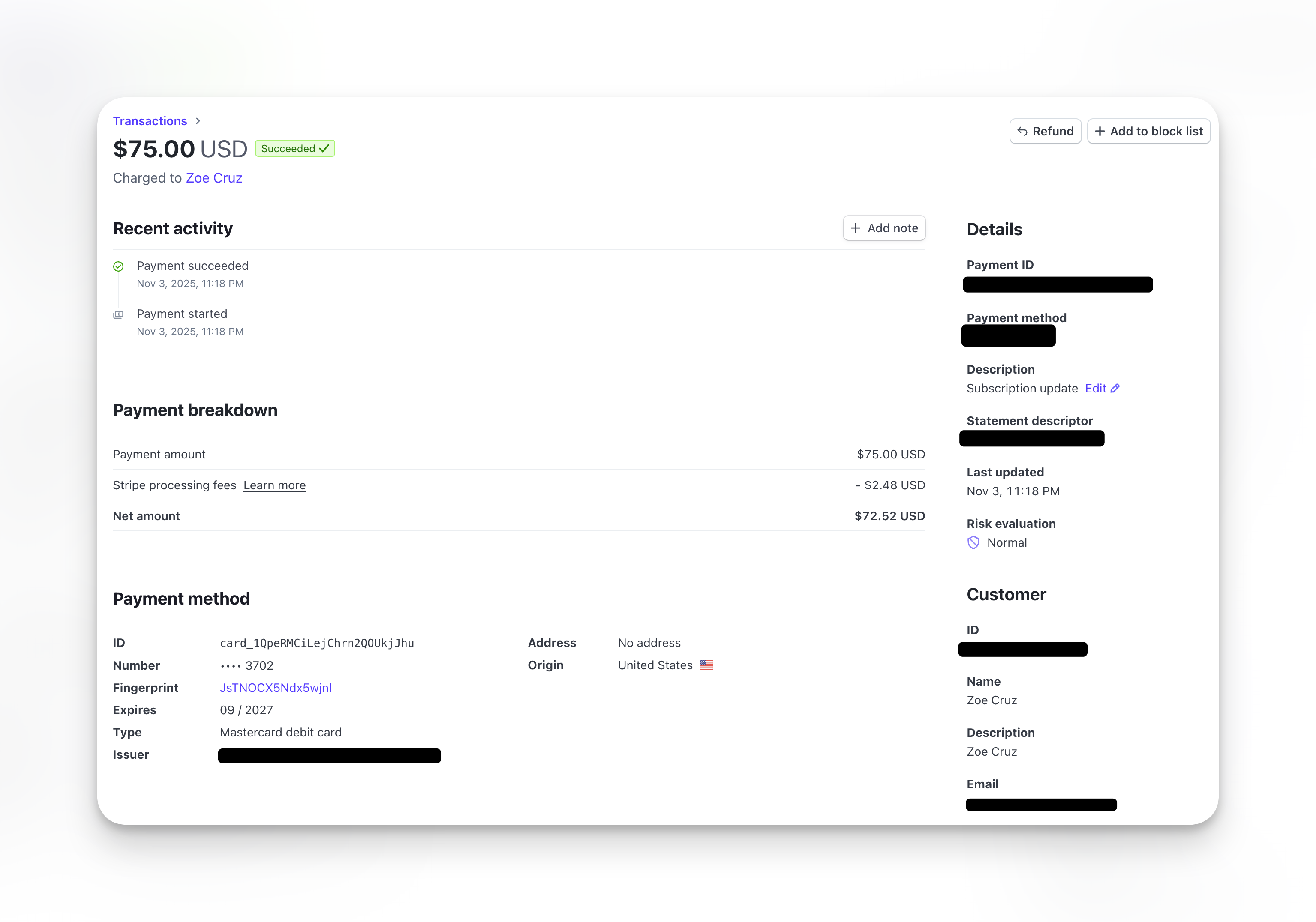
## View transaction details
Click **Open** under the Source column of the transaction to view on Stripe:
**Transaction information:**
* Transaction ID
* Date and time
* Payment method (last 4 of card)
* Stripe charge ID
**Client information:**
* Client name
* Email address
* Payment method on file
**Product information:**
* Product name
* Price charged
**Payment details:**
* Subtotal
* Processing fees
* Net amount received
* Stripe fee breakdown
**Available actions:**
* Issue refund (if not already refunded)
## Revenue metrics
Top of page displays key metrics:
**Total Revenue**
* Sum of all successful transactions
* Updates in real-time
* Includes one-time and subscription payments
**Revenue by period**
* Today
* This week
* This month
* Custom date range
Revenue metrics reflect selected date range and filters. Adjust filters to see different calculations.
## View transaction details
Click **Open** under the Source column of the transaction to view on Stripe:
**Transaction information:**
* Transaction ID
* Date and time
* Payment method (last 4 of card)
* Stripe charge ID
**Client information:**
* Client name
* Email address
* Payment method on file
**Product information:**
* Product name
* Price charged
**Payment details:**
* Subtotal
* Processing fees
* Net amount received
* Stripe fee breakdown
**Available actions:**
* Issue refund (if not already refunded)
 ## Understanding transaction flow
Client books session, subscribes, or completes form with payment.
Stripe charges client's card. Transaction appears in Transactions list with "Pending" status briefly.
Status updates to "Succeeded" or "Failed" within seconds.
If succeeded: Client receives credits or access. Confirmation email sent.
If failed: No access granted. Client must retry payment.
Permanent record remains in Transactions list. Syncs with Stripe Dashboard.
## Common transaction scenarios
**Steps:**
1. Go to Client page
2. Use search box to enter client name or email
3. Click their profile
4. Click Transaction Tab
5. Verify amount, date, and product
Use this to confirm client payments or answer billing questions.
**Steps:**
1. Filter by date range (7 days, 30 days, 90 days, All Time)
2. Note Total Revenue metric at top
**Steps:**
1. Filter by Status: Blocked
2. Review list of unsuccessful charges
3. Click transactions to see failure reasons
4. Take recovery action for each
[Learn about recovering failed payments →](/payments/failed-payments)
## Transactions vs. Stripe Dashboard
**CoachIQ Transactions page:**
* Shows payments related to CoachIQ products
* Links to client profiles
* Integrated with your business context
**Stripe Dashboard:**
* Shows ALL Stripe charges (including non-CoachIQ)
* More detailed fee breakdowns
* Advanced filtering options
* Financial reports and analytics
* Payout information
Both show the same transactions but with different context. Use CoachIQ for day-to-day business, Stripe for detailed financial analysis.
## Troubleshooting transaction issues
**Possible causes:**
* Transaction not linked to CoachIQ product
* Sync delay (wait 5 minutes and refresh)
* Manual Stripe charge (not through CoachIQ)
**Check:** View transaction in Stripe Dashboard to see product/metadata
**Troubleshooting:**
1. Verify client email address (may be under different account)
2. Check Failed transactions (payment may have declined)
3. Check Stripe Dashboard for manual charges
4. Verify client completed full checkout process
Payment confirmation email proves transaction completed.
**Admin** means the transaction was created manually by an admin — there is no Stripe charge linked to it. This happens when:
* You manually grant a client access or a free trial from the dashboard
* A Stripe ID was removed from a subscription manually
The admin was **not** charged. It simply means the purchase bypassed Stripe.
**Possible reasons:**
* Processing fees added to charge
* Coupon or discount applied
* Partial refund issued
* Custom pricing used
Click transaction to see complete fee breakdown.
## Related articles
* [Issuing Refunds](/payments/issuing-refunds)
* [Failed Payments](/payments/failed-payments)
* [Subscriptions Dashboard](/payments/subscriptions-dashboard)
## Understanding transaction flow
Client books session, subscribes, or completes form with payment.
Stripe charges client's card. Transaction appears in Transactions list with "Pending" status briefly.
Status updates to "Succeeded" or "Failed" within seconds.
If succeeded: Client receives credits or access. Confirmation email sent.
If failed: No access granted. Client must retry payment.
Permanent record remains in Transactions list. Syncs with Stripe Dashboard.
## Common transaction scenarios
**Steps:**
1. Go to Client page
2. Use search box to enter client name or email
3. Click their profile
4. Click Transaction Tab
5. Verify amount, date, and product
Use this to confirm client payments or answer billing questions.
**Steps:**
1. Filter by date range (7 days, 30 days, 90 days, All Time)
2. Note Total Revenue metric at top
**Steps:**
1. Filter by Status: Blocked
2. Review list of unsuccessful charges
3. Click transactions to see failure reasons
4. Take recovery action for each
[Learn about recovering failed payments →](/payments/failed-payments)
## Transactions vs. Stripe Dashboard
**CoachIQ Transactions page:**
* Shows payments related to CoachIQ products
* Links to client profiles
* Integrated with your business context
**Stripe Dashboard:**
* Shows ALL Stripe charges (including non-CoachIQ)
* More detailed fee breakdowns
* Advanced filtering options
* Financial reports and analytics
* Payout information
Both show the same transactions but with different context. Use CoachIQ for day-to-day business, Stripe for detailed financial analysis.
## Troubleshooting transaction issues
**Possible causes:**
* Transaction not linked to CoachIQ product
* Sync delay (wait 5 minutes and refresh)
* Manual Stripe charge (not through CoachIQ)
**Check:** View transaction in Stripe Dashboard to see product/metadata
**Troubleshooting:**
1. Verify client email address (may be under different account)
2. Check Failed transactions (payment may have declined)
3. Check Stripe Dashboard for manual charges
4. Verify client completed full checkout process
Payment confirmation email proves transaction completed.
**Admin** means the transaction was created manually by an admin — there is no Stripe charge linked to it. This happens when:
* You manually grant a client access or a free trial from the dashboard
* A Stripe ID was removed from a subscription manually
The admin was **not** charged. It simply means the purchase bypassed Stripe.
**Possible reasons:**
* Processing fees added to charge
* Coupon or discount applied
* Partial refund issued
* Custom pricing used
Click transaction to see complete fee breakdown.
## Related articles
* [Issuing Refunds](/payments/issuing-refunds)
* [Failed Payments](/payments/failed-payments)
* [Subscriptions Dashboard](/payments/subscriptions-dashboard)