> ## Documentation Index
> Fetch the complete documentation index at: https://help.coachiq.io/llms.txt
> Use this file to discover all available pages before exploring further.
# Product Builder: Complete Reference
> Field-by-field guide to every option in the CoachIQ Product Builder
**Where to find this**: Payments → Products → + Create Product (or click existing product to edit)
## Product Builder overview
The Product Builder has 7 sections. Only Section 1 is required. Configure additional sections based on your needs.
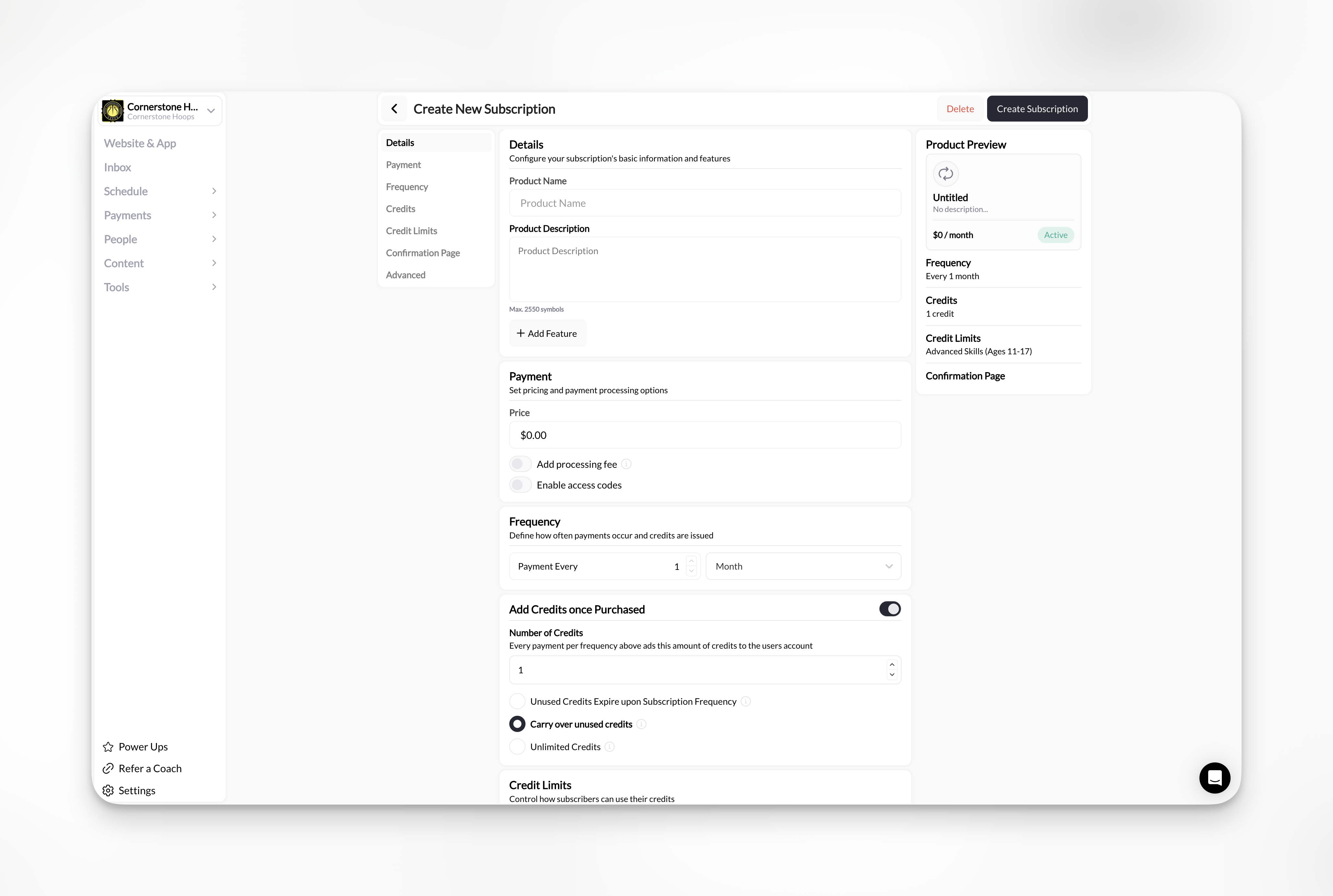 ## Section 1: Product Details
**Required section** - Every product needs at minimum a name and price.
**Required**
The name clients see during checkout and in their purchase history.
**Best practices:**
* Be specific: "60-Minute Basketball Training" not "Training"
* Include duration for sessions: "90-Minute Session"
* Add value: "Premium Coaching Package"
**Character limit:** 100 characters
**Examples:**
* "Individual Training Session"
* "Monthly Unlimited Membership"
* "10-Session Package - Youth Development"
**Required**
Dollar amount clients pay.
**Format:** \$XX.XX (US dollars or your Stripe currency)
**Minimum:** \$0.50 (Stripe requirement)
**Free products:** Use Access Code type with \$0.00 price
Double-check your price before publishing. $5.00 vs $50.00 mistakes are common.
**Optional**
Explain what's included in the purchase. Appears on checkout page.
**Supports:**
* Plain text
* Line breaks
* Basic formatting
**Best practices:**
* Keep it concise (2-4 sentences)
* List what's included
* Mention any restrictions or expiration
**Example:** "One 60-minute individual training session with Coach Mike. Includes personalized skill development, video analysis, and post-session workout plan. Must be used within 30 days of purchase."
**Optional**
Bullet point list highlighting product benefits.
**Appears:** Below description on checkout page
**Best practices:**
* Use 3-5 features
* Start with action words
* Focus on benefits, not just features
**Example:**
* Personalized training plan
* Video analysis included
* Flexible scheduling
* Money-back guarantee
**Subscription or One Time Product**
**Subscription:** Charges client on a recurring basis once product is purchased
**One Time Product:** Charges client once per purchase
## Section 2: Payment Options
Configure pricing frequency and processing fees.
**All product types**
Set or modify the product price. Same as Section 1 price field.
**Subscription products only**
Define how often payments occur and credits are issued. Use the **Payment Every** field to set a custom interval: enter a number and select the period (Day, Week, Month, or Year).
**Common setups:**
* Every 1 Month — monthly billing (most common)
* Every 3 Months — quarterly billing
* Every 6 Months — semi-annual billing
* Every 1 Year — annual billing
Monthly billing creates the most predictable recurring revenue and is easiest for clients to commit to.
**All product types**
Configure who pays Stripe's transaction fees (2.9% + \$0.30 in US).
**Options:**
**You absorb the fee** (default)
* Client pays product price
* You receive product price minus Stripe fees
* Example: $50 product = $48.05 to you
**Client pays the fee**
* Stripe fee added as separate line item at checkout
* You receive full product price
* Example: $50 product + $1.76 fee = \$51.76 charged to client
**Custom fee structure:**
* Fixed amount: Add specific dollar amount (e.g., \$2.00)
* Percentage: Add percentage on top (e.g., 3%)
* Both: Combine fixed + percentage
Some states restrict credit card surcharges. Check local regulations before passing fees to clients.
**Subscription products only**
Charge a one-time amount on the first invoice in addition to the recurring price.
**OFF (default):** Client is charged the recurring price starting on day one.
**ON:** A separate one-time charge is added to the first invoice only. All subsequent invoices charge the recurring price.
**Use cases:**
* Setup or enrollment fees
* Commitment deposits
* Registration fees
Example: $50 setup fee + $200/month recurring. The client pays $250 on day one, then $200 each month after.
**All product types**
Toggle ON to allow clients to redeem access codes at checkout to unlock this product. Configure the actual codes in [Section 7: Access Codes](#section-7-access-codes).
**Subscription products only**
Define when the subscription ends.
**Ongoing (no end)** (default): Subscription continues until the client or coach cancels manually.
**End after a number of billing cycles:** Subscription automatically cancels after a set number of payments. Example: set to 12 for an annual commitment billed monthly.
**End on a specific date:** Subscription automatically cancels on a chosen calendar date. Example: set to June 30 for a season-based membership.
Use "End after billing cycles" for finite training packages sold as subscriptions, such as a 12-week program billed monthly.
**All product types**
Collect the purchase now but delay the first charge to a future date. Turn the toggle ON and set a **First charge date** (MM/DD/YYYY).
**OFF (default):** The client is charged at checkout.
**ON:** The client enters their card and completes checkout now. The card is saved and automatically charged on the First charge date — no manual action needed.
**Use cases:**
* Open registration for a season or camp that bills on a set start date
* Locking in sign-ups now while charging everyone on the same future day
Example: Open summer-program registration in April with a First charge date of June 1 — parents register now and are charged automatically on June 1.
**All product types**
Give clients a trial period before any charge. Turn the toggle ON and set the **Trial period (days)** (for example, 7).
**OFF (default):** Billing begins at checkout.
**ON:** The client isn't charged during the trial. The first payment processes when the trial period ends, unless they cancel before then.
**Use cases:**
* "First week free" memberships
* Letting athletes try a program before committing
For subscriptions, the trial shows as a **Trialing** status on the client's [Subscriptions tab](/people/client-profiles/client-profiles-subscriptions).
**Free (\$0.00) products**
When a product's price is **\$0.00**, the Payment section shows a **Show payment methods** toggle. Turn it ON to require buyers to enter a card at checkout and save it to their account — **without charging them today**. (Enabling it mirrors the product into Stripe so the card can be charged later.)
**Collect a card on file:**
1. Create a product and set the **Price** to **\$0.00**.
2. Turn on **Show payment methods**.
3. Share or attach the product. At checkout, the buyer enters a card, which is saved to their profile — no charge is made.
**Use cases:**
* Getting parents' cards on file before a season or program starts
* Securing a card for future manual or scheduled charges
## Section 3: Credits
Configure session credits issued with purchase.
**Toggle ON or OFF**
Turn this on to issue credits when clients purchase this product.
**OFF (default):** Product is payment-only. No credits issued.
**ON:** Product issues specified number of credits to client's account.
Credits require additional configuration in Schedule → Schedulers. [Learn about credits →](/scheduling/credit-system-overview)
**Appears when credits are ON**
How many credits to issue per purchase or billing period.
**Examples:**
* 1 credit for single session products
* 10 credits for multi-session packages
* 4 credits per month for subscriptions
* ∞ credits for "unlimited" access
For unlimited monthly memberships, set credits to 999. Functionally unlimited for most coaches.
**Appears when credits are ON**
When credits expire and become unusable.
**Options:**
**Days since purchase (One Time product only)**
* 30 days
* 60 days
* 90 days
* 120 days
* Custom number of days
**Specific date (One Time Product Only)**
* Calendar picker
* Set exact expiration (e.g., end of season)
**Don't expire (One Time Product Only)**
* Master Credits (never expire)
* Client keeps credits indefinitely
**Carry Over Unsed Credits (Subscription Product Only)**
* Credits carry over from one billing cycle to the next
**Subscription expiration (Subscription Product Only)**
* Credits expire when subscription cancels
* New credits issued each billing period
## Section 4: Usage Limits
Restrict where credits can be redeemed.
**Appears when credits are ON**
Select specific schedulers that accept this product's credits.
**Universal Credits (default):** Leave blank or select all. Credits work for any scheduler.
**Restricted Credits:** Select specific schedulers only.
**Examples:**
* "Youth Package" credits → Only youth training schedulers
* "Pitching Credits" → Only pitching lesson scheduler
* "Group Session Package" → Only group class schedulers
Use restricted credits to create specialized packages that don't accidentally get used for wrong session types.
**Advanced feature**
Override how many credits can be used per billing cycle for a partcular scheduler
**Example:**
* Product awards client 8 credits
* 4 credits can be used for a "Group Training" Scheduler
* 4 credits can be used for a "Private Training" Scheduler
## Section 5: Confirmation Page
Where clients go after successful purchase.
**Default option**
Redirect to client's Athlete Portal after purchase.
**Client sees:**
* Purchase confirmation
* Home page of the athlete portal
**Best for:** Most products, especially session bookings
**Custom message option**
Display a thank you message.
**Best for:** If you have no next steps after a person purchases a product.
**External redirect**
Send clients to any URL after purchase.
**Enter:** Full URL ([https://yourwebsite.com/thank-you](https://yourwebsite.com/thank-you))
**Best for:** Redirecting to your website, external platform, or custom landing page
Ensure the URL is correct. Broken links create poor purchase experience.
## Section 6: Advanced Settings
Special configurations for specific business needs.
**Allow purchase without account**
**OFF (default):** Client must create CoachIQ account to purchase
**ON:** Client can checkout as guest with just email and payment info
**When to enable:**
* Selling merchandise to non-clients
* One-time workshop registration
* Public events open to anyone
**When to keep OFF:**
* Session bookings (need account to schedule)
* Memberships (need account to access)
* Programs (need account for content)
Guest checkouts don't create client profiles. Use for one-off sales to people who won't need ongoing access.
**Split revenue with partners**
Automatically split product revenue with other coaches or facilities.
**Configure:**
* Partner Stripe account ID
* Percentage split (e.g., 70/30, 80/20)
* Flat fee per transaction
**Use cases:**
* Facility rental fees
* Contractor coach payments
* Referral partnerships
**How it works:**
* Client pays full product price
* Stripe automatically splits payment
* Each party receives funds in their own Stripe account
Revenue sharing requires the partner to have their own Stripe Connect account. Setup is technical—contact support for implementation help.
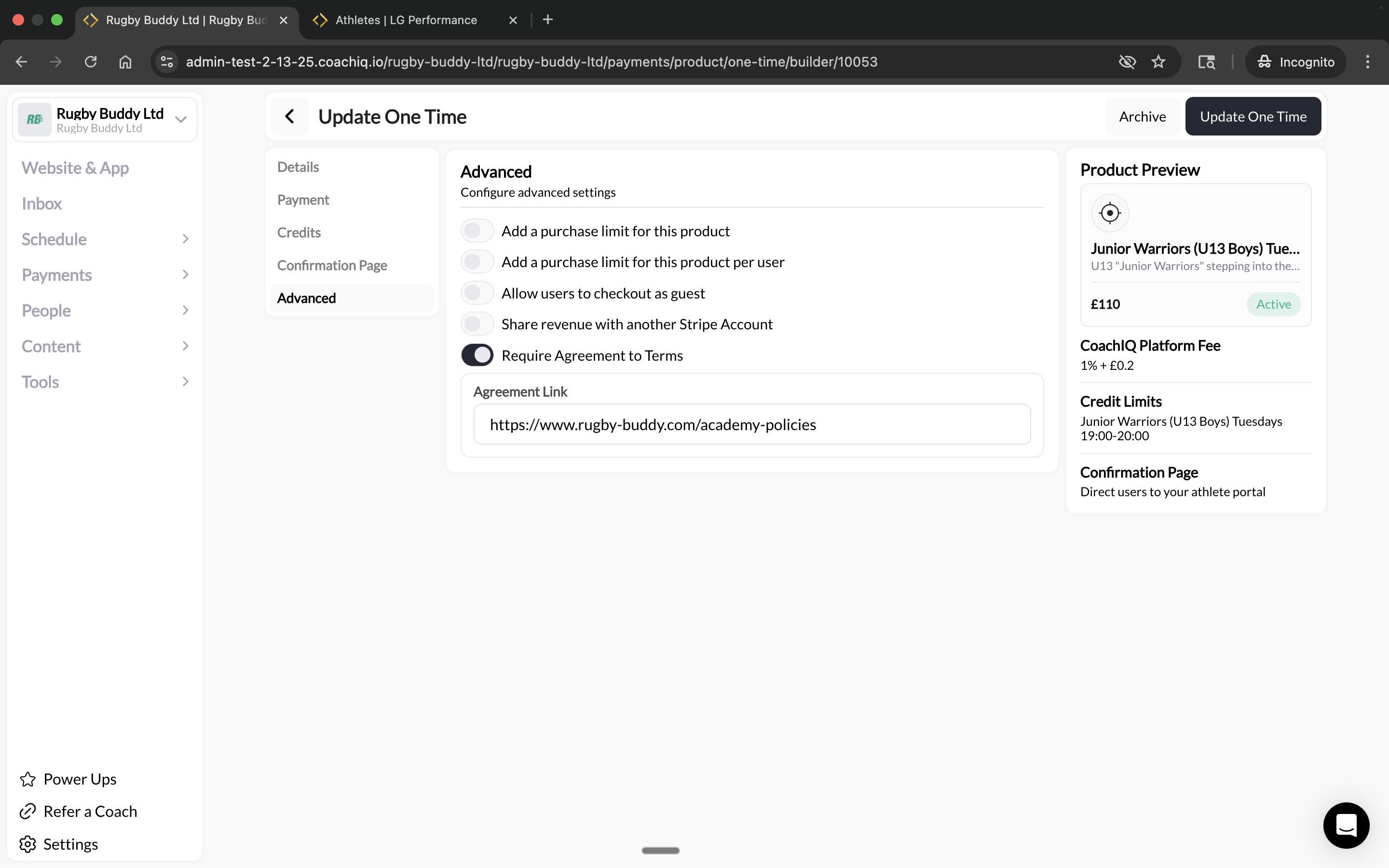
**Require terms acceptance**
**OFF (default):** No terms required at checkout
**ON:** Checkbox with link to terms appears at checkout. Client must check the box to complete purchase.
**Configure:**
* Toggle **Require Agreement to Terms** to ON
* Enter your **Agreement Link** (URL to your terms page)
## Section 1: Product Details
**Required section** - Every product needs at minimum a name and price.
**Required**
The name clients see during checkout and in their purchase history.
**Best practices:**
* Be specific: "60-Minute Basketball Training" not "Training"
* Include duration for sessions: "90-Minute Session"
* Add value: "Premium Coaching Package"
**Character limit:** 100 characters
**Examples:**
* "Individual Training Session"
* "Monthly Unlimited Membership"
* "10-Session Package - Youth Development"
**Required**
Dollar amount clients pay.
**Format:** \$XX.XX (US dollars or your Stripe currency)
**Minimum:** \$0.50 (Stripe requirement)
**Free products:** Use Access Code type with \$0.00 price
Double-check your price before publishing. $5.00 vs $50.00 mistakes are common.
**Optional**
Explain what's included in the purchase. Appears on checkout page.
**Supports:**
* Plain text
* Line breaks
* Basic formatting
**Best practices:**
* Keep it concise (2-4 sentences)
* List what's included
* Mention any restrictions or expiration
**Example:** "One 60-minute individual training session with Coach Mike. Includes personalized skill development, video analysis, and post-session workout plan. Must be used within 30 days of purchase."
**Optional**
Bullet point list highlighting product benefits.
**Appears:** Below description on checkout page
**Best practices:**
* Use 3-5 features
* Start with action words
* Focus on benefits, not just features
**Example:**
* Personalized training plan
* Video analysis included
* Flexible scheduling
* Money-back guarantee
**Subscription or One Time Product**
**Subscription:** Charges client on a recurring basis once product is purchased
**One Time Product:** Charges client once per purchase
## Section 2: Payment Options
Configure pricing frequency and processing fees.
**All product types**
Set or modify the product price. Same as Section 1 price field.
**Subscription products only**
Define how often payments occur and credits are issued. Use the **Payment Every** field to set a custom interval: enter a number and select the period (Day, Week, Month, or Year).
**Common setups:**
* Every 1 Month — monthly billing (most common)
* Every 3 Months — quarterly billing
* Every 6 Months — semi-annual billing
* Every 1 Year — annual billing
Monthly billing creates the most predictable recurring revenue and is easiest for clients to commit to.
**All product types**
Configure who pays Stripe's transaction fees (2.9% + \$0.30 in US).
**Options:**
**You absorb the fee** (default)
* Client pays product price
* You receive product price minus Stripe fees
* Example: $50 product = $48.05 to you
**Client pays the fee**
* Stripe fee added as separate line item at checkout
* You receive full product price
* Example: $50 product + $1.76 fee = \$51.76 charged to client
**Custom fee structure:**
* Fixed amount: Add specific dollar amount (e.g., \$2.00)
* Percentage: Add percentage on top (e.g., 3%)
* Both: Combine fixed + percentage
Some states restrict credit card surcharges. Check local regulations before passing fees to clients.
**Subscription products only**
Charge a one-time amount on the first invoice in addition to the recurring price.
**OFF (default):** Client is charged the recurring price starting on day one.
**ON:** A separate one-time charge is added to the first invoice only. All subsequent invoices charge the recurring price.
**Use cases:**
* Setup or enrollment fees
* Commitment deposits
* Registration fees
Example: $50 setup fee + $200/month recurring. The client pays $250 on day one, then $200 each month after.
**All product types**
Toggle ON to allow clients to redeem access codes at checkout to unlock this product. Configure the actual codes in [Section 7: Access Codes](#section-7-access-codes).
**Subscription products only**
Define when the subscription ends.
**Ongoing (no end)** (default): Subscription continues until the client or coach cancels manually.
**End after a number of billing cycles:** Subscription automatically cancels after a set number of payments. Example: set to 12 for an annual commitment billed monthly.
**End on a specific date:** Subscription automatically cancels on a chosen calendar date. Example: set to June 30 for a season-based membership.
Use "End after billing cycles" for finite training packages sold as subscriptions, such as a 12-week program billed monthly.
**All product types**
Collect the purchase now but delay the first charge to a future date. Turn the toggle ON and set a **First charge date** (MM/DD/YYYY).
**OFF (default):** The client is charged at checkout.
**ON:** The client enters their card and completes checkout now. The card is saved and automatically charged on the First charge date — no manual action needed.
**Use cases:**
* Open registration for a season or camp that bills on a set start date
* Locking in sign-ups now while charging everyone on the same future day
Example: Open summer-program registration in April with a First charge date of June 1 — parents register now and are charged automatically on June 1.
**All product types**
Give clients a trial period before any charge. Turn the toggle ON and set the **Trial period (days)** (for example, 7).
**OFF (default):** Billing begins at checkout.
**ON:** The client isn't charged during the trial. The first payment processes when the trial period ends, unless they cancel before then.
**Use cases:**
* "First week free" memberships
* Letting athletes try a program before committing
For subscriptions, the trial shows as a **Trialing** status on the client's [Subscriptions tab](/people/client-profiles/client-profiles-subscriptions).
**Free (\$0.00) products**
When a product's price is **\$0.00**, the Payment section shows a **Show payment methods** toggle. Turn it ON to require buyers to enter a card at checkout and save it to their account — **without charging them today**. (Enabling it mirrors the product into Stripe so the card can be charged later.)
**Collect a card on file:**
1. Create a product and set the **Price** to **\$0.00**.
2. Turn on **Show payment methods**.
3. Share or attach the product. At checkout, the buyer enters a card, which is saved to their profile — no charge is made.
**Use cases:**
* Getting parents' cards on file before a season or program starts
* Securing a card for future manual or scheduled charges
## Section 3: Credits
Configure session credits issued with purchase.
**Toggle ON or OFF**
Turn this on to issue credits when clients purchase this product.
**OFF (default):** Product is payment-only. No credits issued.
**ON:** Product issues specified number of credits to client's account.
Credits require additional configuration in Schedule → Schedulers. [Learn about credits →](/scheduling/credit-system-overview)
**Appears when credits are ON**
How many credits to issue per purchase or billing period.
**Examples:**
* 1 credit for single session products
* 10 credits for multi-session packages
* 4 credits per month for subscriptions
* ∞ credits for "unlimited" access
For unlimited monthly memberships, set credits to 999. Functionally unlimited for most coaches.
**Appears when credits are ON**
When credits expire and become unusable.
**Options:**
**Days since purchase (One Time product only)**
* 30 days
* 60 days
* 90 days
* 120 days
* Custom number of days
**Specific date (One Time Product Only)**
* Calendar picker
* Set exact expiration (e.g., end of season)
**Don't expire (One Time Product Only)**
* Master Credits (never expire)
* Client keeps credits indefinitely
**Carry Over Unsed Credits (Subscription Product Only)**
* Credits carry over from one billing cycle to the next
**Subscription expiration (Subscription Product Only)**
* Credits expire when subscription cancels
* New credits issued each billing period
## Section 4: Usage Limits
Restrict where credits can be redeemed.
**Appears when credits are ON**
Select specific schedulers that accept this product's credits.
**Universal Credits (default):** Leave blank or select all. Credits work for any scheduler.
**Restricted Credits:** Select specific schedulers only.
**Examples:**
* "Youth Package" credits → Only youth training schedulers
* "Pitching Credits" → Only pitching lesson scheduler
* "Group Session Package" → Only group class schedulers
Use restricted credits to create specialized packages that don't accidentally get used for wrong session types.
**Advanced feature**
Override how many credits can be used per billing cycle for a partcular scheduler
**Example:**
* Product awards client 8 credits
* 4 credits can be used for a "Group Training" Scheduler
* 4 credits can be used for a "Private Training" Scheduler
## Section 5: Confirmation Page
Where clients go after successful purchase.
**Default option**
Redirect to client's Athlete Portal after purchase.
**Client sees:**
* Purchase confirmation
* Home page of the athlete portal
**Best for:** Most products, especially session bookings
**Custom message option**
Display a thank you message.
**Best for:** If you have no next steps after a person purchases a product.
**External redirect**
Send clients to any URL after purchase.
**Enter:** Full URL ([https://yourwebsite.com/thank-you](https://yourwebsite.com/thank-you))
**Best for:** Redirecting to your website, external platform, or custom landing page
Ensure the URL is correct. Broken links create poor purchase experience.
## Section 6: Advanced Settings
Special configurations for specific business needs.
**Allow purchase without account**
**OFF (default):** Client must create CoachIQ account to purchase
**ON:** Client can checkout as guest with just email and payment info
**When to enable:**
* Selling merchandise to non-clients
* One-time workshop registration
* Public events open to anyone
**When to keep OFF:**
* Session bookings (need account to schedule)
* Memberships (need account to access)
* Programs (need account for content)
Guest checkouts don't create client profiles. Use for one-off sales to people who won't need ongoing access.
**Split revenue with partners**
Automatically split product revenue with other coaches or facilities.
**Configure:**
* Partner Stripe account ID
* Percentage split (e.g., 70/30, 80/20)
* Flat fee per transaction
**Use cases:**
* Facility rental fees
* Contractor coach payments
* Referral partnerships
**How it works:**
* Client pays full product price
* Stripe automatically splits payment
* Each party receives funds in their own Stripe account
Revenue sharing requires the partner to have their own Stripe Connect account. Setup is technical—contact support for implementation help.
**Require terms acceptance**
**OFF (default):** No terms required at checkout
**ON:** Checkbox with link to terms appears at checkout. Client must check the box to complete purchase.
**Configure:**
* Toggle **Require Agreement to Terms** to ON
* Enter your **Agreement Link** (URL to your terms page)
 **Common uses:**
* Cancellation and refund policies
* Liability waivers
* No-show policies
* Service agreements
[Full guide to checkout terms & waivers →](/payments/checkout-terms-waivers)
## Section 7: Access Codes
Create redemption codes for this product.
**Code format:** Any combination of letters/numbers (no spaces)
**Examples:**
* SPONSOR2025
* TEAMDISCOUNT
* PARTNERSHIP50
**Case sensitive:** Codes must match exactly unless configured otherwise
Use descriptive codes so you can identify their purpose (CORP-IBM-2025 vs CODE123).
Set how many times each code can be used.
**Options:**
* Unlimited uses
* Limited uses (1, 10, 50, 100, custom)
**Tracking:** View current redemption count for each code
**Example:** Create PARTNER2025 code with 50 redemption limit for corporate partnership
See how many times each code has been redeemed.
**Displays:**
* Code name
* Redemptions used / limit
* Last redemption date
Use this to track campaign performance and know when codes reach limits.
Remove codes that are no longer needed.
**Deleted codes:**
* Can't be redeemed by new clients
* Still show in past transaction history
Deleting a code doesn't affect purchases already made with that code. It only prevents future redemptions.
## Archiving products
Products don't have an Active/Inactive toggle like schedulers. Instead, you control visibility by where you add products, and use Archive to completely disable a product.
**To archive a product:**
1. Go to **Payments → Products**
2. Click on the product row
3. Select **Archive Product**
**What archiving does:**
* Disables the ability to purchase the product — it can't be bought anywhere
* Does NOT remove the product from the Athlete Portal or other places it's listed — remove it manually from any pages if you want to hide it
* Preserves all data and transaction history
* Doesn't affect existing subscriptions or credits
* Can be reversed by unarchiving
**Set up now, launch later**: You don't need to archive products to hide them. Products are invisible to athletes until you add them to the Athlete Portal, attach them to schedulers/forms, or share the direct link. See [Products Overview](/payments/product-overview) for the full visibility model.
## Related articles
* [Product Types Explained](/payments/product-types)
* [Credits & Products](/payments/credits-products)
* [Products Overview](/payments/product-overview) - Understand product visibility and archiving
**Common uses:**
* Cancellation and refund policies
* Liability waivers
* No-show policies
* Service agreements
[Full guide to checkout terms & waivers →](/payments/checkout-terms-waivers)
## Section 7: Access Codes
Create redemption codes for this product.
**Code format:** Any combination of letters/numbers (no spaces)
**Examples:**
* SPONSOR2025
* TEAMDISCOUNT
* PARTNERSHIP50
**Case sensitive:** Codes must match exactly unless configured otherwise
Use descriptive codes so you can identify their purpose (CORP-IBM-2025 vs CODE123).
Set how many times each code can be used.
**Options:**
* Unlimited uses
* Limited uses (1, 10, 50, 100, custom)
**Tracking:** View current redemption count for each code
**Example:** Create PARTNER2025 code with 50 redemption limit for corporate partnership
See how many times each code has been redeemed.
**Displays:**
* Code name
* Redemptions used / limit
* Last redemption date
Use this to track campaign performance and know when codes reach limits.
Remove codes that are no longer needed.
**Deleted codes:**
* Can't be redeemed by new clients
* Still show in past transaction history
Deleting a code doesn't affect purchases already made with that code. It only prevents future redemptions.
## Archiving products
Products don't have an Active/Inactive toggle like schedulers. Instead, you control visibility by where you add products, and use Archive to completely disable a product.
**To archive a product:**
1. Go to **Payments → Products**
2. Click on the product row
3. Select **Archive Product**
**What archiving does:**
* Disables the ability to purchase the product — it can't be bought anywhere
* Does NOT remove the product from the Athlete Portal or other places it's listed — remove it manually from any pages if you want to hide it
* Preserves all data and transaction history
* Doesn't affect existing subscriptions or credits
* Can be reversed by unarchiving
**Set up now, launch later**: You don't need to archive products to hide them. Products are invisible to athletes until you add them to the Athlete Portal, attach them to schedulers/forms, or share the direct link. See [Products Overview](/payments/product-overview) for the full visibility model.
## Related articles
* [Product Types Explained](/payments/product-types)
* [Credits & Products](/payments/credits-products)
* [Products Overview](/payments/product-overview) - Understand product visibility and archiving