> ## Documentation Index
> Fetch the complete documentation index at: https://help.coachiq.io/llms.txt
> Use this file to discover all available pages before exploring further.
# Failed Payments
> Recover failed subscription and one-time payments to prevent revenue loss and maintain client access
**Where to find this**: Payments → Transactions or Subscriptions → Filter by Past Due
## Why payments fail
Common reasons for payment failures:
**Card issues:**
* Expired card
* Insufficient funds
* Card declined by issuer
* Incorrect card details
* Card reported lost or stolen
**Bank issues:**
* Fraud prevention triggered
* Daily spending limit exceeded
* International transaction blocked
* Bank requires authentication
**Technical issues:**
* Network timeout
* Processing error
* Stripe API issue
Most failures are card-related and resolve when client updates payment method.
## How failed payments appear
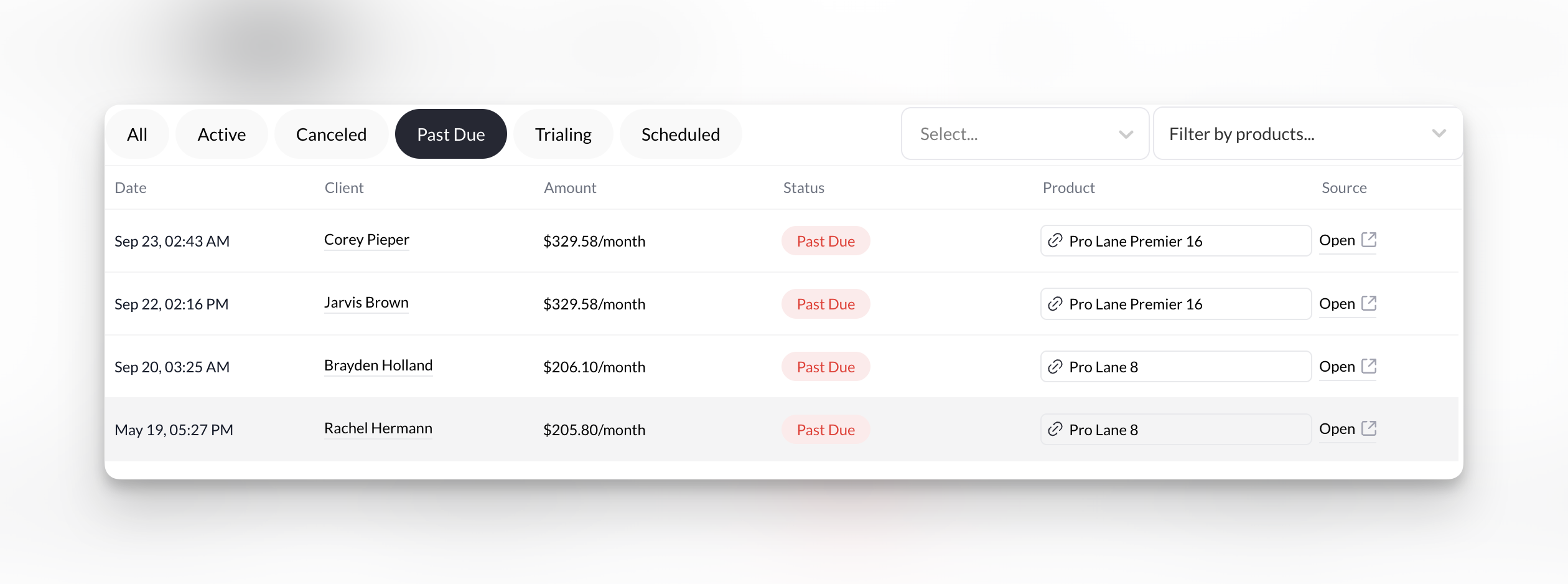
**Subscriptions page shows Past Due status**
When subscription payment fails:
* Status changes to "Past Due" (red)
* Last attempted payment shows as failed
* Next retry date displayed
* Client may retain access during retry period
 **Transactions page shows Failed status**
When one-time payment fails:
* Transaction appears with "Failed" status
* No automatic retries for one-time payments
* Client didn't receive product or credits
* No access granted
## Stripe's automatic retry schedule
**Subscription payments only** - Stripe retries automatically:
1. **3 days** after initial failure
2. **5 days** after first retry
3. **7 days** after second retry
4. **10 days** after third retry
**Total retry window:** Approximately 25 days
**If all retries fail:** Subscription automatically cancels
Don't wait for automatic retries. Contact client immediately when payment fails to speed recovery.
## Recovering failed subscription payments
Go to **Payments → Subscriptions** and filter by **Past Due** status.
Click subscription to view details in stripe.
Check Payment History for failure reason:
* Card declined
* Insufficient funds
* Expired card
* Requires authentication
Understanding why helps you communicate with client.
Send message through Inbox or email:
**Message template:** "Hi \[Name], your recent payment for \[subscription] was declined. To avoid service interruption, please update your payment method here: \[payment update link]"
Act fast. The sooner client updates payment, the sooner Stripe retries successfully.
From subscription details:
1. Click \*\*Open \*\*on the subscription under the **Source** column
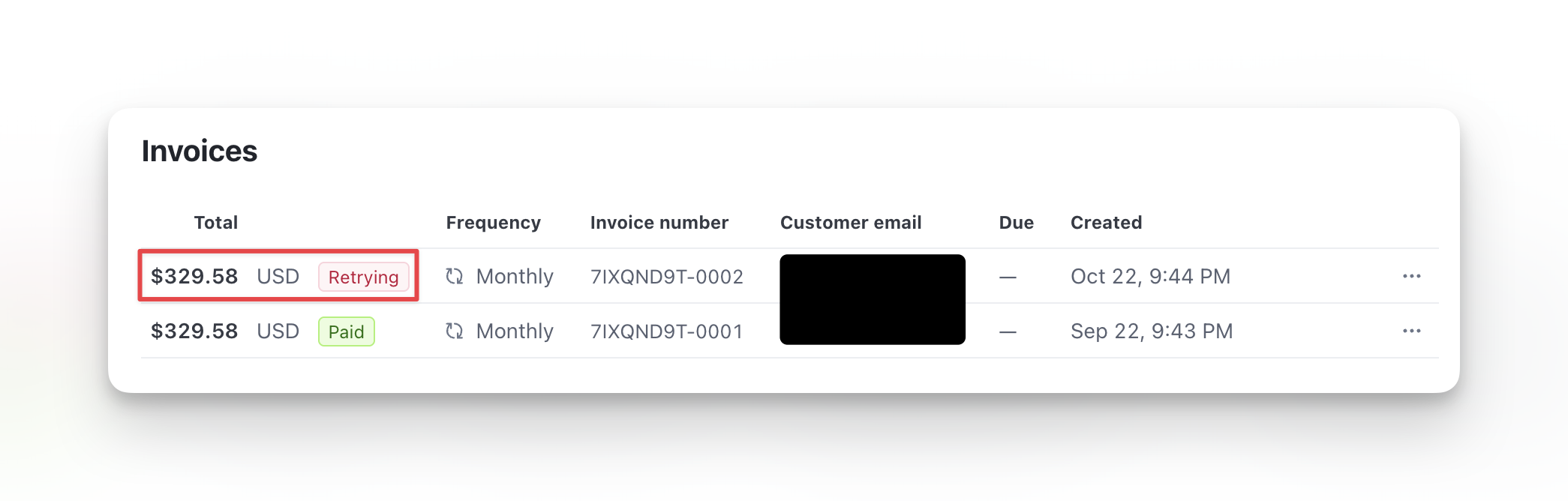
2. Scroll to the **Invoice** section
3. Click the Invoice labeled **Retrying**
4. Copy the Payment Page link
5. Send link to client
**Transactions page shows Failed status**
When one-time payment fails:
* Transaction appears with "Failed" status
* No automatic retries for one-time payments
* Client didn't receive product or credits
* No access granted
## Stripe's automatic retry schedule
**Subscription payments only** - Stripe retries automatically:
1. **3 days** after initial failure
2. **5 days** after first retry
3. **7 days** after second retry
4. **10 days** after third retry
**Total retry window:** Approximately 25 days
**If all retries fail:** Subscription automatically cancels
Don't wait for automatic retries. Contact client immediately when payment fails to speed recovery.
## Recovering failed subscription payments
Go to **Payments → Subscriptions** and filter by **Past Due** status.
Click subscription to view details in stripe.
Check Payment History for failure reason:
* Card declined
* Insufficient funds
* Expired card
* Requires authentication
Understanding why helps you communicate with client.
Send message through Inbox or email:
**Message template:** "Hi \[Name], your recent payment for \[subscription] was declined. To avoid service interruption, please update your payment method here: \[payment update link]"
Act fast. The sooner client updates payment, the sooner Stripe retries successfully.
From subscription details:
1. Click \*\*Open \*\*on the subscription under the **Source** column
2. Scroll to the **Invoice** section
3. Click the Invoice labeled **Retrying**
4. Copy the Payment Page link
5. Send link to client
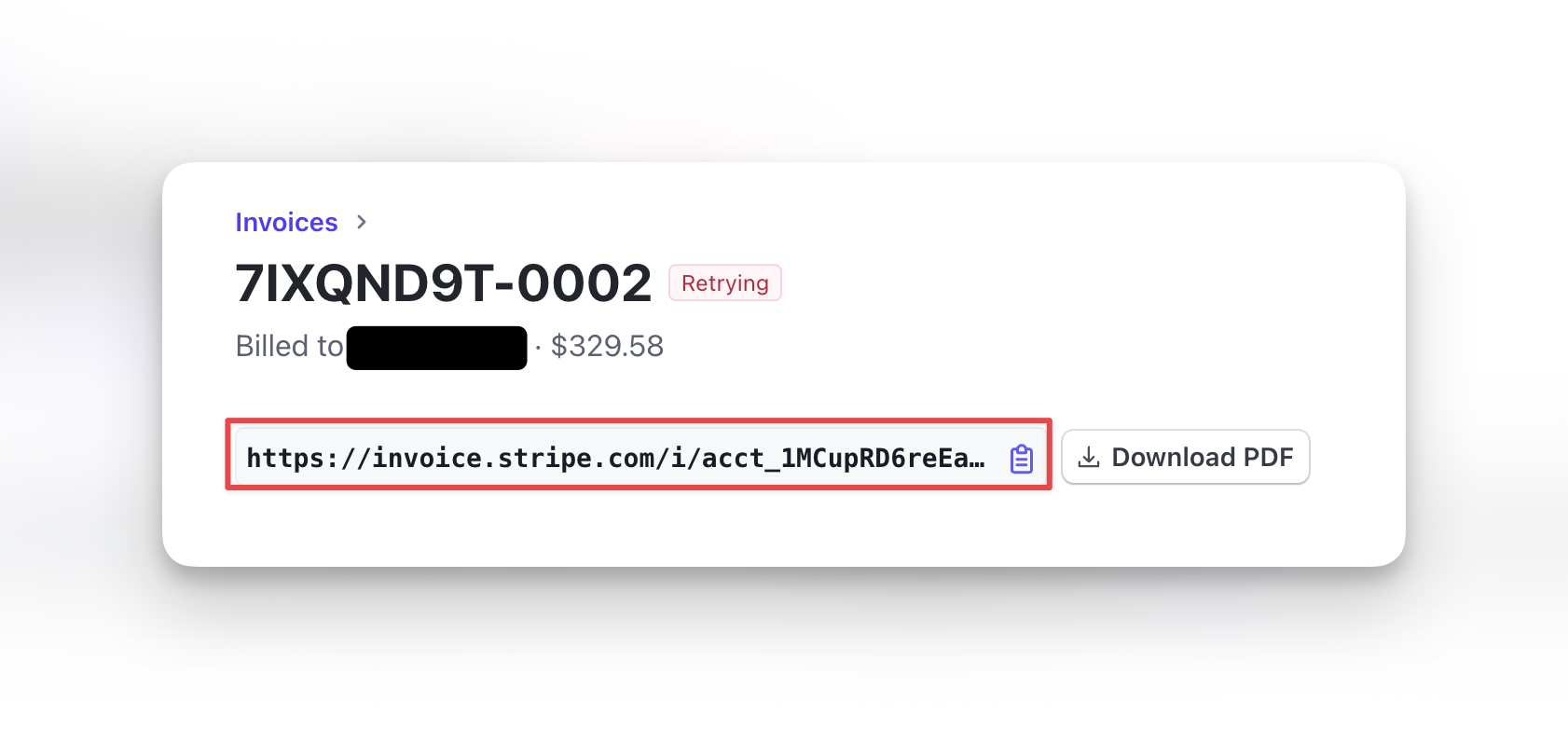 Client clicks link, enters new payment details and checks out.
Check subscription status:
* **Active** = Retry succeeded, subscription recovered
* **Past Due** = Still failing, follow up again
* **Canceled** = All retries failed, subscription lost
**Payment recovered.** Subscription returns to Active status. Credits renew. Service continues.
## Recovering failed one-time payments
One-time payments don't retry automatically. You must manually recover them.
Go to **Payments → Transactions** and filter by **Failed** status.
**Message template:** "Hi \[Name], your payment for \[product] didn't process successfully. You can complete your purchase here: \[new payment link]"
**Option 1: Resend product link**
* If client has product URL, they can try purchasing again
* Client re-enters payment details
**Option 2: Manual payment (not recommended)**
* Client pays via alternative method (Venmo, check, etc.)
* You manually record transaction
* Manually grant access/credits
Option 1 is simplest. Just send the original booking or product purchase link again.
After client attempts payment again, check Transactions page for successful charge.
If successful: Grant access, issue credits, confirm with client.
## What clients see when payment fails
**Subscription failure:**
* May receive email from Stripe about failed payment
* May receive notification from you
* Usually retain access during retry period
* Risk losing access if not resolved
**One-time payment failure:**
* Transaction doesn't complete
* No confirmation email
* No access to product/credits
* Must attempt payment again
Client experience varies based on your notification settings. Configure Stripe email notifications in Stripe Dashboard.
## Communication best practices
**When payment fails:**
✅ **Do:**
* Contact immediately (within 24 hours)
* Be helpful and non-judgmental
* Provide clear next steps
* Include payment update link
* Offer assistance if needed
❌ **Don't:**
* Wait for automatic retries
* Shame or blame client
* Threaten immediate cancellation
* Use aggressive language
* Send multiple messages in one day
**Sample messages:**
**Professional and helpful:** "Hi \[Name]! Just a heads up - your payment for \[subscription] didn't go through. This happens sometimes with expired cards or fraud protection. You can update your payment method here: \[link]. Let me know if you need any help!"
**Too aggressive:** "Your payment FAILED. Update your card immediately or your account will be canceled."
Most payment failures are accidental, not intentional. Keep tone friendly and assume client wants to resolve it.
## Preventing payment failures
**Proactive strategies:**
Check upcoming expirations in Stripe Dashboard.
**Action:** Contact clients 30 days before card expires with payment update link.
Result: Prevent failures before they happen.
**For subscriptions:** Remind clients 3-5 days before billing date.
**Message:** "Your \[subscription] renews on \[date] for \$\[amount]. Your card ending in \[last 4] will be charged. Need to update payment info? \[link]"
Result: Gives clients heads-up and chance to update card if needed.
**Advanced:** Some coaches require two cards on file.
If primary fails, Stripe automatically tries backup card.
**Setup:** Configure in Stripe Dashboard (requires technical setup).
## When payment recovery fails
If client doesn't respond or can't/won't update payment:
**Subscriptions:**
* Stripe exhausts retries (25 days)
* Subscription automatically cancels
* Client loses access and credits
* Must resubscribe to resume service
**One-time payments:**
* Transaction remains failed
* No product or credits issued
* Client must attempt purchase again
* Can write off as lost sale
Document failed recovery attempts for your records. Some coaches have policies about re-allowing clients who frequently fail payments.
## Troubleshooting specific failure reasons
**Reason:** Bank declined without specific reason
**Solution:**
* Ask client to contact their bank
* Bank can provide specific reason
* Client may need to authorize charge
* Try different card
**Reason:** Not enough money in account
**Solution:**
* Wait for client to add funds
* Offer payment plan if appropriate
* Next retry may succeed when funds available
**Reason:** Card past expiration date
**Solution:**
* Send payment update link
* Client enters new card with current expiration
* Usually quick resolution
**Reason:** Card flagged by issuer
**Solution:**
* Client must use completely different card
* Old card won't work even after "update"
* Client needs to contact bank for replacement
## Next steps
1. [Issue refunds](/payments/issuing-refunds) - Process refunds for recovered payments if needed
2. [Manage subscriptions](/payments/managing-subscriptions) - Handle subscription modifications
3. [View transactions](/payments/transactions) - Monitor all payment activity
## Related articles
* [Managing Subscriptions](/payments/managing-subscriptions)
* [Subscriptions Dashboard](/payments/subscriptions-dashboard)
* [Issuing Refunds](/payments/issuing-refunds)
* [Transactions Dashboard](/payments/transactions-dashboard)
Client clicks link, enters new payment details and checks out.
Check subscription status:
* **Active** = Retry succeeded, subscription recovered
* **Past Due** = Still failing, follow up again
* **Canceled** = All retries failed, subscription lost
**Payment recovered.** Subscription returns to Active status. Credits renew. Service continues.
## Recovering failed one-time payments
One-time payments don't retry automatically. You must manually recover them.
Go to **Payments → Transactions** and filter by **Failed** status.
**Message template:** "Hi \[Name], your payment for \[product] didn't process successfully. You can complete your purchase here: \[new payment link]"
**Option 1: Resend product link**
* If client has product URL, they can try purchasing again
* Client re-enters payment details
**Option 2: Manual payment (not recommended)**
* Client pays via alternative method (Venmo, check, etc.)
* You manually record transaction
* Manually grant access/credits
Option 1 is simplest. Just send the original booking or product purchase link again.
After client attempts payment again, check Transactions page for successful charge.
If successful: Grant access, issue credits, confirm with client.
## What clients see when payment fails
**Subscription failure:**
* May receive email from Stripe about failed payment
* May receive notification from you
* Usually retain access during retry period
* Risk losing access if not resolved
**One-time payment failure:**
* Transaction doesn't complete
* No confirmation email
* No access to product/credits
* Must attempt payment again
Client experience varies based on your notification settings. Configure Stripe email notifications in Stripe Dashboard.
## Communication best practices
**When payment fails:**
✅ **Do:**
* Contact immediately (within 24 hours)
* Be helpful and non-judgmental
* Provide clear next steps
* Include payment update link
* Offer assistance if needed
❌ **Don't:**
* Wait for automatic retries
* Shame or blame client
* Threaten immediate cancellation
* Use aggressive language
* Send multiple messages in one day
**Sample messages:**
**Professional and helpful:** "Hi \[Name]! Just a heads up - your payment for \[subscription] didn't go through. This happens sometimes with expired cards or fraud protection. You can update your payment method here: \[link]. Let me know if you need any help!"
**Too aggressive:** "Your payment FAILED. Update your card immediately or your account will be canceled."
Most payment failures are accidental, not intentional. Keep tone friendly and assume client wants to resolve it.
## Preventing payment failures
**Proactive strategies:**
Check upcoming expirations in Stripe Dashboard.
**Action:** Contact clients 30 days before card expires with payment update link.
Result: Prevent failures before they happen.
**For subscriptions:** Remind clients 3-5 days before billing date.
**Message:** "Your \[subscription] renews on \[date] for \$\[amount]. Your card ending in \[last 4] will be charged. Need to update payment info? \[link]"
Result: Gives clients heads-up and chance to update card if needed.
**Advanced:** Some coaches require two cards on file.
If primary fails, Stripe automatically tries backup card.
**Setup:** Configure in Stripe Dashboard (requires technical setup).
## When payment recovery fails
If client doesn't respond or can't/won't update payment:
**Subscriptions:**
* Stripe exhausts retries (25 days)
* Subscription automatically cancels
* Client loses access and credits
* Must resubscribe to resume service
**One-time payments:**
* Transaction remains failed
* No product or credits issued
* Client must attempt purchase again
* Can write off as lost sale
Document failed recovery attempts for your records. Some coaches have policies about re-allowing clients who frequently fail payments.
## Troubleshooting specific failure reasons
**Reason:** Bank declined without specific reason
**Solution:**
* Ask client to contact their bank
* Bank can provide specific reason
* Client may need to authorize charge
* Try different card
**Reason:** Not enough money in account
**Solution:**
* Wait for client to add funds
* Offer payment plan if appropriate
* Next retry may succeed when funds available
**Reason:** Card past expiration date
**Solution:**
* Send payment update link
* Client enters new card with current expiration
* Usually quick resolution
**Reason:** Card flagged by issuer
**Solution:**
* Client must use completely different card
* Old card won't work even after "update"
* Client needs to contact bank for replacement
## Next steps
1. [Issue refunds](/payments/issuing-refunds) - Process refunds for recovered payments if needed
2. [Manage subscriptions](/payments/managing-subscriptions) - Handle subscription modifications
3. [View transactions](/payments/transactions) - Monitor all payment activity
## Related articles
* [Managing Subscriptions](/payments/managing-subscriptions)
* [Subscriptions Dashboard](/payments/subscriptions-dashboard)
* [Issuing Refunds](/payments/issuing-refunds)
* [Transactions Dashboard](/payments/transactions-dashboard)