> ## Documentation Index
> Fetch the complete documentation index at: https://help.coachiq.io/llms.txt
> Use this file to discover all available pages before exploring further.
# Using Tags for Group Messages
> Save time by messaging groups of athletes using tags. Learn how to create, apply, and use tags for efficient team communication in CoachIQ.
**Where to find this**: Dashboard → People (to create/apply tags) Dashboard → Inbox → Create New (to use tags for messaging)
## What are tags?
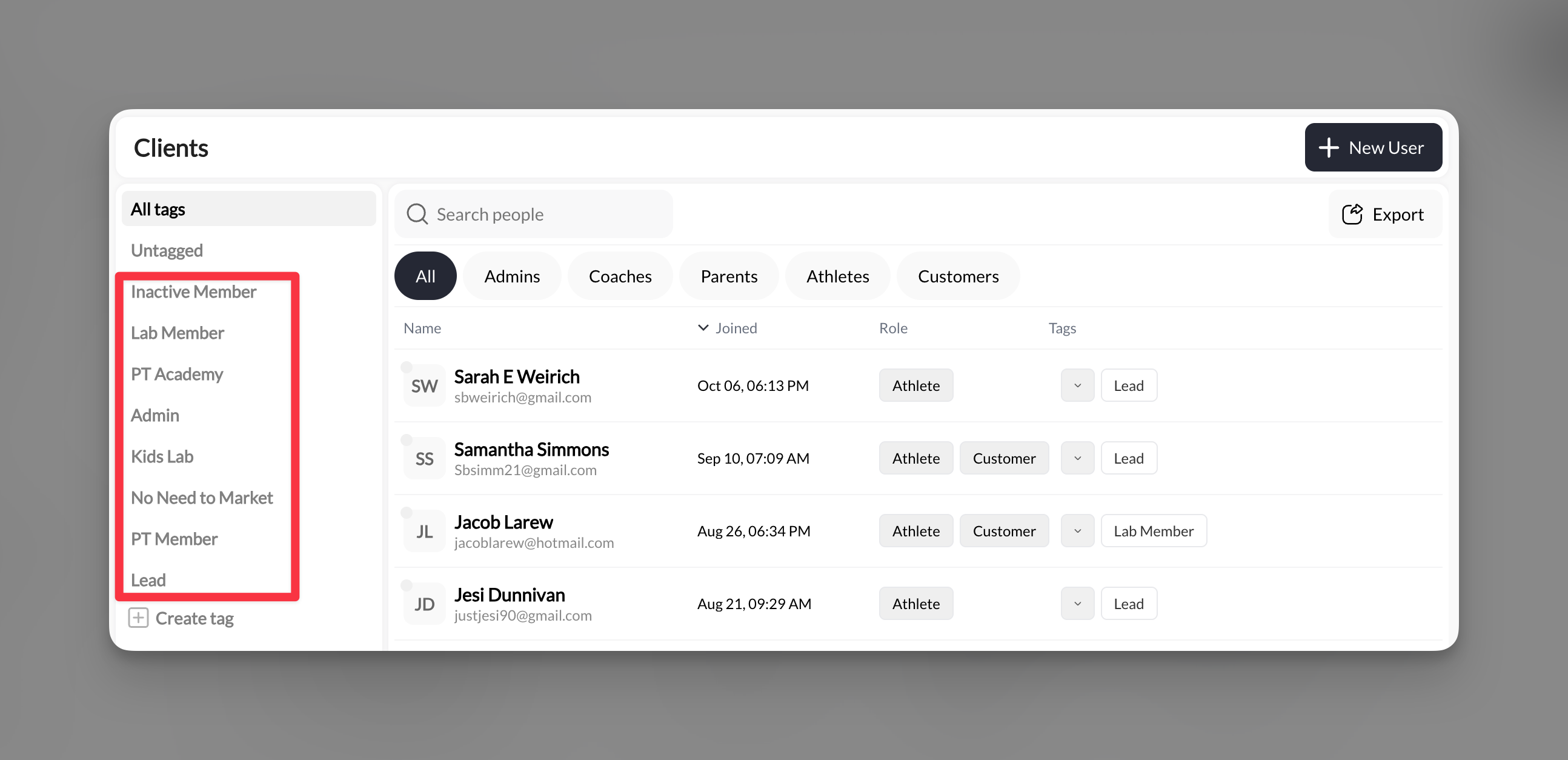
Tags are labels you create to organize athletes into groups. Instead of selecting 20 individual athletes every time you message the varsity team, tag them once as "Varsity" and message the entire group with one click.
Think of tags as your custom mailing lists that work across all message types.
 ## Common tag examples
Elite, Advanced, Intermediate, Beginner
Varsity, JV, U14, Travel Team
Active, On Break, Trial, Alumni
North Gym, South Field, Needs Pickup
Other useful tags:
* **Payment status**: Paid, Outstanding, Scholarship
* **Equipment**: Needs Gear, Uniform Ordered
* **Communication**: Parents Only, Athletes Only
* **Special groups**: Leadership Council, New This Season
## Setting up your tags
Go to **People** in your main navigation to access your athlete database.
## Common tag examples
Elite, Advanced, Intermediate, Beginner
Varsity, JV, U14, Travel Team
Active, On Break, Trial, Alumni
North Gym, South Field, Needs Pickup
Other useful tags:
* **Payment status**: Paid, Outstanding, Scholarship
* **Equipment**: Needs Gear, Uniform Ordered
* **Communication**: Parents Only, Athletes Only
* **Special groups**: Leadership Council, New This Season
## Setting up your tags
Go to **People** in your main navigation to access your athlete database.
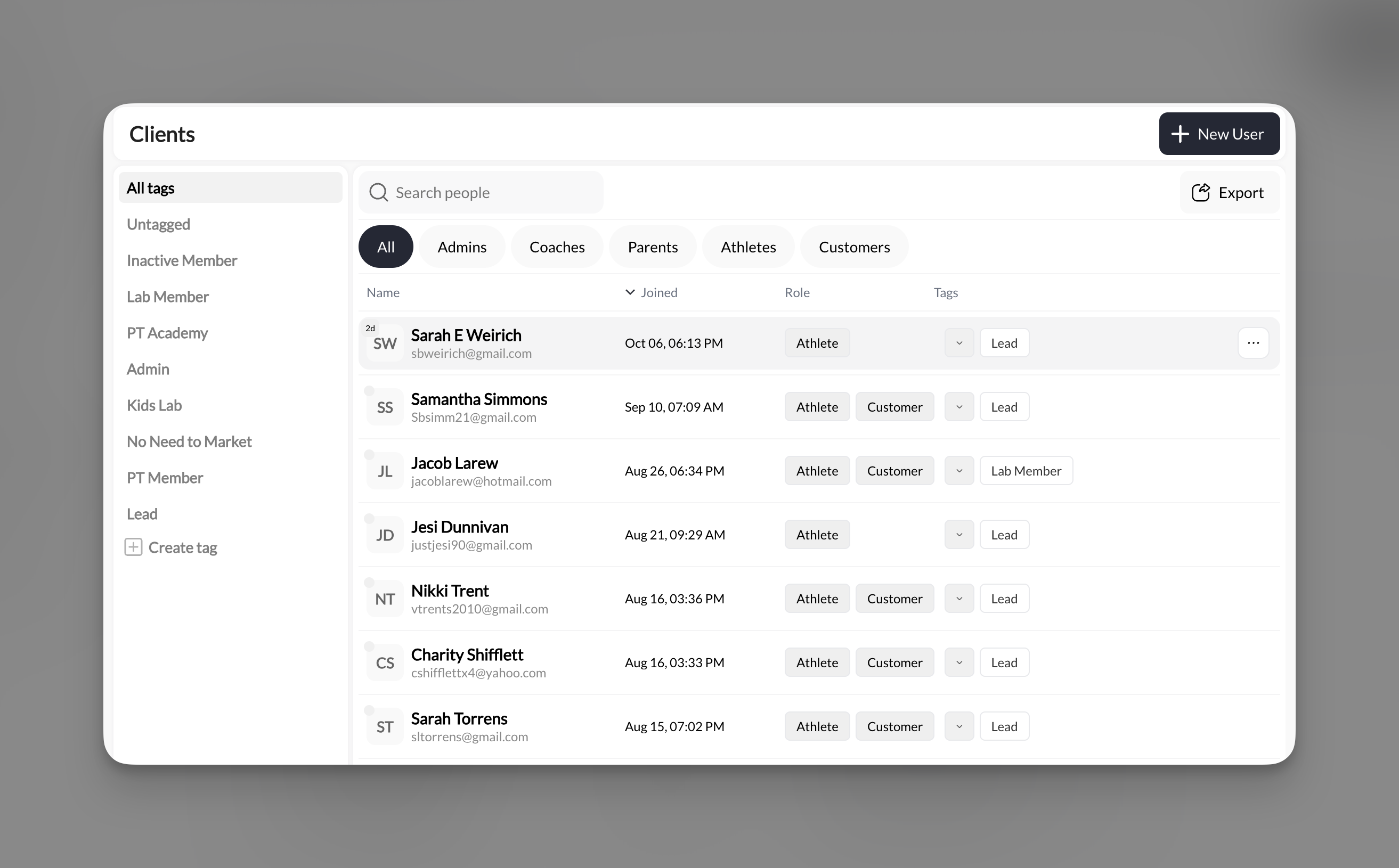 Look for the tags section in your People area. Create tags that match your communication needs.
Examples to create:
* "Spring 2024 Team"
* "Competition Squad"
* "Monday/Wednesday Group"
* "Needs Medical Form"
Select one or more athletes and apply relevant tags:
1. Check the boxes next to athlete names
2. Choose "Add Tags" from the bulk actions
3. Select which tags to apply
4. Save changes
**Bulk tagging**: Select all athletes who train on Tuesdays, then apply a "Tuesday Training" tag to message them about schedule changes.
Filter by each tag to confirm the right athletes are included. This prevents messaging mistakes.
Tags are now ready to use for group messaging!
## Sending messages with tags
### Quick group message
Go to **Inbox** → **Create New** → Choose your message type (In-App, SMS, or Announcement)
In the "Send to" field:
* Start typing your tag name
* Select the tag from the dropdown
* All athletes with that tag are automatically included
Look for the tags section in your People area. Create tags that match your communication needs.
Examples to create:
* "Spring 2024 Team"
* "Competition Squad"
* "Monday/Wednesday Group"
* "Needs Medical Form"
Select one or more athletes and apply relevant tags:
1. Check the boxes next to athlete names
2. Choose "Add Tags" from the bulk actions
3. Select which tags to apply
4. Save changes
**Bulk tagging**: Select all athletes who train on Tuesdays, then apply a "Tuesday Training" tag to message them about schedule changes.
Filter by each tag to confirm the right athletes are included. This prevents messaging mistakes.
Tags are now ready to use for group messaging!
## Sending messages with tags
### Quick group message
Go to **Inbox** → **Create New** → Choose your message type (In-App, SMS, or Announcement)
In the "Send to" field:
* Start typing your tag name
* Select the tag from the dropdown
* All athletes with that tag are automatically included
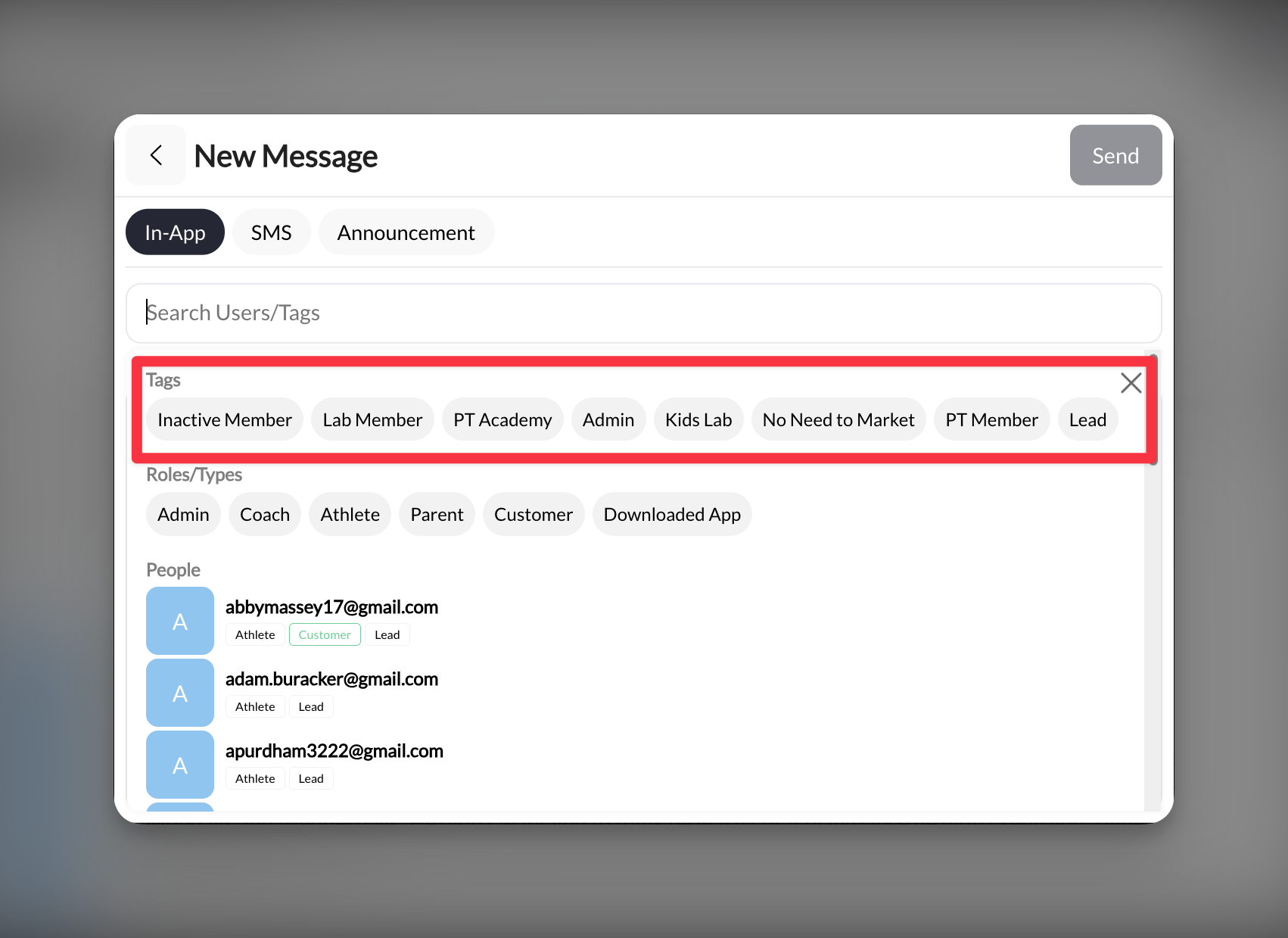 Write your message and send to the entire group at once.
### Combining multiple tags
You can message athletes who have ANY of several tags:
* Select "Elite Program" tag
* Also select "Advanced Training" tag
* Message goes to anyone in EITHER group
**Overlap handling**: If an athlete has both tags, they still only receive one message.
## Strategic tagging for different message types
### For In-App messages
Best tags for In-App group messages:
* Program enrollment ("Fall Basketball", "Speed Training")
* Feedback groups ("Needs Form Review", "Technique Focus")
* Progress tracking ("Ready for Advanced", "Competition Eligible")
### For SMS messages
Cost-conscious tags for urgent SMS:
* "Primary Contacts" (parents who need immediate updates)
* "No App Access" (those who only receive SMS)
* "Emergency Contacts" (for weather/safety issues)
### For announcements
Broad tags for announcements:
* "All Athletes 2024"
* "Parents"
* "Summer Camp Registered"
## Common questions
Yes! Athletes can have unlimited tags. Use multiple tags to create detailed segments (e.g., "Varsity" + "Needs Payment" + "Tuesday Group").
If you remove someone from your People list, they lose all tags. If they're re-added later, you'll need to retag them.
No, tags are internal organization tools only visible to coaches and admins.
The tag is removed from all athletes, but it doesn't delete the athletes themselves. Past messages sent using that tag remain unchanged.
Not directly, but you can filter for athletes without specific tags in the People section, then select them manually for messaging.
## Best practices
**Naming convention**: Use clear, consistent naming:
* ❌ "Tues" → ✅ "Tuesday Training"
* ❌ "Good kids" → ✅ "Advanced Level"
* ❌ "\$\$" → ✅ "Payment Outstanding"
**Color coding**: While CoachIQ doesn't have colored tags, use prefixes:
* "TEAM: Varsity"
* "STATUS: Active"
* "URGENT: Needs Form"
**Test before sending**: Always filter by a tag in People first to verify you're messaging the right group, especially for SMS (which has costs).
## Tag templates for quick setup
### Youth sports program
* Age Groups: U10, U12, U14, U16, U18
* Skill Levels: Recreational, Competitive, Elite
* Sessions: Spring 2024, Summer 2024, Fall 2024
* Status: Active, Trial, Alumni
### Individual training business
* Training Type: Strength, Speed, Skills, Recovery
* Package: Monthly, Per-Session, Unlimited
* Schedule: Morning, Afternoon, Evening, Weekend
* Goals: College Prep, Fitness, Competition
### Multi-location facility
* Location: North Gym, South Field, Main Facility
* Coaches: Coach Mike, Coach Sarah, Coach Tom
* Programs: Basketball, Soccer, Performance
* Membership: Gold, Silver, Bronze
## Related articles
* [In-App Messages - Direct Athlete Communication](/inbox/in-app-messages)
* [SMS Messages - Setup and Best Practices](/inbox/sms-messages)
* [Announcements - Broadcasting to Your Team](/inbox/announcements)
* [Managing Your Inbox](/inbox/inbox-overview)
Write your message and send to the entire group at once.
### Combining multiple tags
You can message athletes who have ANY of several tags:
* Select "Elite Program" tag
* Also select "Advanced Training" tag
* Message goes to anyone in EITHER group
**Overlap handling**: If an athlete has both tags, they still only receive one message.
## Strategic tagging for different message types
### For In-App messages
Best tags for In-App group messages:
* Program enrollment ("Fall Basketball", "Speed Training")
* Feedback groups ("Needs Form Review", "Technique Focus")
* Progress tracking ("Ready for Advanced", "Competition Eligible")
### For SMS messages
Cost-conscious tags for urgent SMS:
* "Primary Contacts" (parents who need immediate updates)
* "No App Access" (those who only receive SMS)
* "Emergency Contacts" (for weather/safety issues)
### For announcements
Broad tags for announcements:
* "All Athletes 2024"
* "Parents"
* "Summer Camp Registered"
## Common questions
Yes! Athletes can have unlimited tags. Use multiple tags to create detailed segments (e.g., "Varsity" + "Needs Payment" + "Tuesday Group").
If you remove someone from your People list, they lose all tags. If they're re-added later, you'll need to retag them.
No, tags are internal organization tools only visible to coaches and admins.
The tag is removed from all athletes, but it doesn't delete the athletes themselves. Past messages sent using that tag remain unchanged.
Not directly, but you can filter for athletes without specific tags in the People section, then select them manually for messaging.
## Best practices
**Naming convention**: Use clear, consistent naming:
* ❌ "Tues" → ✅ "Tuesday Training"
* ❌ "Good kids" → ✅ "Advanced Level"
* ❌ "\$\$" → ✅ "Payment Outstanding"
**Color coding**: While CoachIQ doesn't have colored tags, use prefixes:
* "TEAM: Varsity"
* "STATUS: Active"
* "URGENT: Needs Form"
**Test before sending**: Always filter by a tag in People first to verify you're messaging the right group, especially for SMS (which has costs).
## Tag templates for quick setup
### Youth sports program
* Age Groups: U10, U12, U14, U16, U18
* Skill Levels: Recreational, Competitive, Elite
* Sessions: Spring 2024, Summer 2024, Fall 2024
* Status: Active, Trial, Alumni
### Individual training business
* Training Type: Strength, Speed, Skills, Recovery
* Package: Monthly, Per-Session, Unlimited
* Schedule: Morning, Afternoon, Evening, Weekend
* Goals: College Prep, Fitness, Competition
### Multi-location facility
* Location: North Gym, South Field, Main Facility
* Coaches: Coach Mike, Coach Sarah, Coach Tom
* Programs: Basketball, Soccer, Performance
* Membership: Gold, Silver, Bronze
## Related articles
* [In-App Messages - Direct Athlete Communication](/inbox/in-app-messages)
* [SMS Messages - Setup and Best Practices](/inbox/sms-messages)
* [Announcements - Broadcasting to Your Team](/inbox/announcements)
* [Managing Your Inbox](/inbox/inbox-overview)