> ## Documentation Index
> Fetch the complete documentation index at: https://help.coachiq.io/llms.txt
> Use this file to discover all available pages before exploring further.
# Inbox Overview - Your Communication Hub
> Master CoachIQ's Inbox to communicate with athletes through in-app messages, SMS, and announcements. Learn when to use each message type.
**Where to find this**: Dashboard → Inbox
## What is the Inbox?
Your Inbox is the central communication hub where you manage all messages with athletes and parents. Think of it as your coaching command center - every conversation, announcement, and text message flows through here.
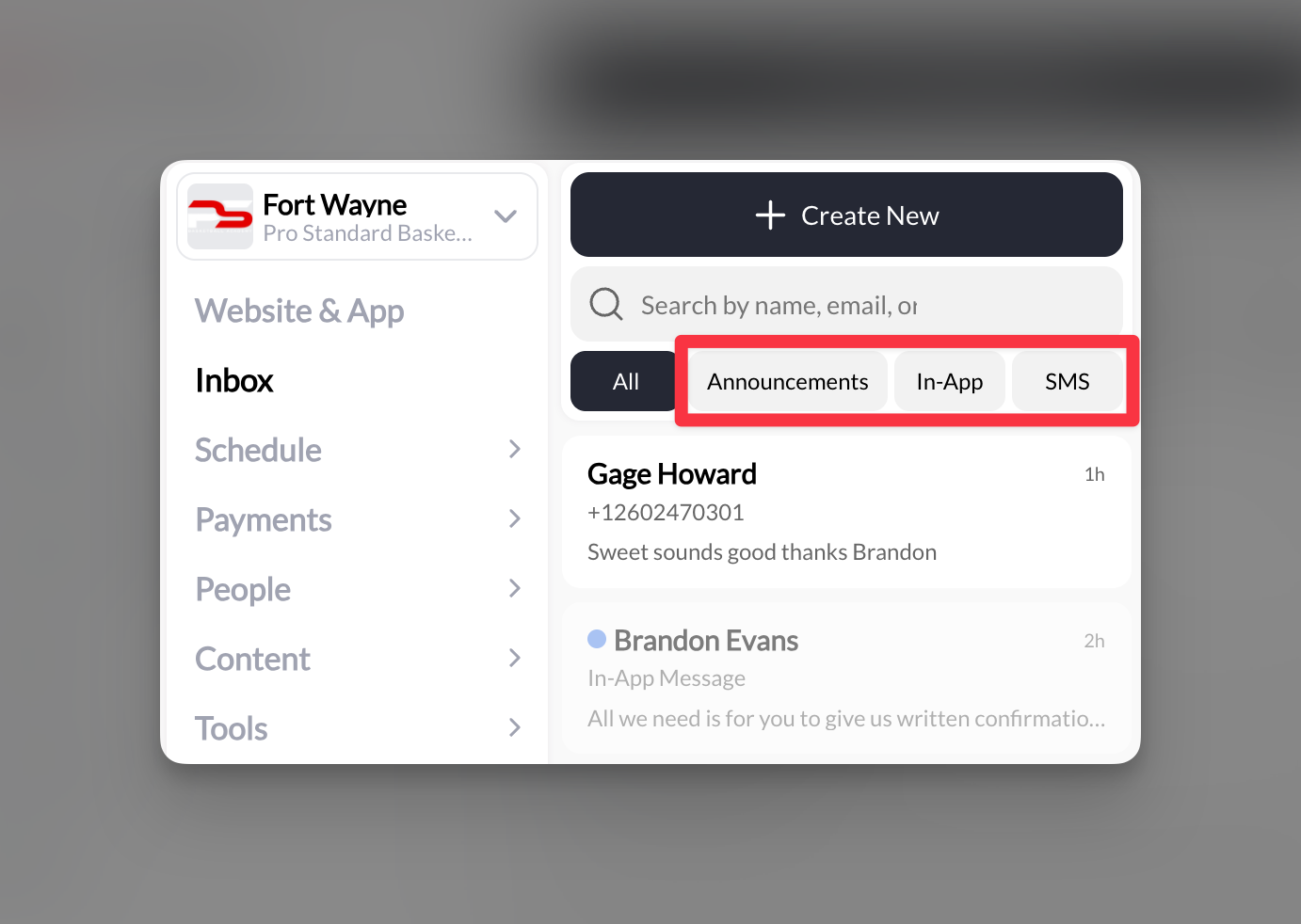 ## Three ways to communicate
CoachIQ gives you three distinct messaging channels, each designed for specific communication needs:
Direct messages to specific athletes that appear in their app and portal
Text messages sent to athletes' phones for urgent or time-sensitive info
Broadcast messages to groups that appear as emails and in the app
## Understanding message types
### In-App Messages
**Best for**: Personal communication, session reminders, individual feedback
* Athletes must have the app installed or portal access
* No additional cost
* Supports attachments (forms, sessions, media, products)
* Athletes can reply directly
* Character limit: Unlimited
### SMS Messages
**Best for**: Urgent updates, last-minute changes, reaching parents
* Requires SMS setup (see [Setting Up SMS Messaging](/inbox/sms-messages))
* Cost: \$0.0079 per message (sent or received)
* Supports attachments as clickable links
* Athletes can reply via text
* Character limit: 155 for mass texts, 1400 for individual conversations
### Announcements
**Best for**: Team updates, schedule changes, general information
* Sends as both email and app notification
* No cost for unlimited announcements
* One-way communication (no replies in Inbox)
* Email replies go to your configured reply-to address
* Contact limit: 400 recipients per announcement (contact support to increase)
## Key Inbox features
All message types appear in one place, with tabs to filter by type (All, Unread, Announcements, In-App, SMS).
Send to individuals, use tags for groups, or message by role (Admin, User, Customer).
Attach forms for data collection, sessions for booking, products for purchase, or media for instruction.
Keep your Inbox clean by archiving old conversations while maintaining full history.
Quickly find any conversation by searching for athlete names or message content.
## Mark a conversation as unread
Marking a conversation as unread flags it so you remember to follow up later — it resurfaces under the **Unread** filter at the top of your Inbox.
1. In your **Inbox**, **right-click the conversation** in the list.
2. Select **Mark as unread** from the menu.
The conversation stays flagged and appears under the **Unread** filter until you open it again.
Mark as unread is currently available on **desktop only** (right-click). The same right-click menu also lets you **Archive** the conversation.
## Quick decision guide
**Use In-App Messages when:**
* Communicating with athletes who regularly use the app
* Sending detailed instructions or feedback
* Cost is a concern (free messaging)
* You need back-and-forth conversation
**Use SMS when:**
* You need immediate attention
* Reaching parents who don't use the app
* Sending last-minute schedule changes
* Athletes might not check the app regularly
**Use Announcements when:**
* Broadcasting to the entire team
* Sending weekly schedules or updates
* Making general announcements
* You don't need replies in CoachIQ
## Important limitations to know
**Cannot delete messages**: Once sent, In-App and SMS messages cannot be deleted from conversations. Only announcements can be removed.
**SMS costs apply**: Each SMS message (sent or received) costs $0.0079. Mass texts to 100 athletes = $0.79.
**Announcement limit**: Maximum 400 recipients per announcement by default. Contact support to increase this limit.
## Getting started
Ready to start communicating? Here's your path:
1. [Set up SMS messaging](/inbox/sms-messages) to enable text communication
2. [Send your first message](/inbox/in-app-messages) to athletes
3. [Use tags for group messaging](/inbox/using-tags-for-group-messages) to save time
4. [Attach forms and sessions](/inbox/attaching-forms-schedulers-and-products) to drive action
## Pro tips
**Cost-saving strategy**: Use In-App messages for regular communication and save SMS for urgent matters to minimize costs.
**Engagement hack**: Attach a session scheduler to messages about practice changes - athletes can rebook immediately.
**Organization tip**: Archive conversations weekly to keep your Inbox focused on active communications.
## Related articles
* [Setting Up SMS Messaging](/inbox/sms-messages)
* [Sending Messages to Athletes](/inbox/in-app-messages)
* [Announcements](/inbox/announcements)
## Three ways to communicate
CoachIQ gives you three distinct messaging channels, each designed for specific communication needs:
Direct messages to specific athletes that appear in their app and portal
Text messages sent to athletes' phones for urgent or time-sensitive info
Broadcast messages to groups that appear as emails and in the app
## Understanding message types
### In-App Messages
**Best for**: Personal communication, session reminders, individual feedback
* Athletes must have the app installed or portal access
* No additional cost
* Supports attachments (forms, sessions, media, products)
* Athletes can reply directly
* Character limit: Unlimited
### SMS Messages
**Best for**: Urgent updates, last-minute changes, reaching parents
* Requires SMS setup (see [Setting Up SMS Messaging](/inbox/sms-messages))
* Cost: \$0.0079 per message (sent or received)
* Supports attachments as clickable links
* Athletes can reply via text
* Character limit: 155 for mass texts, 1400 for individual conversations
### Announcements
**Best for**: Team updates, schedule changes, general information
* Sends as both email and app notification
* No cost for unlimited announcements
* One-way communication (no replies in Inbox)
* Email replies go to your configured reply-to address
* Contact limit: 400 recipients per announcement (contact support to increase)
## Key Inbox features
All message types appear in one place, with tabs to filter by type (All, Unread, Announcements, In-App, SMS).
Send to individuals, use tags for groups, or message by role (Admin, User, Customer).
Attach forms for data collection, sessions for booking, products for purchase, or media for instruction.
Keep your Inbox clean by archiving old conversations while maintaining full history.
Quickly find any conversation by searching for athlete names or message content.
## Mark a conversation as unread
Marking a conversation as unread flags it so you remember to follow up later — it resurfaces under the **Unread** filter at the top of your Inbox.
1. In your **Inbox**, **right-click the conversation** in the list.
2. Select **Mark as unread** from the menu.
The conversation stays flagged and appears under the **Unread** filter until you open it again.
Mark as unread is currently available on **desktop only** (right-click). The same right-click menu also lets you **Archive** the conversation.
## Quick decision guide
**Use In-App Messages when:**
* Communicating with athletes who regularly use the app
* Sending detailed instructions or feedback
* Cost is a concern (free messaging)
* You need back-and-forth conversation
**Use SMS when:**
* You need immediate attention
* Reaching parents who don't use the app
* Sending last-minute schedule changes
* Athletes might not check the app regularly
**Use Announcements when:**
* Broadcasting to the entire team
* Sending weekly schedules or updates
* Making general announcements
* You don't need replies in CoachIQ
## Important limitations to know
**Cannot delete messages**: Once sent, In-App and SMS messages cannot be deleted from conversations. Only announcements can be removed.
**SMS costs apply**: Each SMS message (sent or received) costs $0.0079. Mass texts to 100 athletes = $0.79.
**Announcement limit**: Maximum 400 recipients per announcement by default. Contact support to increase this limit.
## Getting started
Ready to start communicating? Here's your path:
1. [Set up SMS messaging](/inbox/sms-messages) to enable text communication
2. [Send your first message](/inbox/in-app-messages) to athletes
3. [Use tags for group messaging](/inbox/using-tags-for-group-messages) to save time
4. [Attach forms and sessions](/inbox/attaching-forms-schedulers-and-products) to drive action
## Pro tips
**Cost-saving strategy**: Use In-App messages for regular communication and save SMS for urgent matters to minimize costs.
**Engagement hack**: Attach a session scheduler to messages about practice changes - athletes can rebook immediately.
**Organization tip**: Archive conversations weekly to keep your Inbox focused on active communications.
## Related articles
* [Setting Up SMS Messaging](/inbox/sms-messages)
* [Sending Messages to Athletes](/inbox/in-app-messages)
* [Announcements](/inbox/announcements)