> ## Documentation Index
> Fetch the complete documentation index at: https://help.coachiq.io/llms.txt
> Use this file to discover all available pages before exploring further.
# Announcements - Broadcasting to Your Team
> Send professional team-wide announcements that appear as emails, push notifications, and in the athlete portal. Perfect for schedules, updates, and important news.
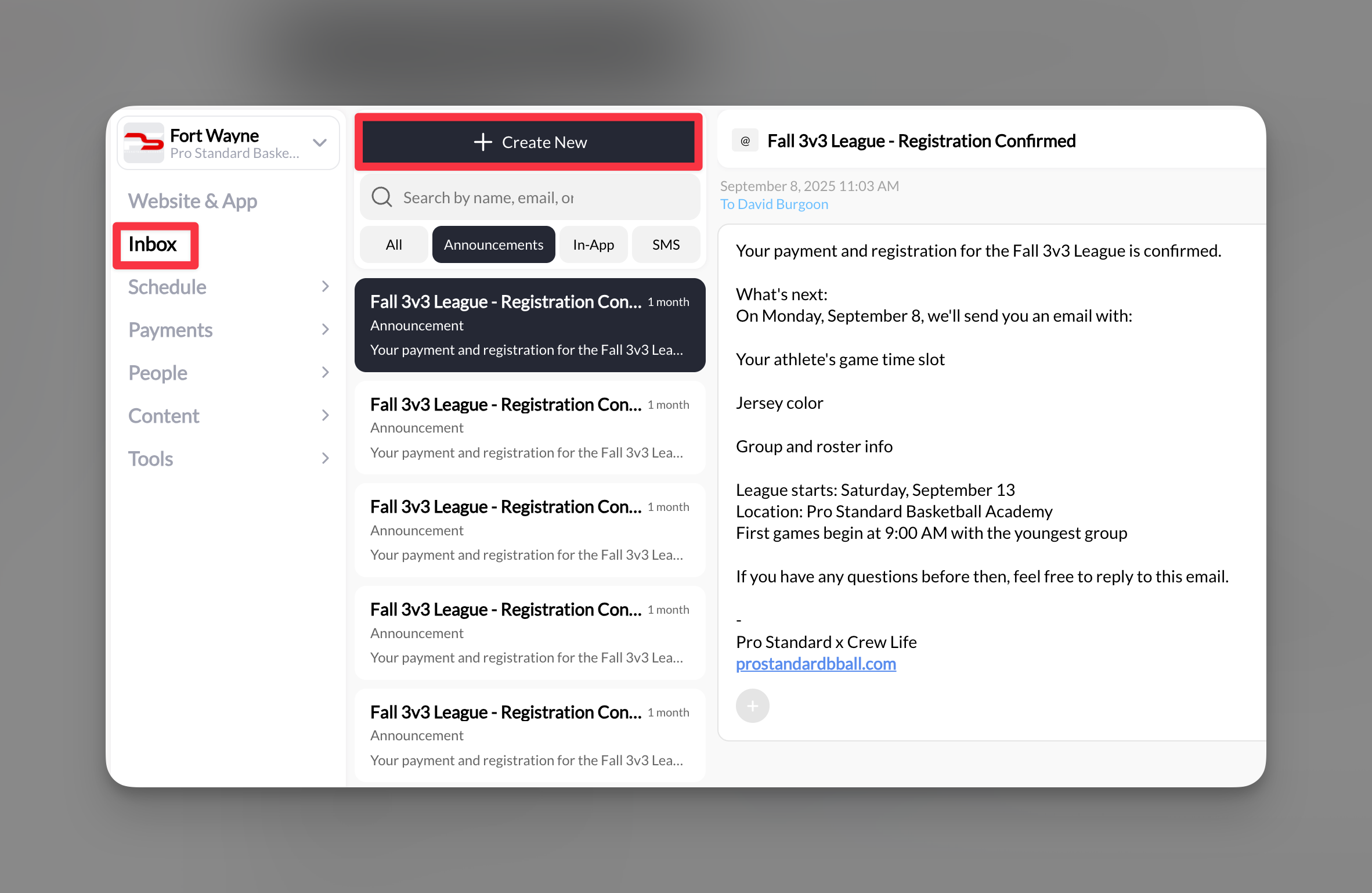
**Where to find this**: Dashboard → Inbox → Create New → Announcement
## What are announcements?
Announcements are your broadcast system for team-wide communication. Think of them as your digital bulletin board - one message that reaches everyone through multiple channels simultaneously.
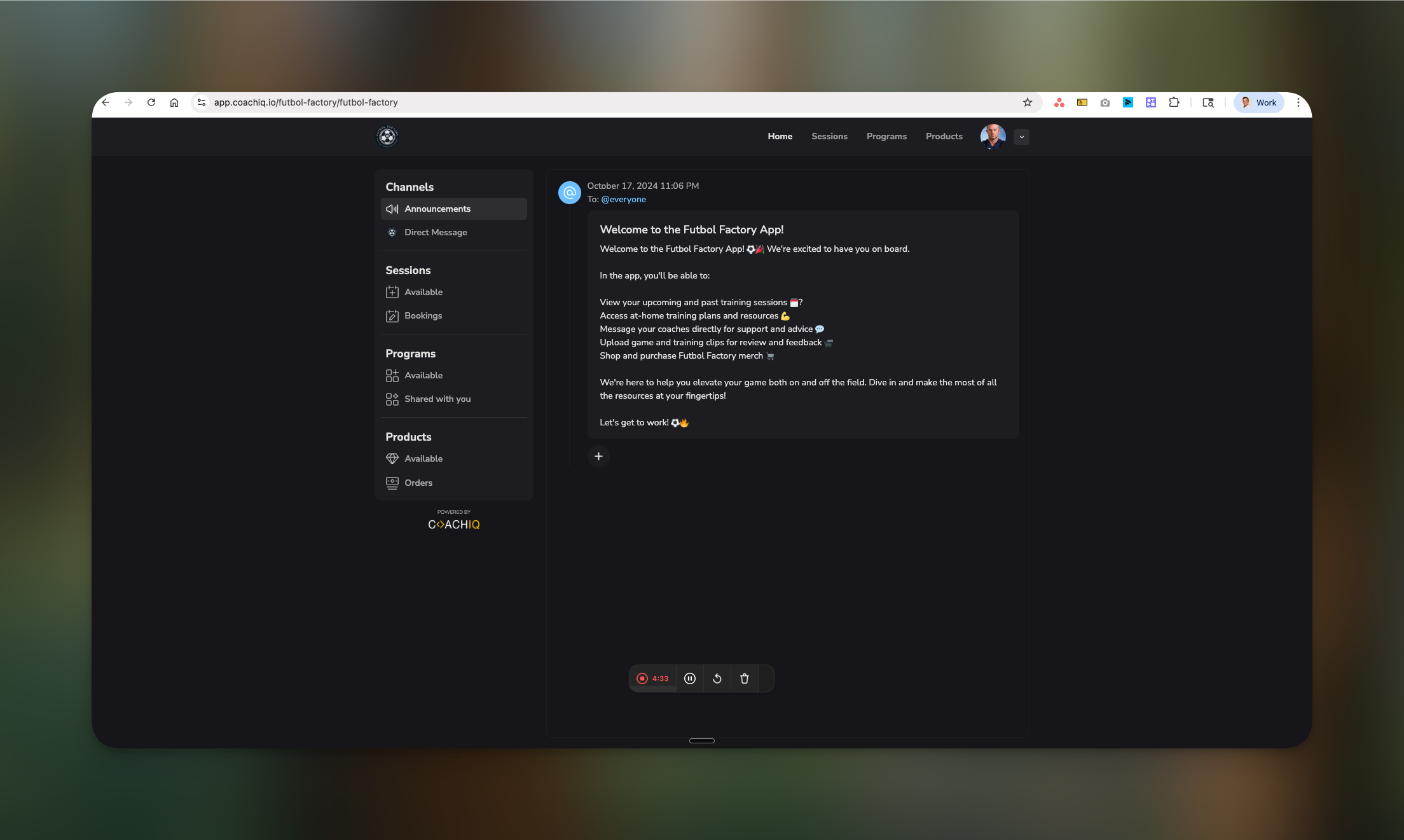 ### How athletes receive announcements
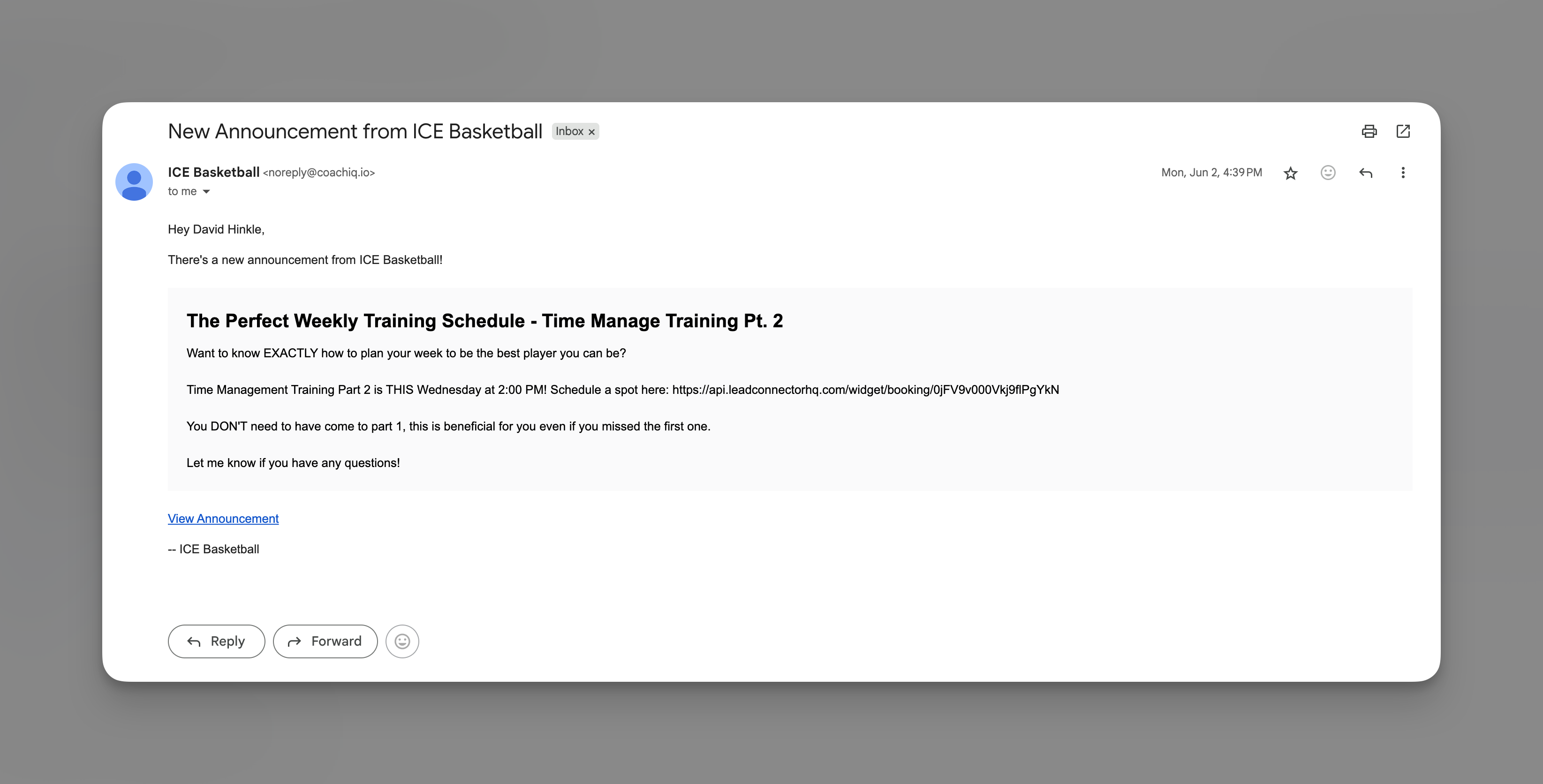
Professionally formatted email sent to their inbox
Instant alert on their mobile device
Permanent record in the app's Announcements channel
## Why use announcements?
Perfect for information that:
* Affects the entire team or large groups
* Doesn't require individual responses
* Should be documented and easily referenced
* Needs professional email formatting
Common uses:
* Weekly training schedules
* Tournament information
* Registration deadlines
* Team achievements
* Policy updates
* Seasonal information
## Creating an announcement
Navigate to **Inbox** → **Create New** → Select **Announcement**
### How athletes receive announcements
Professionally formatted email sent to their inbox
Instant alert on their mobile device
Permanent record in the app's Announcements channel
## Why use announcements?
Perfect for information that:
* Affects the entire team or large groups
* Doesn't require individual responses
* Should be documented and easily referenced
* Needs professional email formatting
Common uses:
* Weekly training schedules
* Tournament information
* Registration deadlines
* Team achievements
* Policy updates
* Seasonal information
## Creating an announcement
Navigate to **Inbox** → **Create New** → Select **Announcement**
 In the "Send to" field, you can:
* Type "Everyone" to broadcast to all athletes
* Use tags to target specific groups (e.g., "Varsity Team", "New Athletes")
* Select specific individuals if needed
**Recipient limit**: 400 contacts per announcement by default. Contact support if you need to increase this limit.
Enter a clear, descriptive heading. This becomes:
* The email subject line
* The push notification title
* The announcement title in the app
Good examples:
* "Week of March 15 - Training Schedule"
* "Spring Tournament Registration Now Open"
* "Important: Facility Closure March 20"
Write your announcement content. This appears as the email body and full announcement text.
Format tips:
* Use line breaks for readability
* Include all essential information
* Add dates, times, and locations clearly
* Keep paragraphs short for mobile reading
Example:\
Team,\
This week's schedule has been updated to accommodate the tournament prep:\
Monday & Wednesday: Regular practice 4-6pm\
Tuesday: Film review 5-6pm (classroom)\
Thursday: Extended practice 4-7pm\
Friday: Rest day before tournament\
Tournament bus departs Saturday at 7am SHARP from the main lot.\
Please bring:
Both uniforms\
Water bottles\
Snacks for the bus\
Signed permission slips
See you at practice! Coach Johnson
Click **+ Attach** to include:
* **Forms**: Tournament signups, permission slips
* **Media**: Schedule graphics, facility maps
* **Products**: Camp registrations, merchandise
* **Scheduler**: Special training sessions
In the "Send to" field, you can:
* Type "Everyone" to broadcast to all athletes
* Use tags to target specific groups (e.g., "Varsity Team", "New Athletes")
* Select specific individuals if needed
**Recipient limit**: 400 contacts per announcement by default. Contact support if you need to increase this limit.
Enter a clear, descriptive heading. This becomes:
* The email subject line
* The push notification title
* The announcement title in the app
Good examples:
* "Week of March 15 - Training Schedule"
* "Spring Tournament Registration Now Open"
* "Important: Facility Closure March 20"
Write your announcement content. This appears as the email body and full announcement text.
Format tips:
* Use line breaks for readability
* Include all essential information
* Add dates, times, and locations clearly
* Keep paragraphs short for mobile reading
Example:\
Team,\
This week's schedule has been updated to accommodate the tournament prep:\
Monday & Wednesday: Regular practice 4-6pm\
Tuesday: Film review 5-6pm (classroom)\
Thursday: Extended practice 4-7pm\
Friday: Rest day before tournament\
Tournament bus departs Saturday at 7am SHARP from the main lot.\
Please bring:
Both uniforms\
Water bottles\
Snacks for the bus\
Signed permission slips
See you at practice! Coach Johnson
Click **+ Attach** to include:
* **Forms**: Tournament signups, permission slips
* **Media**: Schedule graphics, facility maps
* **Products**: Camp registrations, merchandise
* **Scheduler**: Special training sessions
 These appear as actionable buttons in the email and app.
By default, email replies go to your configured reply-to address (Settings → Organization → Reply-to Email).
Set your reply-to email to one you check regularly - replies don't appear in CoachIQ's Inbox.
Click **Send** to broadcast immediately to all selected recipients.
**Delivered!** Your announcement is sent via email and push notification.
## How announcements appear to athletes
### Email version
* Professional HTML-formatted email
* Clear heading and formatted text
* Attachment buttons for easy action
* Reply option (goes to your reply-to email)
These appear as actionable buttons in the email and app.
By default, email replies go to your configured reply-to address (Settings → Organization → Reply-to Email).
Set your reply-to email to one you check regularly - replies don't appear in CoachIQ's Inbox.
Click **Send** to broadcast immediately to all selected recipients.
**Delivered!** Your announcement is sent via email and push notification.
## How announcements appear to athletes
### Email version
* Professional HTML-formatted email
* Clear heading and formatted text
* Attachment buttons for easy action
* Reply option (goes to your reply-to email)
 ### Push notification
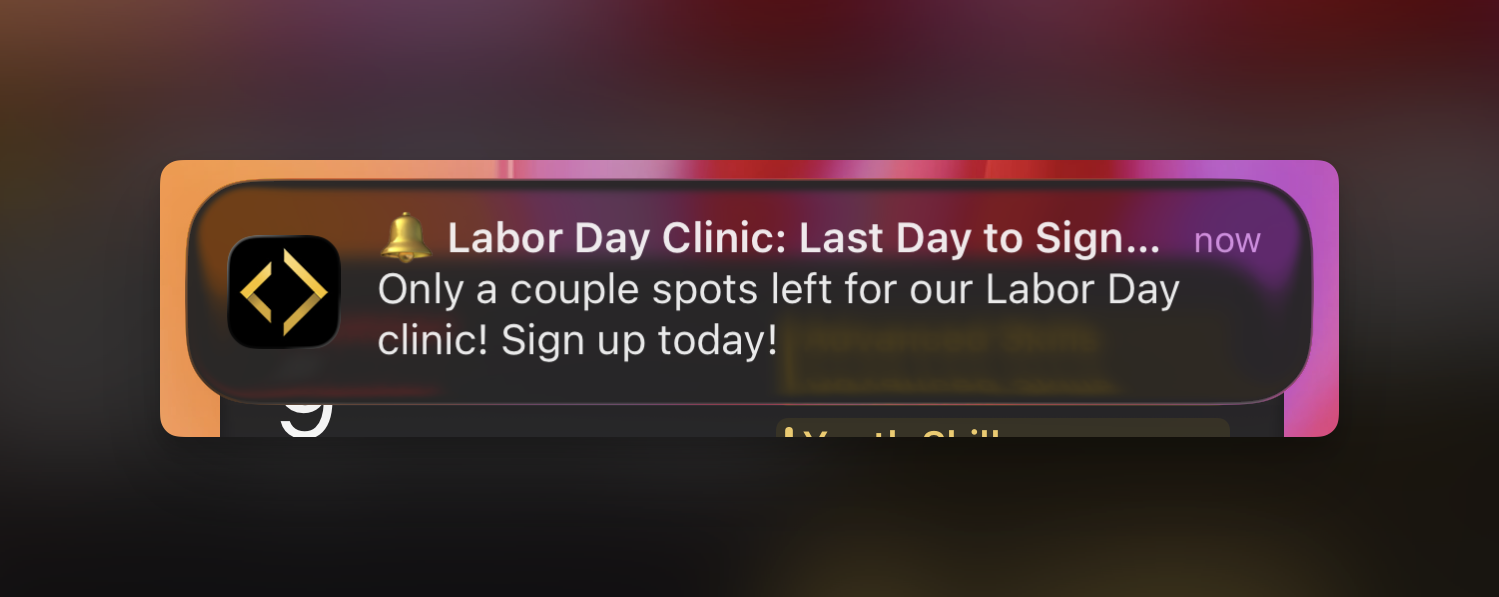
* Instant alert on their phone
* Shows announcement heading
* Tap to open full announcement in app
### Push notification
* Instant alert on their phone
* Shows announcement heading
* Tap to open full announcement in app
 ### Channels section
* Permanent record in Announcements channel
* Chronological list of all announcements
* Athletes can reference anytime
* Never expires or disappears
## Managing announcements
### Viewing sent announcements
* All sent announcements appear in your Inbox
* Filter by "Announcements" tab to see only broadcasts
* Click any announcement to see details and recipients
### Deleting announcements
Unlike messages, announcements CAN be deleted:
* Removes from your Inbox view
* Does NOT remove from athletes' Channels or emails already sent
### Tracking engagement
* No read receipts available
* Consider adding "Reply to confirm" for important updates
## Best practices
**Structure for scanning:**
* Lead with most important information
* Use clear headings for sections
* Bullet points for lists
* Bold for dates and times
**Be complete:**
* Who, what, when, where, why
* Include all necessary details
* Add backup contact info
* Specify response requirements
**Best send times:**
* Weekday evenings (6-8pm) for next-day info
* Sunday evenings for weekly schedules
* 48-72 hours notice for schedule changes
**Avoid:**
* Late night sends (unless emergency)
* During school/work hours
* Multiple announcements in one day
* **Forms**: "Complete this form by Friday"
* **Schedulers**: "Book your player evaluation"
* **Products**: "Register for summer camp"
* **Media**: Visual schedules, facility maps, instruction videos
Always explain what the attachment is and what action to take.
## Announcement vs other message types
| Feature | Announcements | In-App Messages | SMS |
| ------------------ | --------------- | ------------------------ | ------------------ |
| Best for | Team updates | Individual communication | Urgent alerts |
| Cost | Free | Free | \$0.0079/message |
| Replies in CoachIQ | No (email only) | Yes | Yes |
| Permanent record | Yes (Channels) | Yes (conversation) | Yes (conversation) |
| Email sent | Yes (formatted) | Yes (notification only) | No |
| Character limit | None | None | 155/1400 |
## Common questions
Athletes can reply via email, which goes to your configured reply-to address. These replies do NOT appear in your CoachIQ Inbox.
Contact CoachIQ support to increase your announcement recipient limit for larger organizations.
Currently, announcements send immediately. For scheduled sends, prepare your content and send manually at the desired time.
Yes! Announcements always send as email, so athletes without the app still receive them in their email inbox.
No, sent announcements cannot be edited. You can send a follow-up announcement with corrections if needed.
## Pro tips
**Weekly rhythm**: Send a consistent weekly announcement every Sunday night with the upcoming week's schedule. Athletes and parents will learn to expect and check for it.
**Template strategy**: Create announcement templates for recurring communications like weekly schedules, tournament info, and weather cancellations.
**Attachment combo**: Pair announcements with forms - "Spring season starts March 1. Complete the attached medical form by February 20."
**Emergency protocol**: For urgent cancellations, send an announcement first (for documentation), then follow with SMS to ensure immediate awareness.
## Related articles
* [In-App Messages - Direct Athlete Communication](/inbox/in-app-messages)
* [SMS Messages - Setup and Best Practices](/inbox/sms-messages)
* [Using Tags for Group Messages](/inbox/using-tags-for-group-messages)
* [Attaching Forms, Sessions, and Products](/inbox/attaching-forms-schedulers-and-products)
### Channels section
* Permanent record in Announcements channel
* Chronological list of all announcements
* Athletes can reference anytime
* Never expires or disappears
## Managing announcements
### Viewing sent announcements
* All sent announcements appear in your Inbox
* Filter by "Announcements" tab to see only broadcasts
* Click any announcement to see details and recipients
### Deleting announcements
Unlike messages, announcements CAN be deleted:
* Removes from your Inbox view
* Does NOT remove from athletes' Channels or emails already sent
### Tracking engagement
* No read receipts available
* Consider adding "Reply to confirm" for important updates
## Best practices
**Structure for scanning:**
* Lead with most important information
* Use clear headings for sections
* Bullet points for lists
* Bold for dates and times
**Be complete:**
* Who, what, when, where, why
* Include all necessary details
* Add backup contact info
* Specify response requirements
**Best send times:**
* Weekday evenings (6-8pm) for next-day info
* Sunday evenings for weekly schedules
* 48-72 hours notice for schedule changes
**Avoid:**
* Late night sends (unless emergency)
* During school/work hours
* Multiple announcements in one day
* **Forms**: "Complete this form by Friday"
* **Schedulers**: "Book your player evaluation"
* **Products**: "Register for summer camp"
* **Media**: Visual schedules, facility maps, instruction videos
Always explain what the attachment is and what action to take.
## Announcement vs other message types
| Feature | Announcements | In-App Messages | SMS |
| ------------------ | --------------- | ------------------------ | ------------------ |
| Best for | Team updates | Individual communication | Urgent alerts |
| Cost | Free | Free | \$0.0079/message |
| Replies in CoachIQ | No (email only) | Yes | Yes |
| Permanent record | Yes (Channels) | Yes (conversation) | Yes (conversation) |
| Email sent | Yes (formatted) | Yes (notification only) | No |
| Character limit | None | None | 155/1400 |
## Common questions
Athletes can reply via email, which goes to your configured reply-to address. These replies do NOT appear in your CoachIQ Inbox.
Contact CoachIQ support to increase your announcement recipient limit for larger organizations.
Currently, announcements send immediately. For scheduled sends, prepare your content and send manually at the desired time.
Yes! Announcements always send as email, so athletes without the app still receive them in their email inbox.
No, sent announcements cannot be edited. You can send a follow-up announcement with corrections if needed.
## Pro tips
**Weekly rhythm**: Send a consistent weekly announcement every Sunday night with the upcoming week's schedule. Athletes and parents will learn to expect and check for it.
**Template strategy**: Create announcement templates for recurring communications like weekly schedules, tournament info, and weather cancellations.
**Attachment combo**: Pair announcements with forms - "Spring season starts March 1. Complete the attached medical form by February 20."
**Emergency protocol**: For urgent cancellations, send an announcement first (for documentation), then follow with SMS to ensure immediate awareness.
## Related articles
* [In-App Messages - Direct Athlete Communication](/inbox/in-app-messages)
* [SMS Messages - Setup and Best Practices](/inbox/sms-messages)
* [Using Tags for Group Messages](/inbox/using-tags-for-group-messages)
* [Attaching Forms, Sessions, and Products](/inbox/attaching-forms-schedulers-and-products)