> ## Documentation Index
> Fetch the complete documentation index at: https://help.coachiq.io/llms.txt
> Use this file to discover all available pages before exploring further.
# Responses & Automations
> View form submissions, export data, and trigger automated actions when athletes complete your forms.
After athletes submit your forms, you need to see that data and act on it. This guide covers viewing responses, exporting data, and connecting forms to automations.
**Where to find responses**: Open any form in the builder → click **Responses** in the top bar
## Viewing form responses
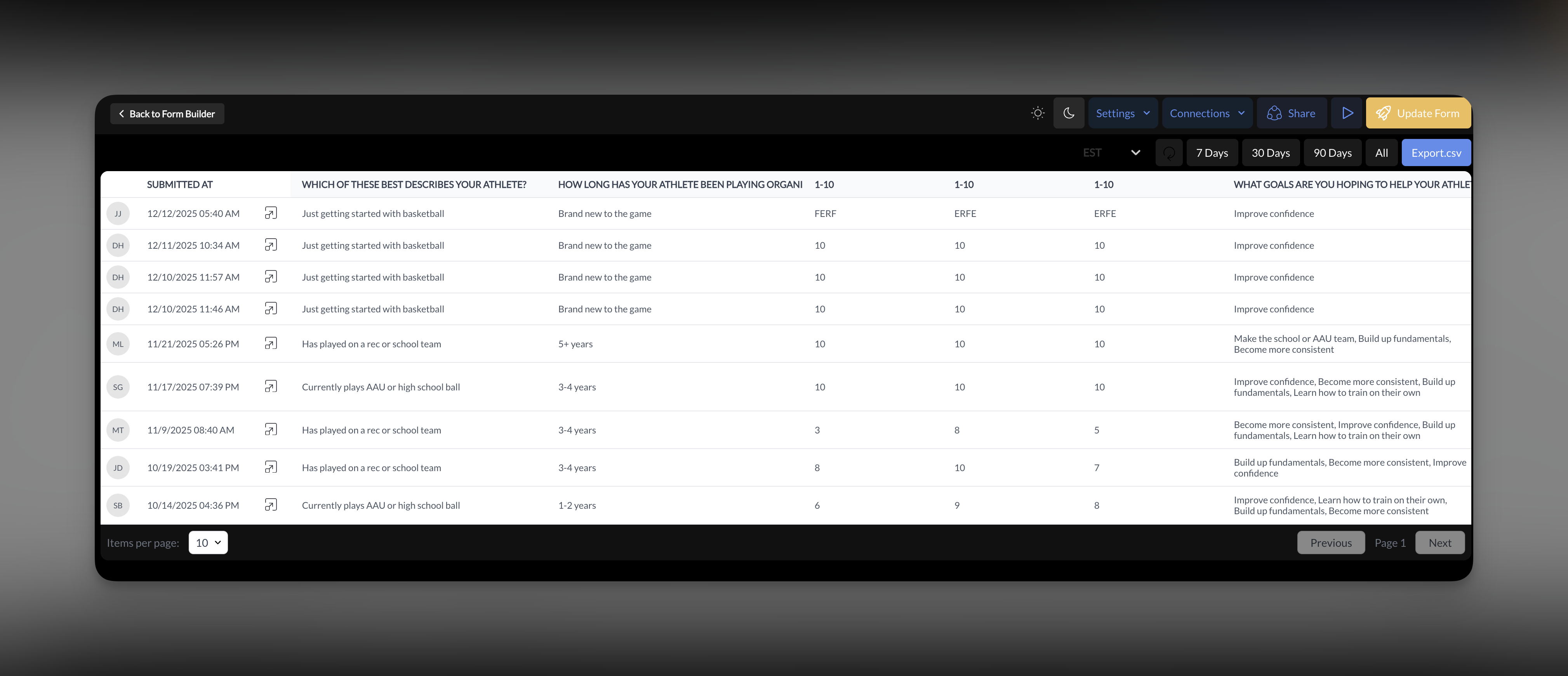
Every submission is captured in your form's Responses tab.
Go to **Tools → Forms** and click on the form you want to review.
In the top bar, click **Responses** to see all submissions.
You'll see a list of all responses with submission date and respondent info (if login was required).
Click any submission to see the complete response — every field and answer.
### What you see per response
| Data | Description |
| ----------------- | ----------------------------------------------------- |
| Submission date | When the form was completed |
| Respondent | Name/email if login was required, anonymous otherwise |
| All field answers | Every question and the athlete's response |
| Connected actions | Payment made, session booked (if applicable) |
 ## Exporting responses
Export your form data to CSV for analysis, reporting, or backup.
Navigate to your form's **Responses** tab.
Click the export button to download all responses as a CSV file.
Open the CSV in Excel, Google Sheets, or your preferred tool.
**Export regularly for important forms.** Camp registrations, waivers, and lead lists are worth backing up outside CoachIQ.
## How responses connect to People
When you require Login/Signup on a form, submissions link to athlete profiles.
| Login/Signup OFF | Login/Signup ON |
| ------------------------------------- | ---------------------------------------------------- |
| Response stored in form only | Response stored in form AND linked to profile |
| No profile connection | Appears in athlete's activity on their People record |
| Can't see who submitted (anonymous) | Know exactly which athlete submitted |
| Contact Info fields capture data only | Contact Info fields sync to profile |
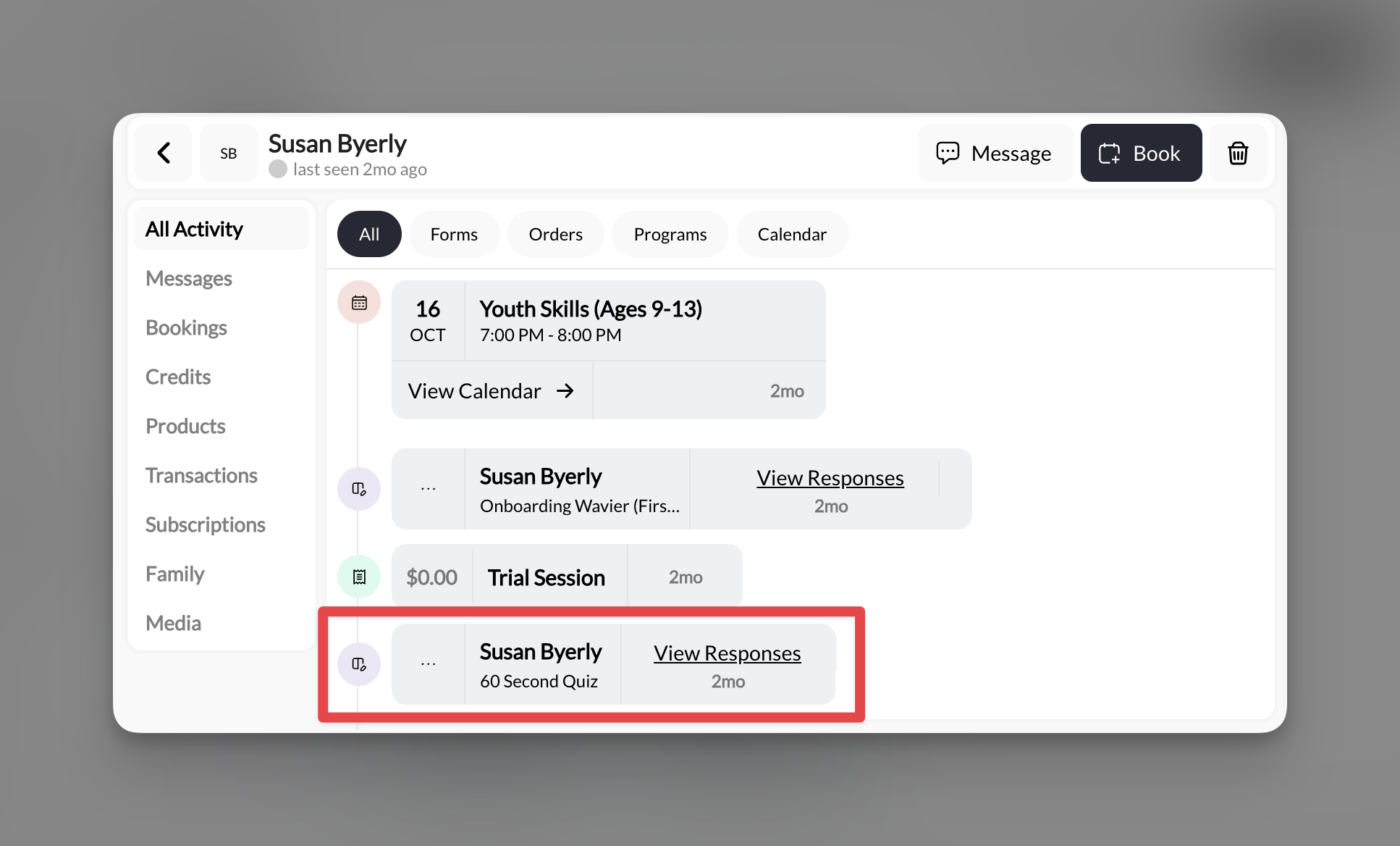
### Viewing form activity on a profile
When login is required:
1. Go to [**People → Clients**](/people/overview)
2. Click on an athlete
3. View their activity — form submissions appear in their history
## Exporting responses
Export your form data to CSV for analysis, reporting, or backup.
Navigate to your form's **Responses** tab.
Click the export button to download all responses as a CSV file.
Open the CSV in Excel, Google Sheets, or your preferred tool.
**Export regularly for important forms.** Camp registrations, waivers, and lead lists are worth backing up outside CoachIQ.
## How responses connect to People
When you require Login/Signup on a form, submissions link to athlete profiles.
| Login/Signup OFF | Login/Signup ON |
| ------------------------------------- | ---------------------------------------------------- |
| Response stored in form only | Response stored in form AND linked to profile |
| No profile connection | Appears in athlete's activity on their People record |
| Can't see who submitted (anonymous) | Know exactly which athlete submitted |
| Contact Info fields capture data only | Contact Info fields sync to profile |
### Viewing form activity on a profile
When login is required:
1. Go to [**People → Clients**](/people/overview)
2. Click on an athlete
3. View their activity — form submissions appear in their history
 This is useful for:
* Confirming a specific athlete signed a waiver
* Seeing all forms an athlete has completed
* Tracking engagement over time
## Automations triggered by forms
Forms can trigger [automations](/automations/what-are-automations) when submitted — sending messages, adding tags, or assigning credits automatically.
### What you can do
| Trigger | What happens |
| -------------- | -------------------------------------------------------------------------- |
| Form submitted | Automation runs when any submission comes in |
| Send message | Auto-send SMS or in-app message to the respondent |
| Add tag | Automatically tag the athlete (e.g., "Lead", "Camp 2025", "Waiver Signed") |
| Remove tag | Remove a tag (e.g., remove "Needs Waiver" after waiver submitted) |
| Add credits | Assign session credits to the athlete |
### What you can't do
**Automations can't read specific field answers.** You can trigger an automation when a form is submitted, but you cannot create conditions based on what someone answered.
For example, you can't build: "If they selected 'Instagram' for 'How did you hear about us?', then add tag 'Instagram Lead'."
The trigger is submission — not field values.
## Setting up a form automation
Navigate to [**Tools → Automations**](/automations/what-are-automations).
Click to create a new automation.
Choose **Form Submitted** as your trigger, then select which form.
Configure what happens: send message, add tag, remove tag, add credits, etc.
Save and activate your automation. It will now run every time that form is submitted.
## Common form automation recipes
### New lead welcome
**Trigger:** Website lead form submitted
**Actions:**
1. Add tag "New Lead"
2. Send SMS: "Thanks for your interest in training! Here's how to book your first session: \[link]"
### Waiver signed confirmation
**Trigger:** Waiver form submitted
**Actions:**
1. Add tag "Waiver Signed"
2. Remove tag "Needs Waiver"
### Camp registration follow-up
**Trigger:** Camp registration form submitted
**Actions:**
1. Add tag "Summer Camp 2025"
2. Send in-app message with camp details, schedule, and what to bring
### Post-eval feedback request
**Trigger:** Evaluation feedback form submitted
**Actions:**
1. Add tag "Feedback Received"
2. Send SMS: "Thanks for your feedback! We'd love a Google review if you have a minute: \[link]"
**Automations require Login/Signup on the form.** To send messages or add tags, the system needs to know who submitted. Anonymous submissions can't trigger personalized actions.
## Response analytics
CoachIQ provides basic response tracking:
| Available | Not available |
| --------------------------- | ------------------------ |
| Total response count | Completion rate |
| Individual response details | Drop-off analytics |
| Submission timestamps | Field-by-field analytics |
| Export to CSV | Visual charts/graphs |
For deeper analysis, export your data and use external tools (Excel, Google Sheets, etc.).
## Tips for managing responses
Don't let leads sit. Check your website form responses daily — those are potential customers waiting to hear from you.
A same-day response beats a next-week response. Set up auto-messages so leads hear from you immediately, even if you're coaching.
Use form automations to tag athletes by source, interest, or status. Later, you can message everyone with a specific tag.
If you need to delete a form, export responses first. Once a form is deleted, responses are gone.
Waivers, registrations, onboarding — anything you need tied to a specific athlete should require login. Anonymous responses have limited utility.
## Summary
| Task | How to do it |
| -------------------------------- | -------------------------------------------- |
| View responses | Form → Responses tab |
| Export data | Responses tab → Export button |
| See responses on athlete profile | Requires Login/Signup enabled |
| Trigger automation on submit | Tools → Automations → Form Submitted trigger |
| Auto-tag new submissions | Automation with "Add Tag" action |
| Auto-message new submissions | Automation with "Send Message" action |
## Related articles
Overview of forms and how they connect to your CoachIQ system
Build forms from templates or scratch — complete field reference
Add products and schedulers to your form flow
Get links, embed on websites, configure completion actions
Understand how automated workflows connect to form submissions
Step-by-step guide to creating a form-triggered automation
See how form submissions link to athlete profiles
This is useful for:
* Confirming a specific athlete signed a waiver
* Seeing all forms an athlete has completed
* Tracking engagement over time
## Automations triggered by forms
Forms can trigger [automations](/automations/what-are-automations) when submitted — sending messages, adding tags, or assigning credits automatically.
### What you can do
| Trigger | What happens |
| -------------- | -------------------------------------------------------------------------- |
| Form submitted | Automation runs when any submission comes in |
| Send message | Auto-send SMS or in-app message to the respondent |
| Add tag | Automatically tag the athlete (e.g., "Lead", "Camp 2025", "Waiver Signed") |
| Remove tag | Remove a tag (e.g., remove "Needs Waiver" after waiver submitted) |
| Add credits | Assign session credits to the athlete |
### What you can't do
**Automations can't read specific field answers.** You can trigger an automation when a form is submitted, but you cannot create conditions based on what someone answered.
For example, you can't build: "If they selected 'Instagram' for 'How did you hear about us?', then add tag 'Instagram Lead'."
The trigger is submission — not field values.
## Setting up a form automation
Navigate to [**Tools → Automations**](/automations/what-are-automations).
Click to create a new automation.
Choose **Form Submitted** as your trigger, then select which form.
Configure what happens: send message, add tag, remove tag, add credits, etc.
Save and activate your automation. It will now run every time that form is submitted.
## Common form automation recipes
### New lead welcome
**Trigger:** Website lead form submitted
**Actions:**
1. Add tag "New Lead"
2. Send SMS: "Thanks for your interest in training! Here's how to book your first session: \[link]"
### Waiver signed confirmation
**Trigger:** Waiver form submitted
**Actions:**
1. Add tag "Waiver Signed"
2. Remove tag "Needs Waiver"
### Camp registration follow-up
**Trigger:** Camp registration form submitted
**Actions:**
1. Add tag "Summer Camp 2025"
2. Send in-app message with camp details, schedule, and what to bring
### Post-eval feedback request
**Trigger:** Evaluation feedback form submitted
**Actions:**
1. Add tag "Feedback Received"
2. Send SMS: "Thanks for your feedback! We'd love a Google review if you have a minute: \[link]"
**Automations require Login/Signup on the form.** To send messages or add tags, the system needs to know who submitted. Anonymous submissions can't trigger personalized actions.
## Response analytics
CoachIQ provides basic response tracking:
| Available | Not available |
| --------------------------- | ------------------------ |
| Total response count | Completion rate |
| Individual response details | Drop-off analytics |
| Submission timestamps | Field-by-field analytics |
| Export to CSV | Visual charts/graphs |
For deeper analysis, export your data and use external tools (Excel, Google Sheets, etc.).
## Tips for managing responses
Don't let leads sit. Check your website form responses daily — those are potential customers waiting to hear from you.
A same-day response beats a next-week response. Set up auto-messages so leads hear from you immediately, even if you're coaching.
Use form automations to tag athletes by source, interest, or status. Later, you can message everyone with a specific tag.
If you need to delete a form, export responses first. Once a form is deleted, responses are gone.
Waivers, registrations, onboarding — anything you need tied to a specific athlete should require login. Anonymous responses have limited utility.
## Summary
| Task | How to do it |
| -------------------------------- | -------------------------------------------- |
| View responses | Form → Responses tab |
| Export data | Responses tab → Export button |
| See responses on athlete profile | Requires Login/Signup enabled |
| Trigger automation on submit | Tools → Automations → Form Submitted trigger |
| Auto-tag new submissions | Automation with "Add Tag" action |
| Auto-message new submissions | Automation with "Send Message" action |
## Related articles
Overview of forms and how they connect to your CoachIQ system
Build forms from templates or scratch — complete field reference
Add products and schedulers to your form flow
Get links, embed on websites, configure completion actions
Understand how automated workflows connect to form submissions
Step-by-step guide to creating a form-triggered automation
See how form submissions link to athlete profiles