> ## Documentation Index
> Fetch the complete documentation index at: https://help.coachiq.io/llms.txt
> Use this file to discover all available pages before exploring further.
# How to Share, Sell, and Monetize Your Training Programs
> Learn how to publish programs to your athlete portal, set up paywalls, share privately with specific athletes, and connect payment products in CoachIQ.
Once you've built a program, you need to make it available to athletes. This involves two steps: configuring your pricing and access settings, then publishing the program to your Athlete Portal so athletes can actually see it.
**Two steps to share a program**:
1. Configure Share settings (Free/Paywalled, Public/Private) in the Program Builder
2. Add the program to your Athlete Portal to make it live
## Publishing programs to your Athlete Portal
The [Athlete Portal](/athlete-portal/understanding-your-athlete-portal) is your branded app where athletes access your content. For athletes to see any program, you must add it to the portal's Programs section.
**Where to find the Athlete Portal**: Dashboard → Website & App → Athlete Portal → Click **Edit**
### How to add programs to your portal
From your dashboard, go to **Website & App** and find the **Athlete Portal** section. Click **Edit** to open the portal builder.
In the portal editor, click the **Content** tab. This is where you manage which programs appear in your athlete app.
Select the programs you want to make available. Only programs added here will appear in the athlete app.
Save your changes. The programs will now be visible to athletes in the app.
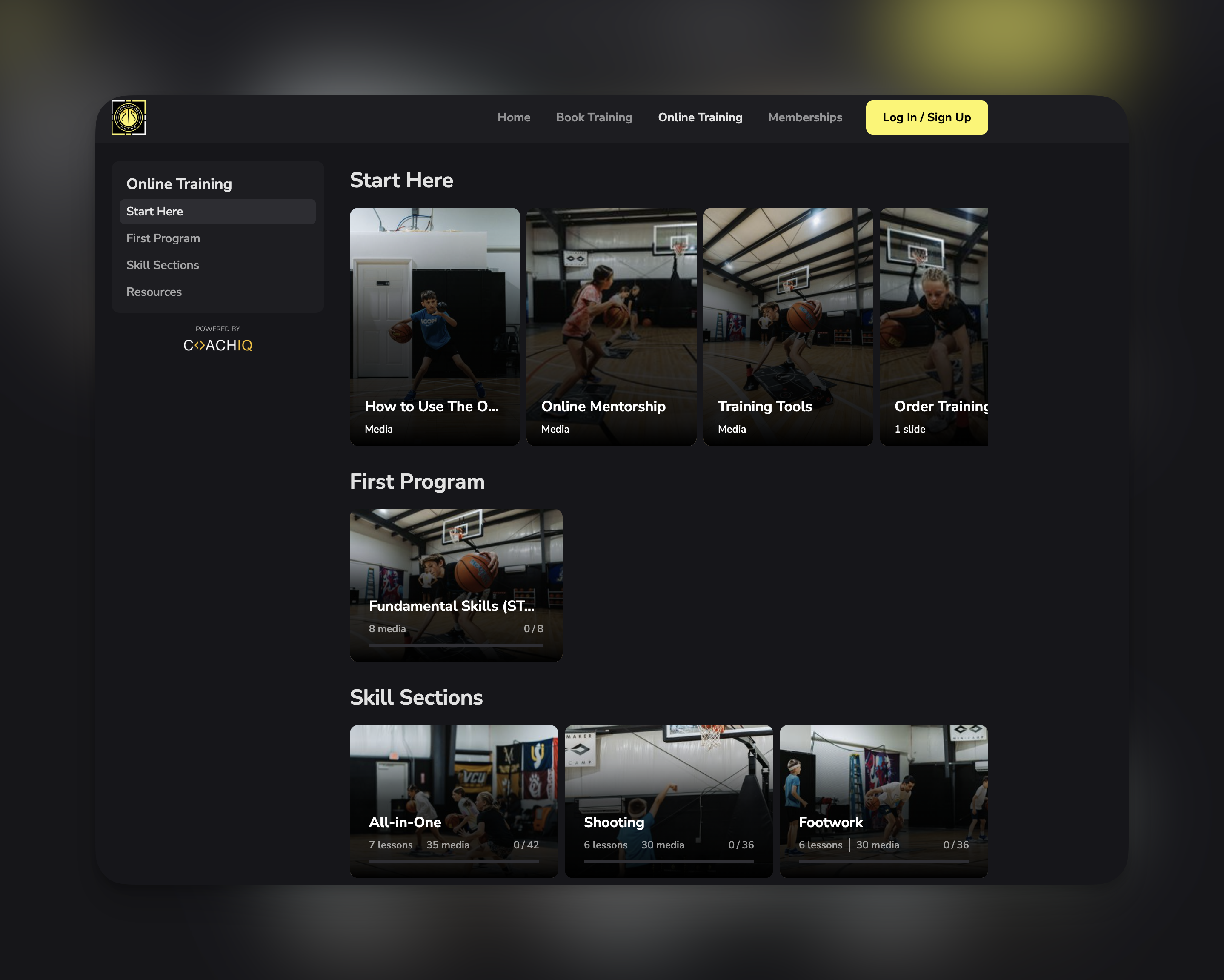 ### What athletes see in the app
When athletes open your app, they see a **Programs** section in the sidebar with two categories:
| Section | What appears here |
| ------------------- | ------------------------------------------------------ |
| **Available** | Public programs anyone can access or purchase |
| **Shared with you** | Private programs specifically assigned to that athlete |
**The portal is your control center**: You have complete control over what appears in your athlete app. You can add or remove programs, schedulers, products, and communication channels—all from the Athlete Portal editor.
***
## Understanding pricing and access options
Once a program is added to your Athlete Portal, you control *who* can access it through Share settings in the Program Builder.
**Where to find share settings**: Open any program in the Program Builder → Click **Share** in the top bar
Every program has two independent settings you can combine:
| Setting | Options | What it controls |
| -------------- | ----------------- | ---------------------------------- |
| **Price** | Free or Paywalled | Whether payment is required |
| **Visibility** | Public or Private | Who can see and access the program |
This creates four possible combinations:
| Configuration | Who can access |
| ----------------------- | ---------------------------------------- |
| **Free + Public** | Anyone on the athlete app |
| **Free + Private** | Only athletes you specifically assign |
| **Paywalled + Public** | Anyone who purchases a linked product |
| **Paywalled + Private** | Only assigned athletes who also purchase |
## How to configure program sharing
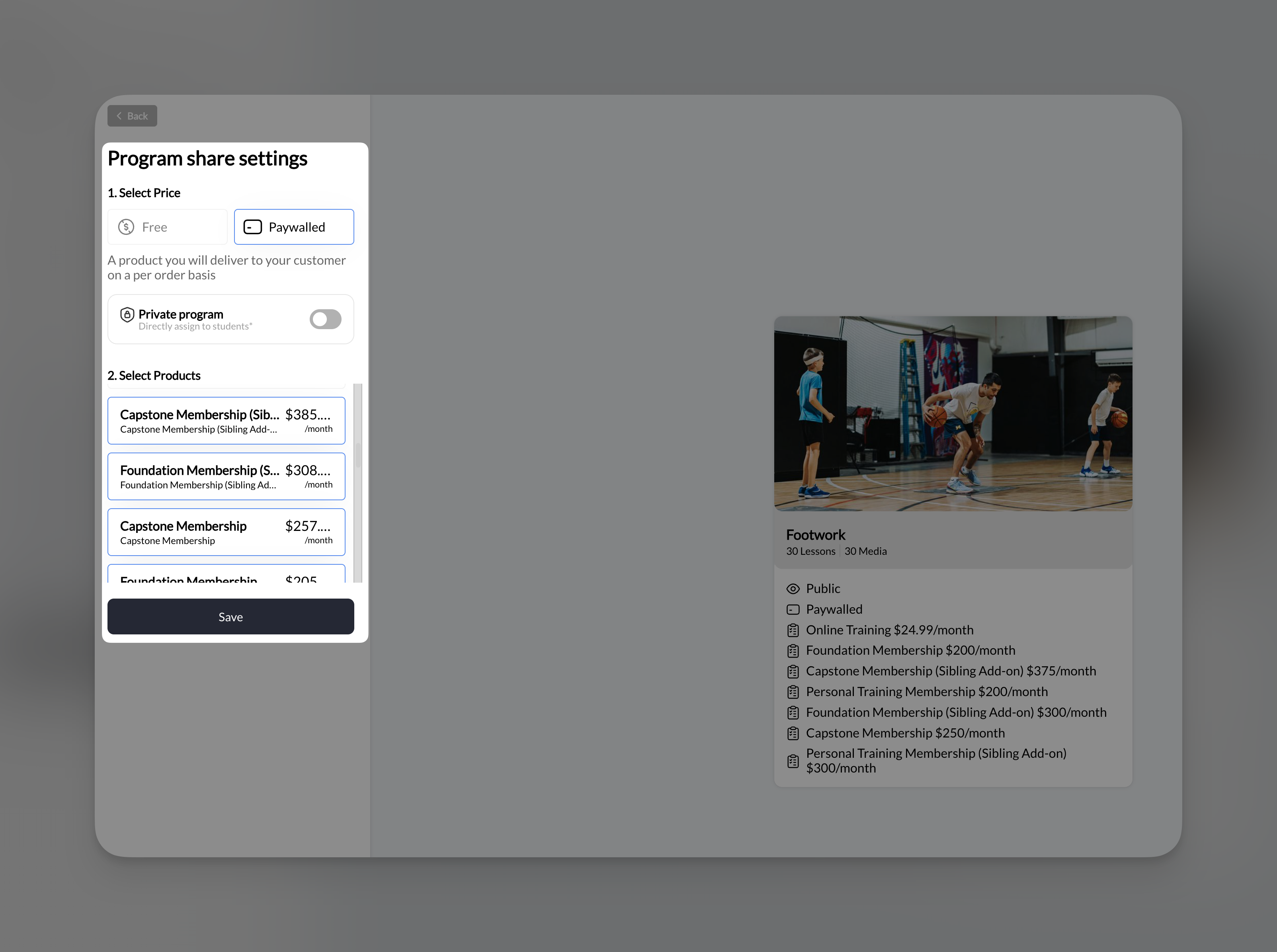
In the Program Builder, click the **Share** button in the top bar. The share settings panel opens on the left.
Choose between:
* **Free**: No payment required
* **Paywalled**: Requires purchase to access
Toggle **Private program** on if you want to restrict access to specific athletes.
Depending on your choices:
* **If Paywalled**: Select which products unlock this program
* **If Private**: Search and assign specific athletes
Click **Save** to apply your share configuration.
### What athletes see in the app
When athletes open your app, they see a **Programs** section in the sidebar with two categories:
| Section | What appears here |
| ------------------- | ------------------------------------------------------ |
| **Available** | Public programs anyone can access or purchase |
| **Shared with you** | Private programs specifically assigned to that athlete |
**The portal is your control center**: You have complete control over what appears in your athlete app. You can add or remove programs, schedulers, products, and communication channels—all from the Athlete Portal editor.
***
## Understanding pricing and access options
Once a program is added to your Athlete Portal, you control *who* can access it through Share settings in the Program Builder.
**Where to find share settings**: Open any program in the Program Builder → Click **Share** in the top bar
Every program has two independent settings you can combine:
| Setting | Options | What it controls |
| -------------- | ----------------- | ---------------------------------- |
| **Price** | Free or Paywalled | Whether payment is required |
| **Visibility** | Public or Private | Who can see and access the program |
This creates four possible combinations:
| Configuration | Who can access |
| ----------------------- | ---------------------------------------- |
| **Free + Public** | Anyone on the athlete app |
| **Free + Private** | Only athletes you specifically assign |
| **Paywalled + Public** | Anyone who purchases a linked product |
| **Paywalled + Private** | Only assigned athletes who also purchase |
## How to configure program sharing
In the Program Builder, click the **Share** button in the top bar. The share settings panel opens on the left.
Choose between:
* **Free**: No payment required
* **Paywalled**: Requires purchase to access
Toggle **Private program** on if you want to restrict access to specific athletes.
Depending on your choices:
* **If Paywalled**: Select which products unlock this program
* **If Private**: Search and assign specific athletes
Click **Save** to apply your share configuration.
 ***
## Free programs
Free programs don't require any payment. Athletes can access them without purchasing anything.
### Setting up a free program
1. Click **Share** in the Program Builder
2. Select the **Free** tab
3. Click **Save**
That's it—your program is now free for all athletes to access.
### When to use free programs
Offer a free introductory program to attract new athletes and showcase your coaching style.
Give existing training clients free access to supplemental at-home content.
Share general fitness tips or educational content with your entire audience.
Let athletes sample your training before committing to paid programs.
***
## Paywalled programs
Paywalled programs require athletes to purchase a product before accessing the content. This is how you monetize your training programs.
### How paywalling works
1. You create **[Products](/payments/product-overview)** in CoachIQ (one-time purchases or subscriptions)
2. You [link those products](/payments/attach-products) to your program
3. When an athlete purchases any linked product, they automatically get access to the program
**Products come first**: You must [create at least one Product](/payments/product-builder) in CoachIQ before you can paywall a program. Products are created in the Payments section of your dashboard.
### Setting up a paywalled program
Click **Share** in the Program Builder.
Click the **Paywalled** tab. You'll see the message: "A product you will deliver to your customer on a per order basis"
Under **Select Products**, you'll see your existing CoachIQ products with their prices. Click to select which products unlock this program.
*Example: Select "Bronze Package - 10"*
Click **Save** to apply the paywall.
### Multiple products can unlock one program
You can link multiple products to a single program. Purchasing **any** of the selected products grants access.
**Why this is useful:**
| Scenario | How to set it up |
| --------------------------- | ------------------------------------------------------------------------------------------------------------------------- |
| **Tiered pricing** | Link both "Basic" ($49) and "Premium" ($99) products—both get access to this program, but Premium includes other benefits |
| **Bundle deals** | Link your "Complete Training Bundle" product so buyers get this program plus others |
| **Subscription + one-time** | Link both your monthly subscription and a one-time purchase option |
**Pricing strategy**: Create different products at different price points, then link the appropriate ones to each program. This lets you offer flexible purchasing options without duplicating programs.
***
## Private programs
Private programs are only visible to athletes you specifically assign. Other athletes won't see the program in their app at all.
### Setting up a private program
Click **Share** in the Program Builder.
Toggle on **Private program**. You'll see the description: "Directly assign to students"
Use the search field to find athletes by:
* Name
* Email
* Phone number
Click on an athlete to add them to the access list.
Click **Save** to apply. Only assigned athletes will see this program.
### Managing assigned athletes
* **Add more**: Search and click to add additional athletes
* **Remove access**: Click the X next to an athlete's name to remove them
* **View current list**: Assigned athletes appear with their profile photos in the settings panel
### When to use private programs
Create custom programs for individual athletes with content specific to their needs. Only they can see it.
Build programs for a specific team or training group. Assign all team members and keep it hidden from others.
Offer exclusive programs to your premium clients that regular athletes can't access.
Test new programs with a small group before releasing to everyone.
***
## Combining price and visibility
You can combine Free/Paywalled with Public/Private for different business scenarios.
### Free + Public
**Access**: Anyone on the athlete app
**Use case**: Lead magnets, community content, free trials
**Setup**:
1. Select **Free**
2. Leave Private toggle OFF
3. Save
### Free + Private
**Access**: Only assigned athletes (no payment)
**Use case**: Bonus content for existing clients, personalized programs
**Setup**:
1. Select **Free**
2. Toggle ON **Private program**
3. Assign specific athletes
4. Save
### Paywalled + Public
**Access**: Anyone who purchases a linked product
**Use case**: Selling courses to the public, subscription content
**Setup**:
1. Select **Paywalled**
2. Select products that unlock this program
3. Leave Private toggle OFF
4. Save
### Paywalled + Private
**Access**: Only assigned athletes who also purchase
**Use case**: Exclusive paid programs for select clients, invite-only courses
**Setup**:
1. Select **Paywalled**
2. Select products
3. Toggle ON **Private program**
4. Assign specific athletes
5. Save
**Paywalled + Private means both requirements must be met**: Athletes must be assigned AND purchase a linked product. If either condition isn't met, they can't access the program.
***
## The program preview card
As you configure share settings, the preview card on the right shows how your program will appear:
| Element | What it shows |
| ------------------ | --------------------------------------------------- |
| **Thumbnail** | Your program cover image |
| **Title** | Program name |
| **Status badges** | "Paywalled" if paid, "Private (X users)" if private |
| **Assigned users** | Profile photos of assigned athletes (if private) |
Use this preview to verify your settings look correct before saving.
***
## Sharing workflow examples
**Goal**: Anyone can buy and access your program
**Setup**:
1. Create a Product: "Complete Shooting Course - \$79"
2. In Program Builder, click Share
3. Select Paywalled
4. Select your \$79 product
5. Leave Private OFF
6. Save
7. Go to **Website & App → Athlete Portal → Edit → Content**
8. Add the program to your portal
**Result**: Athletes see the program in "Available," purchase the product, and get immediate access.
**Goal**: Only your current 1-on-1 clients get bonus content
**Setup**:
1. In Program Builder, click Share
2. Select Free
3. Toggle ON Private program
4. Search and assign each client
5. Save
6. Go to **Website & App → Athlete Portal → Edit → Content**
7. Add the program to your portal
**Result**: Only assigned clients see the program under "Shared with you." It's completely free for them.
**Goal**: Subscribers get access to your program library
**Setup**:
1. Create a subscription Product: "Monthly Training - \$49/month"
2. For each program, click Share
3. Select Paywalled
4. Select the monthly subscription product
5. Save
6. Add all programs to your Athlete Portal's Content section
**Result**: Anyone who subscribes gets access to all linked programs. If they cancel, access ends.
**Goal**: Only certain clients can purchase your premium program
**Setup**:
1. Create a Product: "Elite Training Program - \$299"
2. In Program Builder, click Share
3. Select Paywalled, select the \$299 product
4. Toggle ON Private program
5. Assign your VIP clients
6. Save
7. Add the program to your Athlete Portal
**Result**: Only assigned VIPs see the program under "Shared with you." They still must purchase to access content.
***
## Frequently asked questions about sharing and pricing
You need to add the program to your **Athlete Portal**. Go to Website & App → Athlete Portal → Edit → Content, and add the program there. Share settings control *who* can access a program, but the Athlete Portal controls *whether* it appears in the app at all.
**Share settings** (in Program Builder) control pricing and visibility—Free vs Paywalled, Public vs Private. The **Athlete Portal** (in Website & App) controls what actually appears in your athlete app. You need both: configure Share settings, then add to the portal.
You can change which products are linked to a program at any time. Athletes who already purchased keep their access. New athletes need to purchase based on the current configuration.
The program becomes free for everyone. Athletes who previously paid still have access (they just didn't need to pay anymore). All future access is free.
Yes! When you create a product, you can link it to multiple programs. This is how bundles work—one purchase, access to many programs.
Open Share settings, find the athlete in the assigned list, and click the X to remove them. Save your changes.
No. Public programs are visible to all athletes in the "Available" section. You only need to assign athletes when Private mode is enabled.
No. Access is tied to the individual athlete's account. They can't share login credentials or transfer access to someone else.
Products are created in the **Payments** section of your dashboard, not in the Content section. Create your products there first, then link them to programs in Share settings.
Yes. Removing a program from the Athlete Portal just hides it from athletes—the program still exists in your Content section. You can add it back anytime.
***
## Next steps
Configure your branded app where athletes access programs, schedules, and communication.
Set up the payment products you'll link to your programs.
Create the program content before configuring sharing and pricing.
## Related articles
Step-by-step guide to creating the products you link to paywalled programs.
Learn the details of connecting payment products to your programs.
Pair your programs with scheduling so athletes can book training sessions.
Collect athlete information with standalone forms outside of programs.
***
## Free programs
Free programs don't require any payment. Athletes can access them without purchasing anything.
### Setting up a free program
1. Click **Share** in the Program Builder
2. Select the **Free** tab
3. Click **Save**
That's it—your program is now free for all athletes to access.
### When to use free programs
Offer a free introductory program to attract new athletes and showcase your coaching style.
Give existing training clients free access to supplemental at-home content.
Share general fitness tips or educational content with your entire audience.
Let athletes sample your training before committing to paid programs.
***
## Paywalled programs
Paywalled programs require athletes to purchase a product before accessing the content. This is how you monetize your training programs.
### How paywalling works
1. You create **[Products](/payments/product-overview)** in CoachIQ (one-time purchases or subscriptions)
2. You [link those products](/payments/attach-products) to your program
3. When an athlete purchases any linked product, they automatically get access to the program
**Products come first**: You must [create at least one Product](/payments/product-builder) in CoachIQ before you can paywall a program. Products are created in the Payments section of your dashboard.
### Setting up a paywalled program
Click **Share** in the Program Builder.
Click the **Paywalled** tab. You'll see the message: "A product you will deliver to your customer on a per order basis"
Under **Select Products**, you'll see your existing CoachIQ products with their prices. Click to select which products unlock this program.
*Example: Select "Bronze Package - 10"*
Click **Save** to apply the paywall.
### Multiple products can unlock one program
You can link multiple products to a single program. Purchasing **any** of the selected products grants access.
**Why this is useful:**
| Scenario | How to set it up |
| --------------------------- | ------------------------------------------------------------------------------------------------------------------------- |
| **Tiered pricing** | Link both "Basic" ($49) and "Premium" ($99) products—both get access to this program, but Premium includes other benefits |
| **Bundle deals** | Link your "Complete Training Bundle" product so buyers get this program plus others |
| **Subscription + one-time** | Link both your monthly subscription and a one-time purchase option |
**Pricing strategy**: Create different products at different price points, then link the appropriate ones to each program. This lets you offer flexible purchasing options without duplicating programs.
***
## Private programs
Private programs are only visible to athletes you specifically assign. Other athletes won't see the program in their app at all.
### Setting up a private program
Click **Share** in the Program Builder.
Toggle on **Private program**. You'll see the description: "Directly assign to students"
Use the search field to find athletes by:
* Name
* Email
* Phone number
Click on an athlete to add them to the access list.
Click **Save** to apply. Only assigned athletes will see this program.
### Managing assigned athletes
* **Add more**: Search and click to add additional athletes
* **Remove access**: Click the X next to an athlete's name to remove them
* **View current list**: Assigned athletes appear with their profile photos in the settings panel
### When to use private programs
Create custom programs for individual athletes with content specific to their needs. Only they can see it.
Build programs for a specific team or training group. Assign all team members and keep it hidden from others.
Offer exclusive programs to your premium clients that regular athletes can't access.
Test new programs with a small group before releasing to everyone.
***
## Combining price and visibility
You can combine Free/Paywalled with Public/Private for different business scenarios.
### Free + Public
**Access**: Anyone on the athlete app
**Use case**: Lead magnets, community content, free trials
**Setup**:
1. Select **Free**
2. Leave Private toggle OFF
3. Save
### Free + Private
**Access**: Only assigned athletes (no payment)
**Use case**: Bonus content for existing clients, personalized programs
**Setup**:
1. Select **Free**
2. Toggle ON **Private program**
3. Assign specific athletes
4. Save
### Paywalled + Public
**Access**: Anyone who purchases a linked product
**Use case**: Selling courses to the public, subscription content
**Setup**:
1. Select **Paywalled**
2. Select products that unlock this program
3. Leave Private toggle OFF
4. Save
### Paywalled + Private
**Access**: Only assigned athletes who also purchase
**Use case**: Exclusive paid programs for select clients, invite-only courses
**Setup**:
1. Select **Paywalled**
2. Select products
3. Toggle ON **Private program**
4. Assign specific athletes
5. Save
**Paywalled + Private means both requirements must be met**: Athletes must be assigned AND purchase a linked product. If either condition isn't met, they can't access the program.
***
## The program preview card
As you configure share settings, the preview card on the right shows how your program will appear:
| Element | What it shows |
| ------------------ | --------------------------------------------------- |
| **Thumbnail** | Your program cover image |
| **Title** | Program name |
| **Status badges** | "Paywalled" if paid, "Private (X users)" if private |
| **Assigned users** | Profile photos of assigned athletes (if private) |
Use this preview to verify your settings look correct before saving.
***
## Sharing workflow examples
**Goal**: Anyone can buy and access your program
**Setup**:
1. Create a Product: "Complete Shooting Course - \$79"
2. In Program Builder, click Share
3. Select Paywalled
4. Select your \$79 product
5. Leave Private OFF
6. Save
7. Go to **Website & App → Athlete Portal → Edit → Content**
8. Add the program to your portal
**Result**: Athletes see the program in "Available," purchase the product, and get immediate access.
**Goal**: Only your current 1-on-1 clients get bonus content
**Setup**:
1. In Program Builder, click Share
2. Select Free
3. Toggle ON Private program
4. Search and assign each client
5. Save
6. Go to **Website & App → Athlete Portal → Edit → Content**
7. Add the program to your portal
**Result**: Only assigned clients see the program under "Shared with you." It's completely free for them.
**Goal**: Subscribers get access to your program library
**Setup**:
1. Create a subscription Product: "Monthly Training - \$49/month"
2. For each program, click Share
3. Select Paywalled
4. Select the monthly subscription product
5. Save
6. Add all programs to your Athlete Portal's Content section
**Result**: Anyone who subscribes gets access to all linked programs. If they cancel, access ends.
**Goal**: Only certain clients can purchase your premium program
**Setup**:
1. Create a Product: "Elite Training Program - \$299"
2. In Program Builder, click Share
3. Select Paywalled, select the \$299 product
4. Toggle ON Private program
5. Assign your VIP clients
6. Save
7. Add the program to your Athlete Portal
**Result**: Only assigned VIPs see the program under "Shared with you." They still must purchase to access content.
***
## Frequently asked questions about sharing and pricing
You need to add the program to your **Athlete Portal**. Go to Website & App → Athlete Portal → Edit → Content, and add the program there. Share settings control *who* can access a program, but the Athlete Portal controls *whether* it appears in the app at all.
**Share settings** (in Program Builder) control pricing and visibility—Free vs Paywalled, Public vs Private. The **Athlete Portal** (in Website & App) controls what actually appears in your athlete app. You need both: configure Share settings, then add to the portal.
You can change which products are linked to a program at any time. Athletes who already purchased keep their access. New athletes need to purchase based on the current configuration.
The program becomes free for everyone. Athletes who previously paid still have access (they just didn't need to pay anymore). All future access is free.
Yes! When you create a product, you can link it to multiple programs. This is how bundles work—one purchase, access to many programs.
Open Share settings, find the athlete in the assigned list, and click the X to remove them. Save your changes.
No. Public programs are visible to all athletes in the "Available" section. You only need to assign athletes when Private mode is enabled.
No. Access is tied to the individual athlete's account. They can't share login credentials or transfer access to someone else.
Products are created in the **Payments** section of your dashboard, not in the Content section. Create your products there first, then link them to programs in Share settings.
Yes. Removing a program from the Athlete Portal just hides it from athletes—the program still exists in your Content section. You can add it back anytime.
***
## Next steps
Configure your branded app where athletes access programs, schedules, and communication.
Set up the payment products you'll link to your programs.
Create the program content before configuring sharing and pricing.
## Related articles
Step-by-step guide to creating the products you link to paywalled programs.
Learn the details of connecting payment products to your programs.
Pair your programs with scheduling so athletes can book training sessions.
Collect athlete information with standalone forms outside of programs.