> ## Documentation Index
> Fetch the complete documentation index at: https://help.coachiq.io/llms.txt
> Use this file to discover all available pages before exploring further.
# Add and Organize Programs in Your Athlete Portal
> Learn how to display training programs, certifications, and resources in your Athlete Portal. Configure sections, access levels, and organization for optimal athlete engagement.
**Where to find this**: Dashboard → App Builder → Content
## What you'll accomplish
Set up and organize your training programs, certifications, and resources so athletes can easily access content from their mobile app or web portal. You'll learn how to create sections, control access levels, and optimize the layout for maximum engagement.
## Before you begin
**Required**: At least one program must exist in Content → Programs before you can display it in the Athlete Portal.
 ## Understanding the Programs page
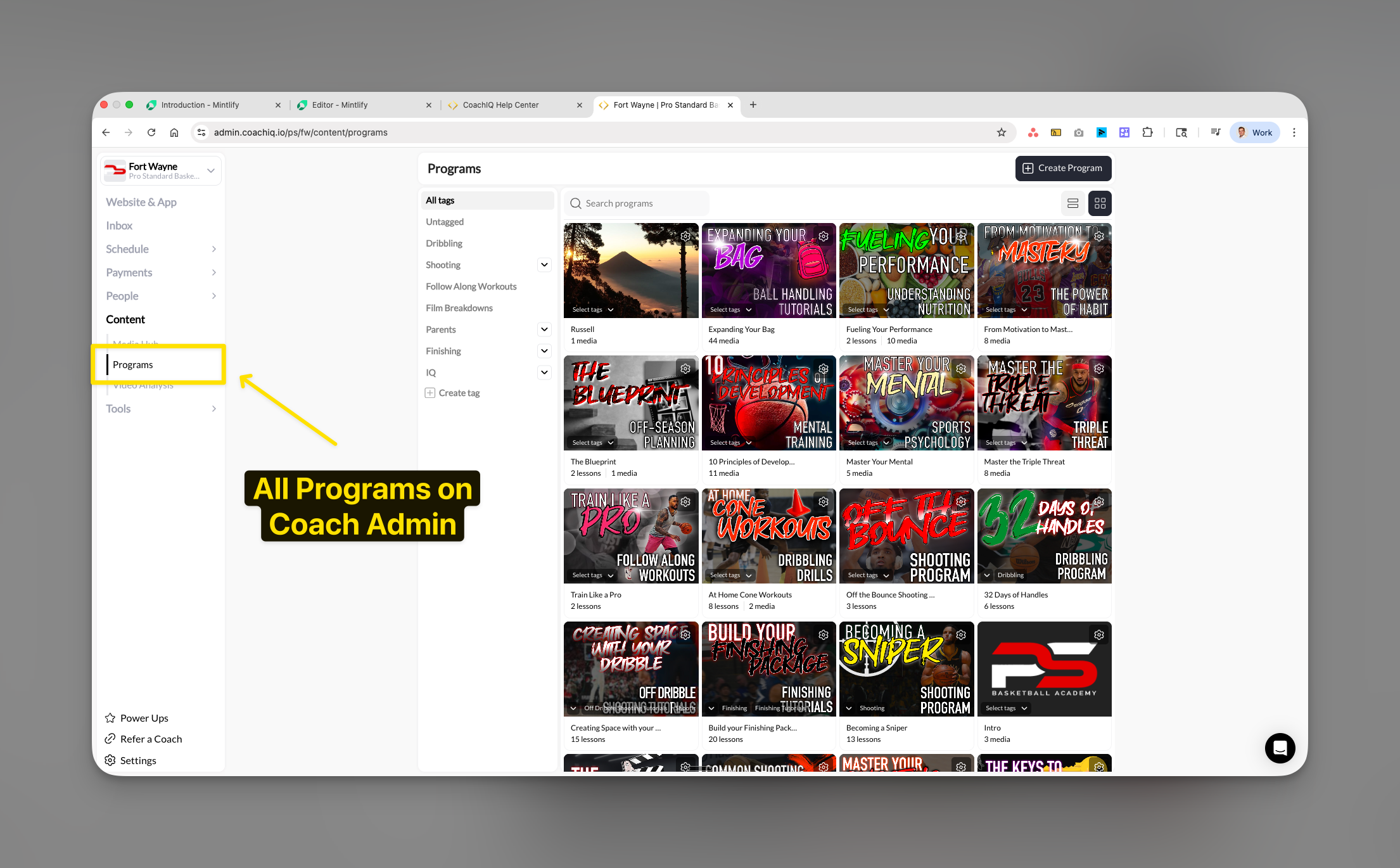
The Programs page displays training content, certifications, and educational resources that athletes access at their own pace.
## Understanding the Programs page
The Programs page displays training content, certifications, and educational resources that athletes access at their own pace.
 ### Programs vs Sessions distinction
| Feature | Programs | Sessions |
| ------- | ------------------------ | ---------------------- |
| Type | Self-paced content | Scheduled bookings |
| Shows | Progress percentage | Available time slots |
| Payment | One-time or subscription | Per session or credits |
| Access | Immediate after purchase | At scheduled time |
**Use Programs for:**
* Self-paced training content
* Video tutorials and lessons
* Certification courses
* Educational resources
**Use Sessions for:**
* Scheduled training times
* Live coaching sessions
* Bookable appointments
* Group classes
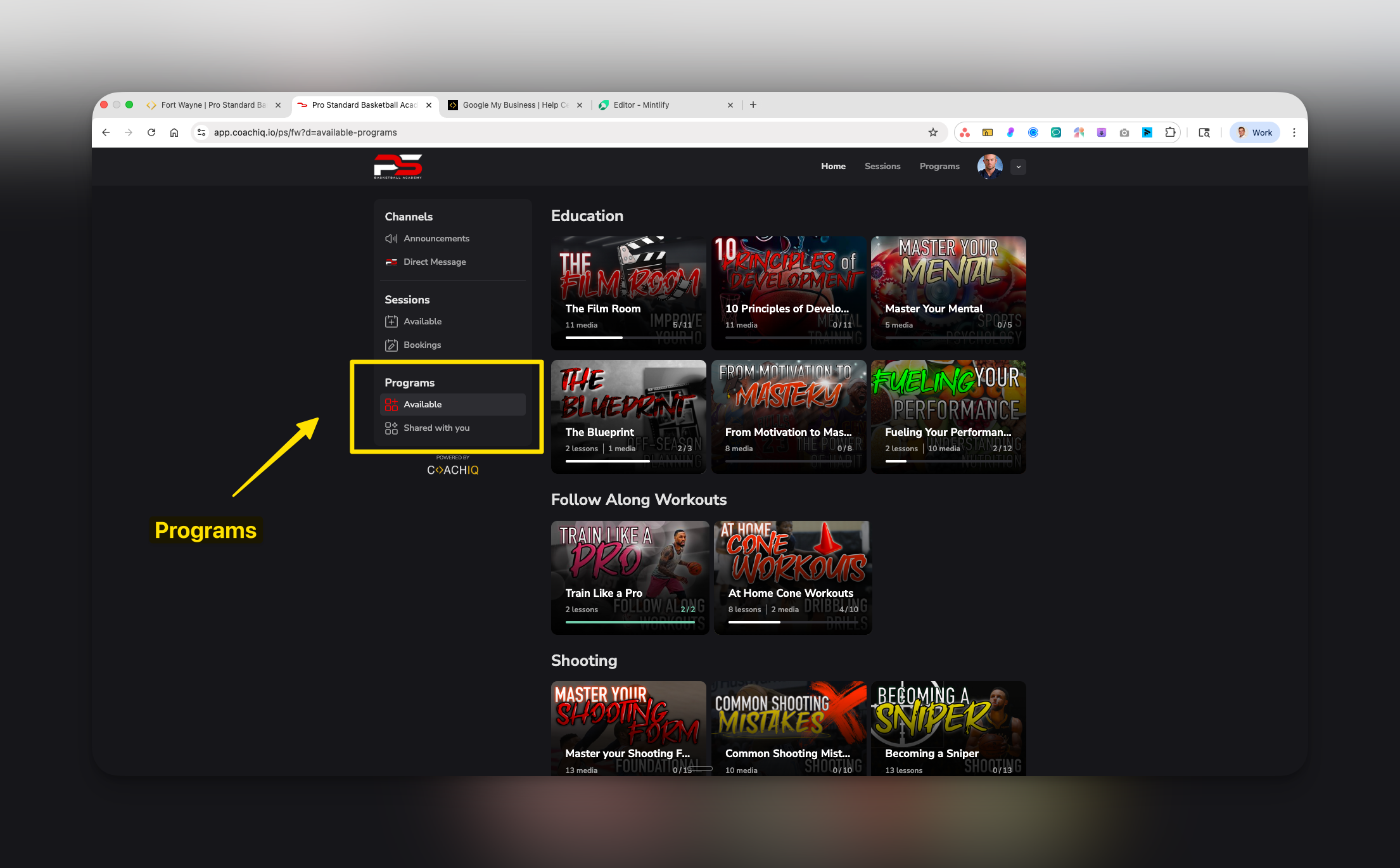
### Athlete view components
* Program thumbnails with visual previews
* Lesson and media counts (format: "X lessons • Y media")
* Completion progress for started programs
* Section-based organization
## Accessing program settings
From your dashboard, select **App** in the left sidebar.
### Programs vs Sessions distinction
| Feature | Programs | Sessions |
| ------- | ------------------------ | ---------------------- |
| Type | Self-paced content | Scheduled bookings |
| Shows | Progress percentage | Available time slots |
| Payment | One-time or subscription | Per session or credits |
| Access | Immediate after purchase | At scheduled time |
**Use Programs for:**
* Self-paced training content
* Video tutorials and lessons
* Certification courses
* Educational resources
**Use Sessions for:**
* Scheduled training times
* Live coaching sessions
* Bookable appointments
* Group classes
### Athlete view components
* Program thumbnails with visual previews
* Lesson and media counts (format: "X lessons • Y media")
* Completion progress for started programs
* Section-based organization
## Accessing program settings
From your dashboard, select **App** in the left sidebar.
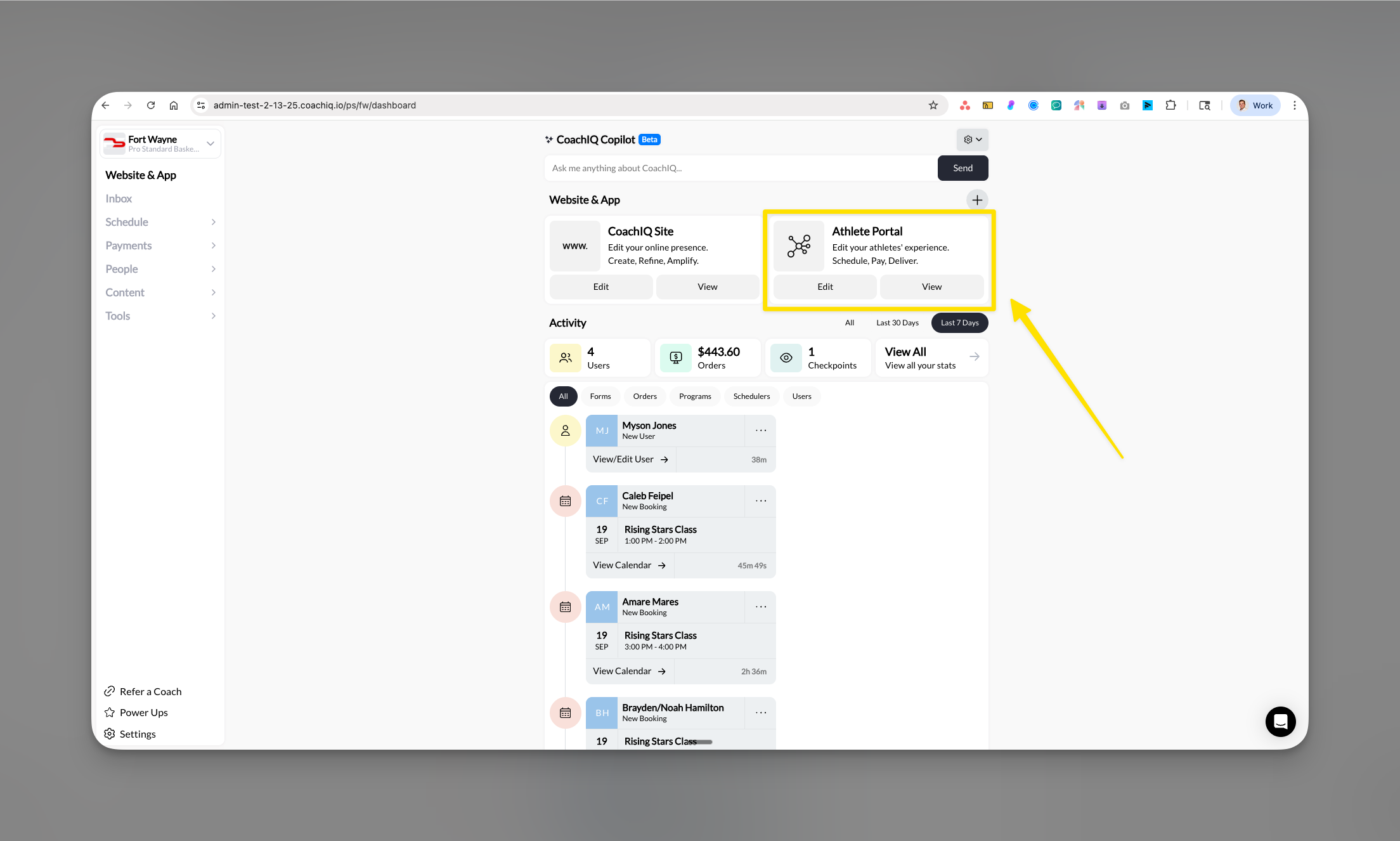 Click on the **Content** tab in the main navigation.
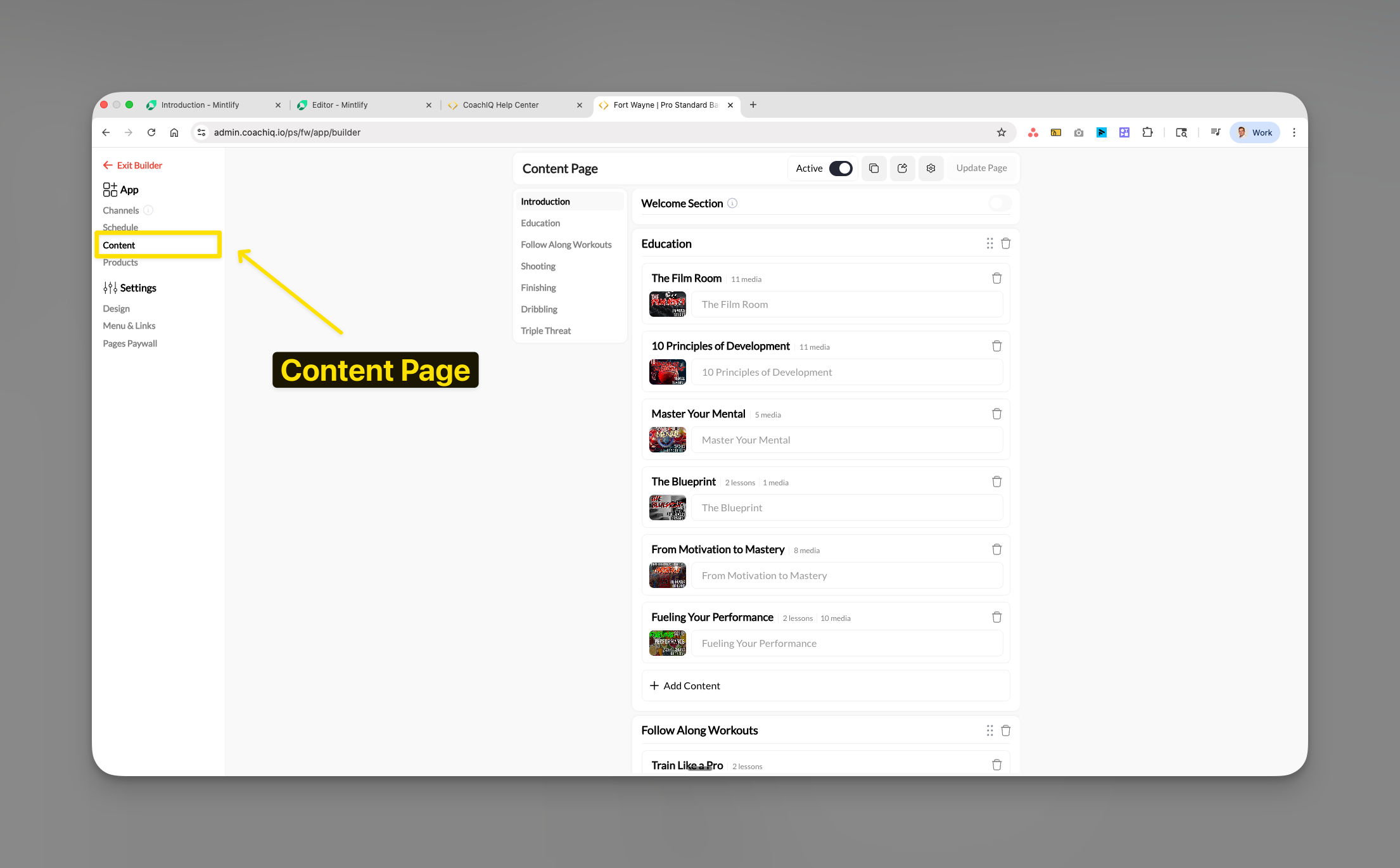 Select **Programs** from the content options to access your program configuration page.
 ## Activating the Programs page
Control athlete visibility of the Programs section through the Active toggle.
Find the **Active** toggle in the top right corner of the Programs page.
## Activating the Programs page
Control athlete visibility of the Programs section through the Active toggle.
Find the **Active** toggle in the top right corner of the Programs page.
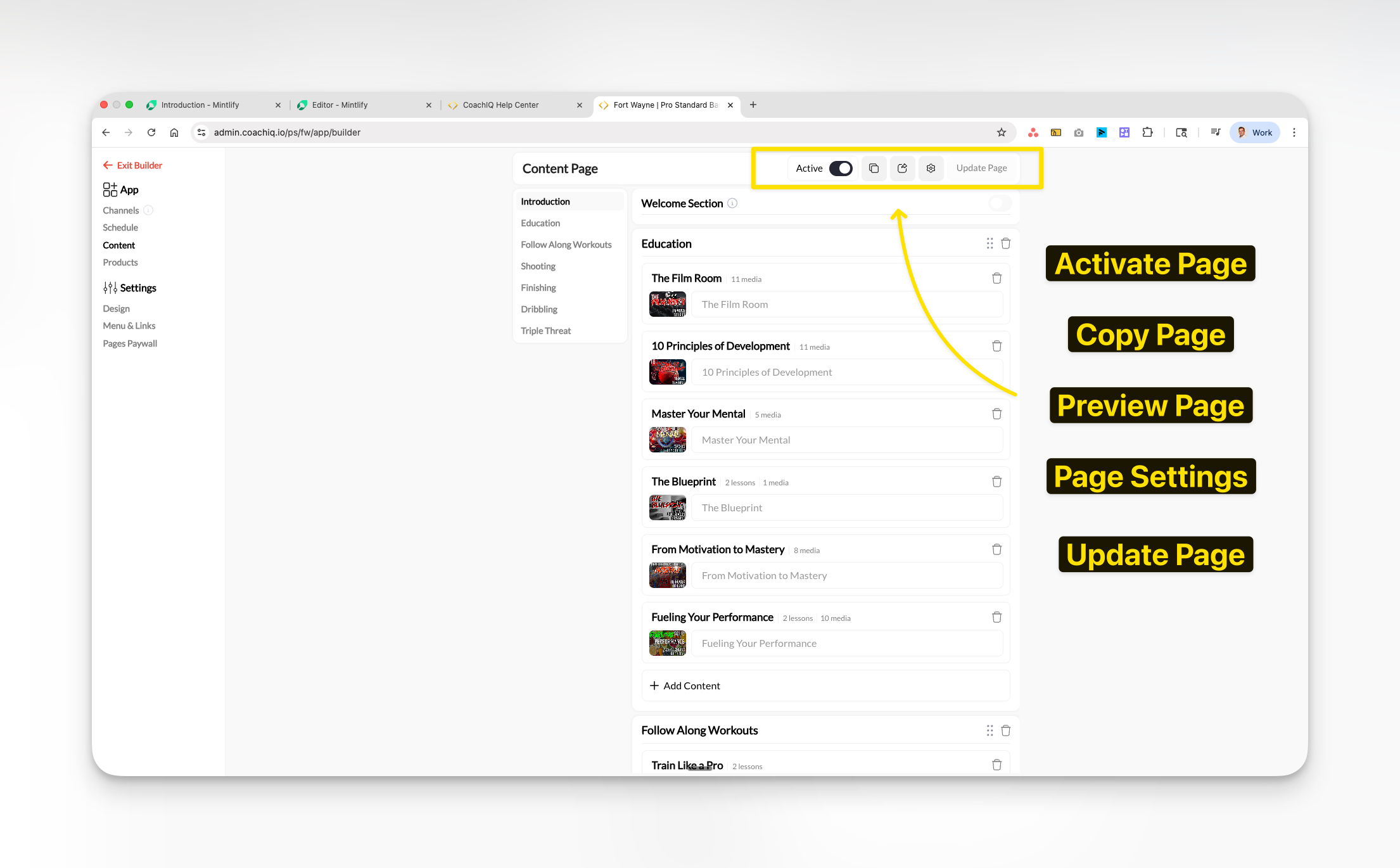 * **ON**: Programs visible to all athletes in their portal
* **OFF**: Programs completely hidden from athlete view
Deactivating hides all programs immediately, including those athletes are currently completing. Verify this is your intended action before proceeding.
Click **Update Page** to save your changes.
## Adding individual programs
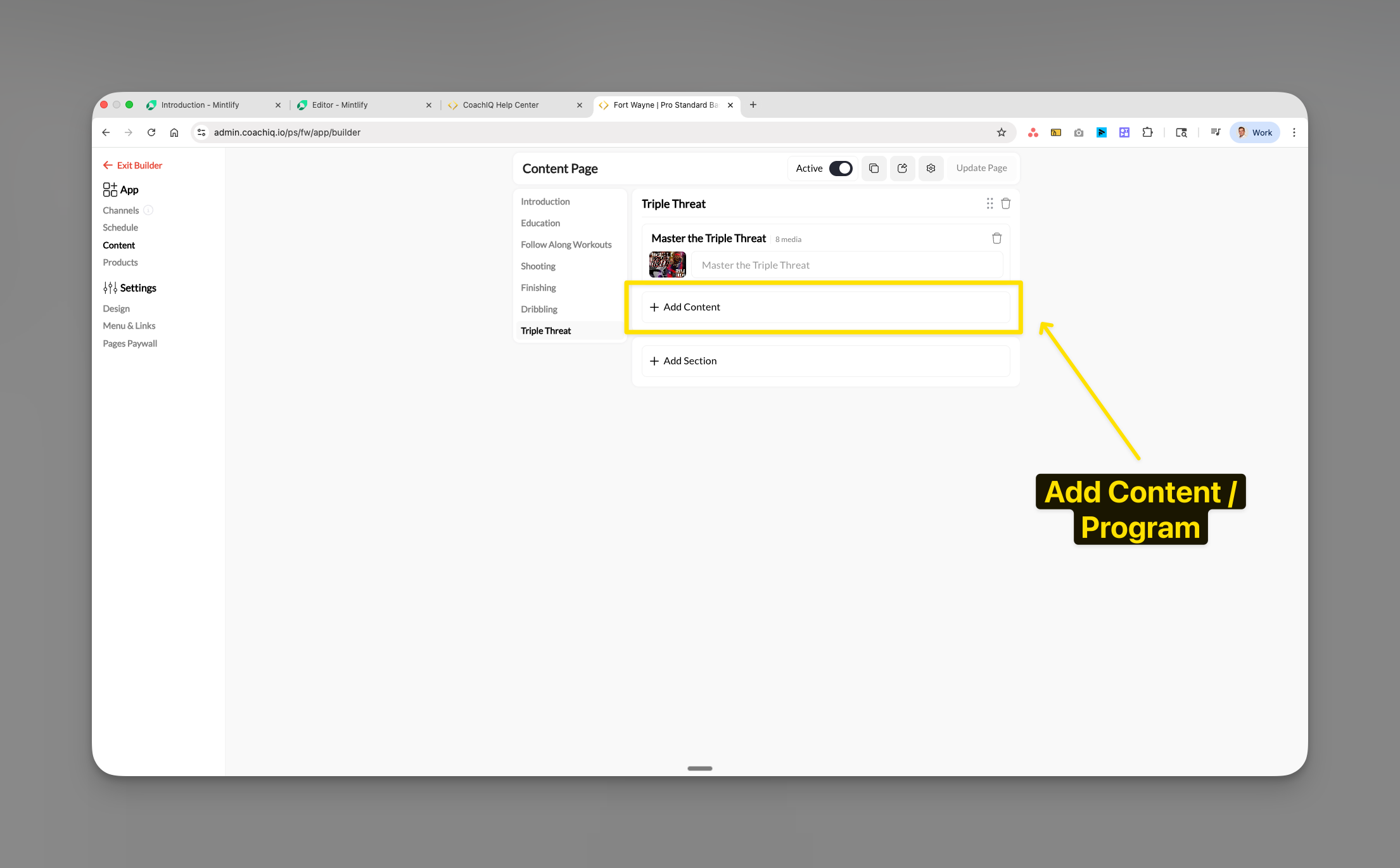
In any section, click the **+ Add Content** button.
The selection modal displays:
* Thumbnail image
* Program title
* Lesson and media count
Select programs to add to this section. You can select multiple programs at once.
Click **Save** to add selected programs.
Programs appear immediately with thumbnails and details visible.
## Creating and managing sections
Sections organize programs into logical categories for easier navigation.
### Adding a new section
* **ON**: Programs visible to all athletes in their portal
* **OFF**: Programs completely hidden from athlete view
Deactivating hides all programs immediately, including those athletes are currently completing. Verify this is your intended action before proceeding.
Click **Update Page** to save your changes.
## Adding individual programs
In any section, click the **+ Add Content** button.
The selection modal displays:
* Thumbnail image
* Program title
* Lesson and media count
Select programs to add to this section. You can select multiple programs at once.
Click **Save** to add selected programs.
Programs appear immediately with thumbnails and details visible.
## Creating and managing sections
Sections organize programs into logical categories for easier navigation.
### Adding a new section
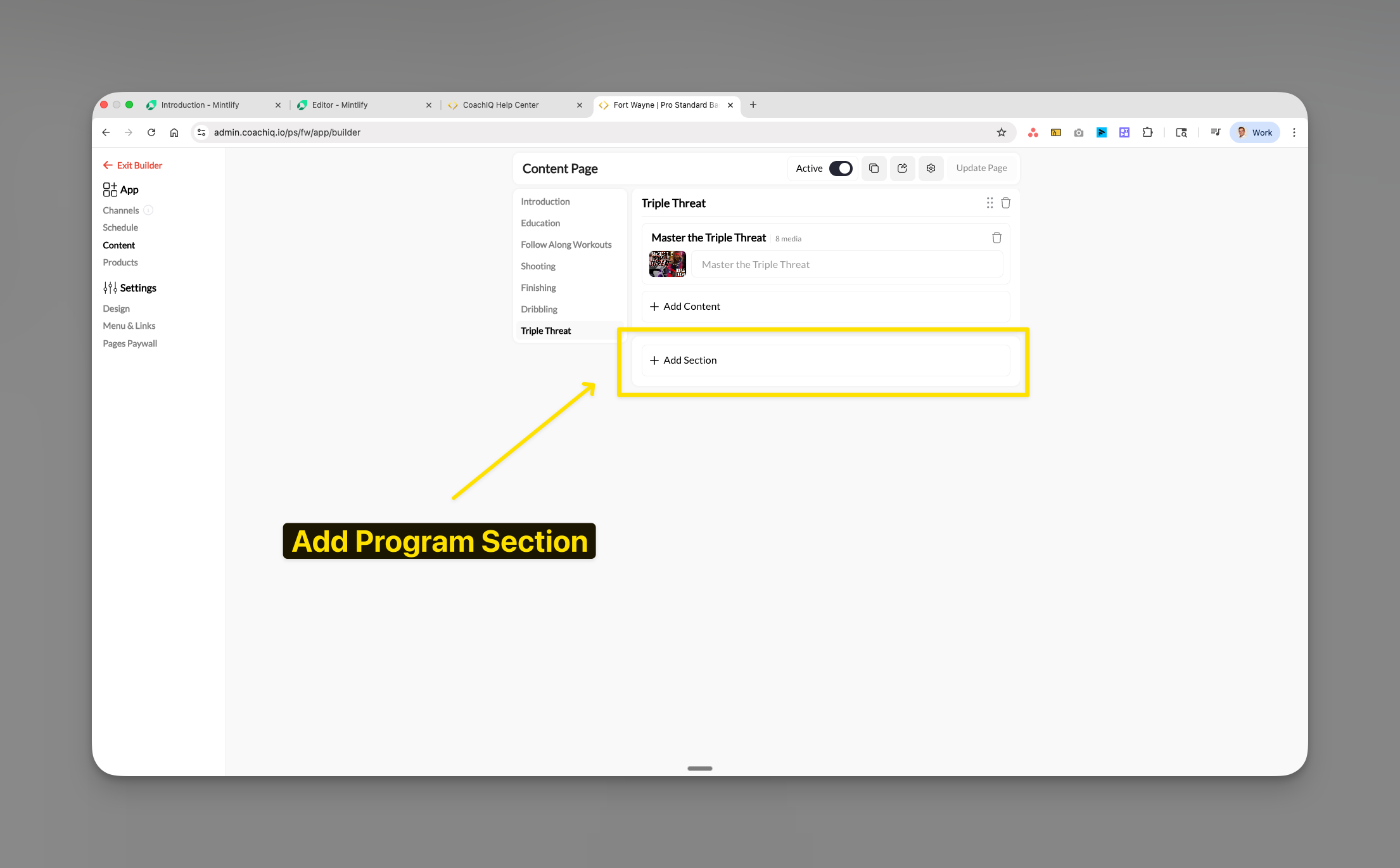 Click **+ Add Section** at the bottom of your program list.
Enter a descriptive name. Examples:
* "Education"
* "Triple Threat"
* "Follow Along Workouts"
* "Beginner Fundamentals"
* "Elite Training"
Use **+ Add Content** within the new section to add programs.
### Setting up a Welcome Section
The Welcome Section prominently displays one featured program at the top of your Programs page.
Find the **Welcome Section** field at the top of Programs configuration.
Click **+ Add Section** at the bottom of your program list.
Enter a descriptive name. Examples:
* "Education"
* "Triple Threat"
* "Follow Along Workouts"
* "Beginner Fundamentals"
* "Elite Training"
Use **+ Add Content** within the new section to add programs.
### Setting up a Welcome Section
The Welcome Section prominently displays one featured program at the top of your Programs page.
Find the **Welcome Section** field at the top of Programs configuration.
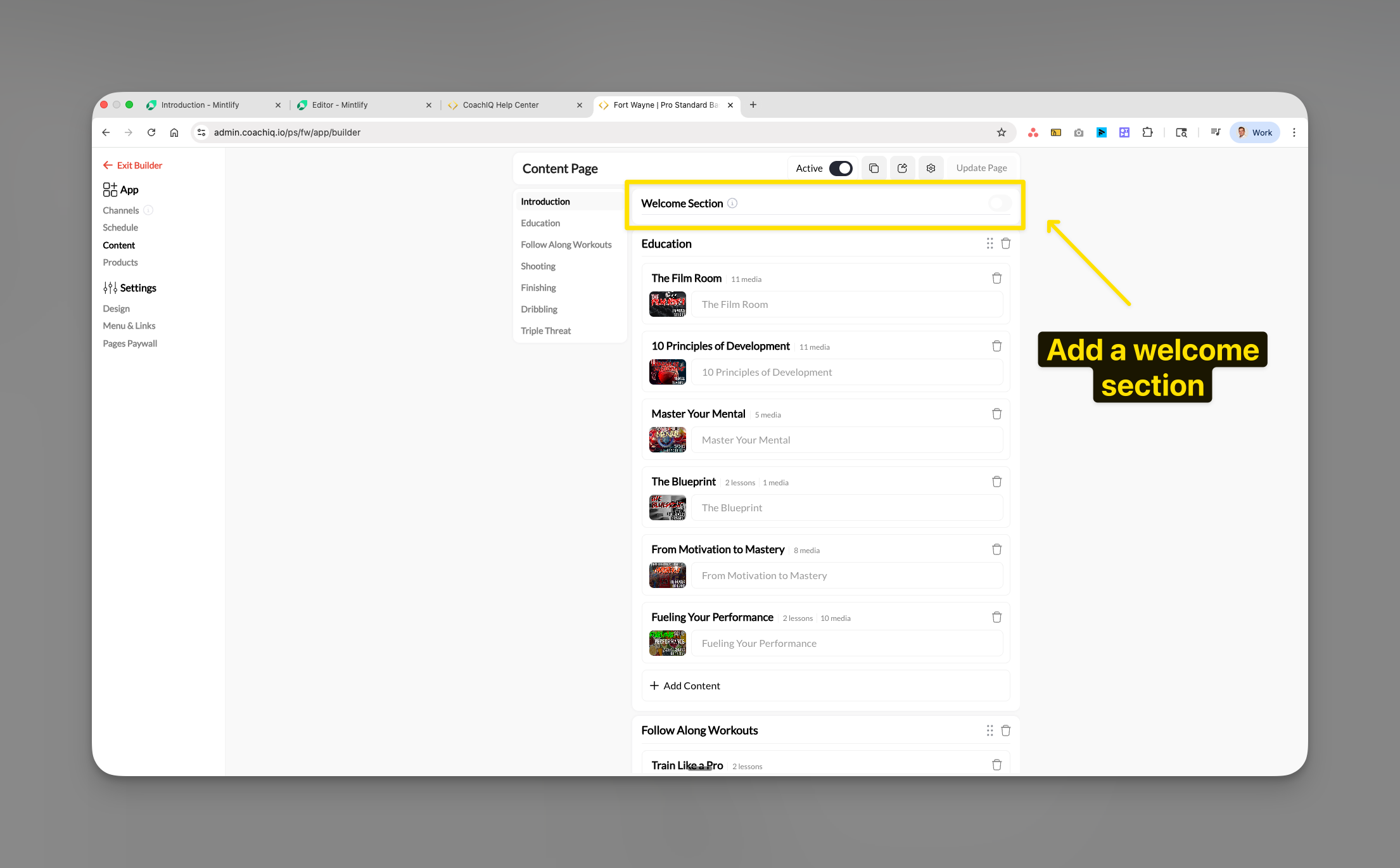 Choose which section becomes the welcome section. The first program in this section receives featured treatment.
**Effective Welcome Section uses:**
* Getting-started program for new athletes
* Signature certification course
* Limited-time training series
* Most popular program
## Organizing your Programs page
### Reordering sections
1. Hover over the section to move
2. Click and hold the drag handle (⋮⋮)
3. Drag to new position
4. Release to place
Position your foundational content at the top for immediate visibility.
### Deleting sections
1. Click the trash icon (🗑️) next to section name
2. Confirm deletion
Section deletion removes display only. Programs remain in your content library for reuse.
## Program access and sharing settings
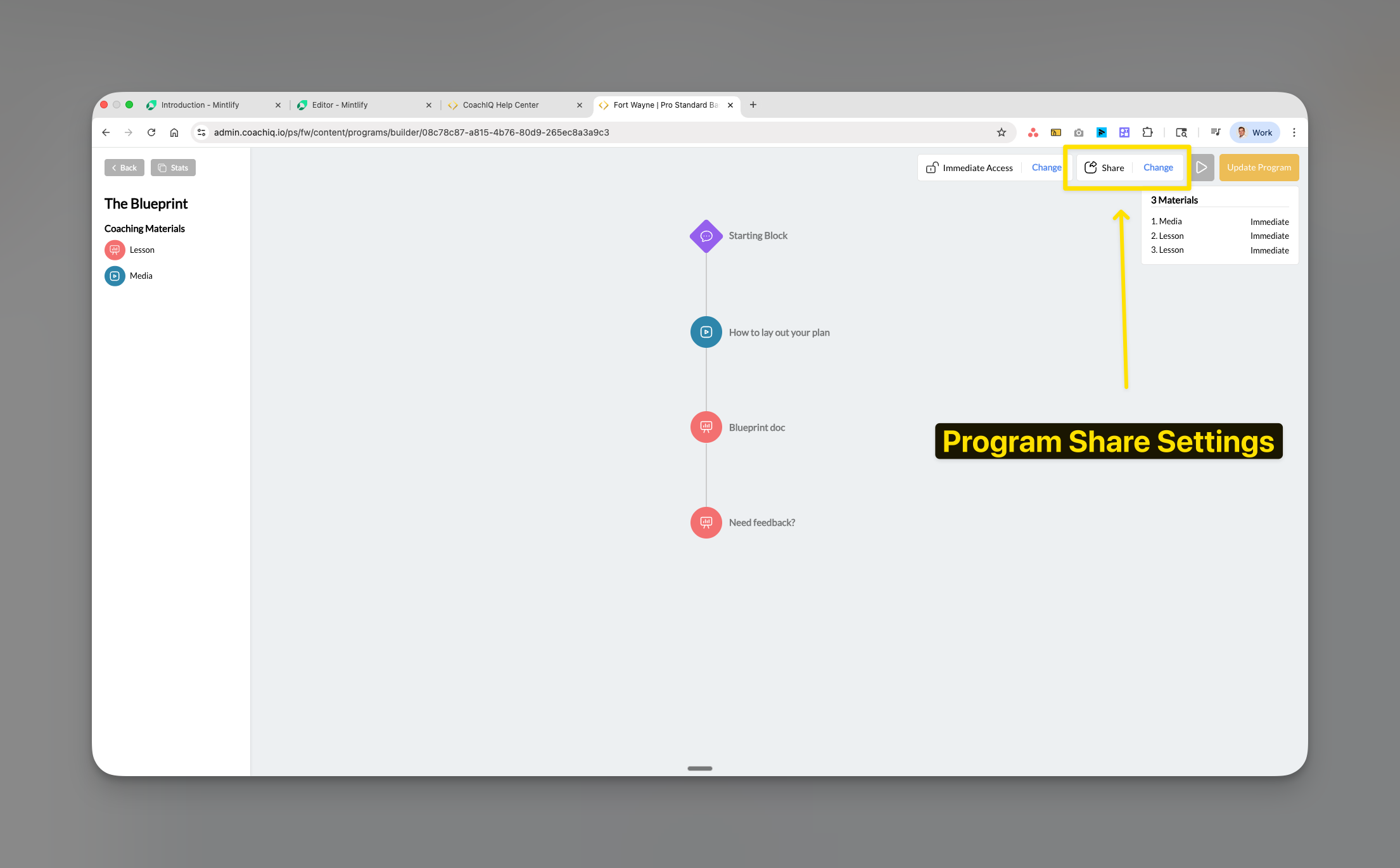
Click **Share** on any program.
Choose which section becomes the welcome section. The first program in this section receives featured treatment.
**Effective Welcome Section uses:**
* Getting-started program for new athletes
* Signature certification course
* Limited-time training series
* Most popular program
## Organizing your Programs page
### Reordering sections
1. Hover over the section to move
2. Click and hold the drag handle (⋮⋮)
3. Drag to new position
4. Release to place
Position your foundational content at the top for immediate visibility.
### Deleting sections
1. Click the trash icon (🗑️) next to section name
2. Confirm deletion
Section deletion removes display only. Programs remain in your content library for reuse.
## Program access and sharing settings
Click **Share** on any program.
 **Free Access**
* Open to all athletes
* No payment required
* Great for introductory content
* Builds trust and engagement
**Paywalled Access**
* Requires purchase or membership
* Generates revenue
* Premium content protection
* Supports subscriptions
**Private Access**
* Manual assignment only
* Exclusive content
* Personalized programs
* Beta testing new content
For Private programs, toggle ON to restrict visibility to assigned athletes only.
**Free Access**
* Open to all athletes
* No payment required
* Great for introductory content
* Builds trust and engagement
**Paywalled Access**
* Requires purchase or membership
* Generates revenue
* Premium content protection
* Supports subscriptions
**Private Access**
* Manual assignment only
* Exclusive content
* Personalized programs
* Beta testing new content
For Private programs, toggle ON to restrict visibility to assigned athletes only.
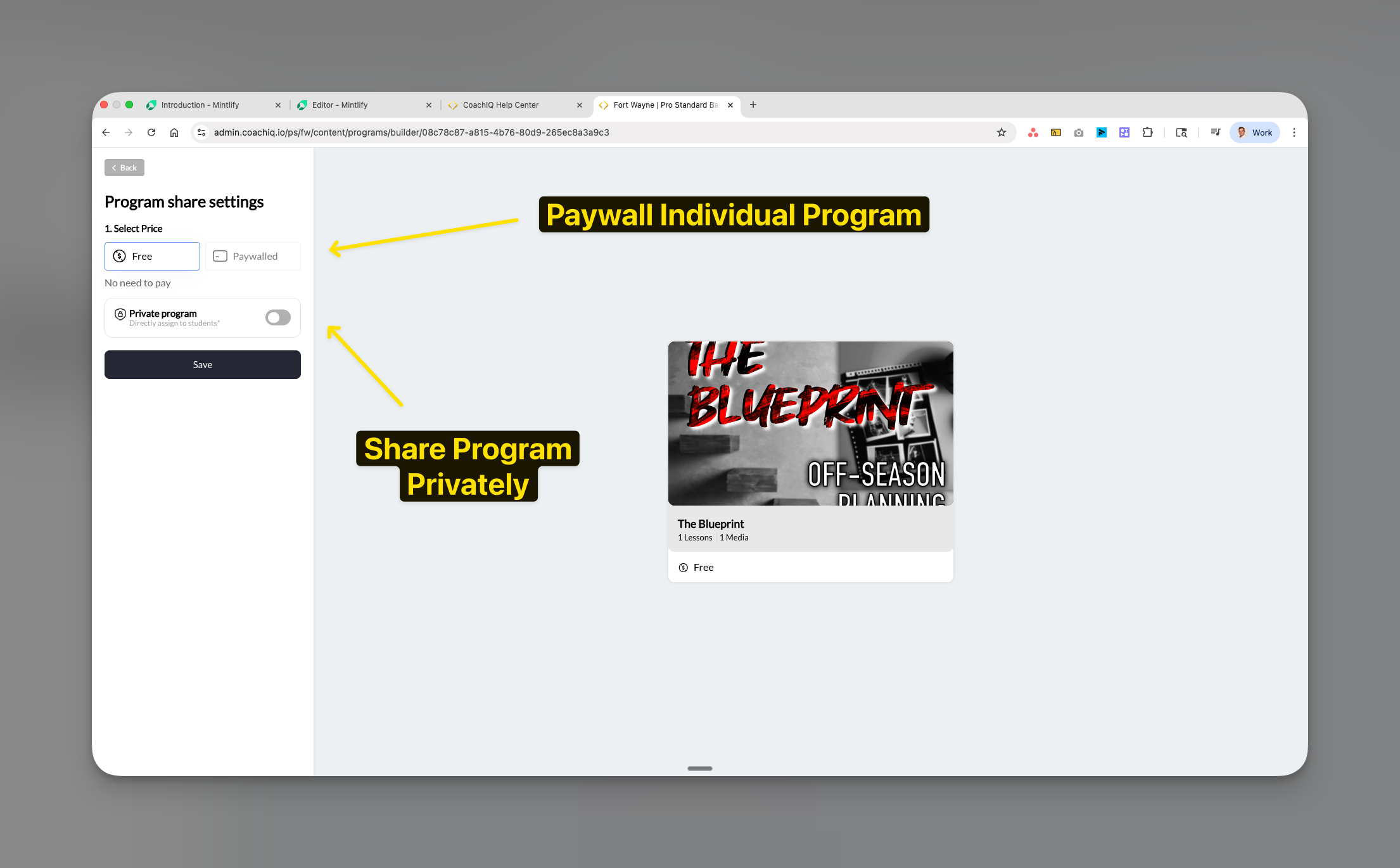 **Use cases for private programs:**
* Elite athlete exclusive content
* Beta testing new programs
* Personalized training plans
* Team-specific content
Click **Save** to apply access configuration.
## Page settings
Use the Settings panel to rename the Programs tab and update the page URL.
Click the **gear icon** in the top right of the Programs page to open the Settings panel.
**Use cases for private programs:**
* Elite athlete exclusive content
* Beta testing new programs
* Personalized training plans
* Team-specific content
Click **Save** to apply access configuration.
## Page settings
Use the Settings panel to rename the Programs tab and update the page URL.
Click the **gear icon** in the top right of the Programs page to open the Settings panel.
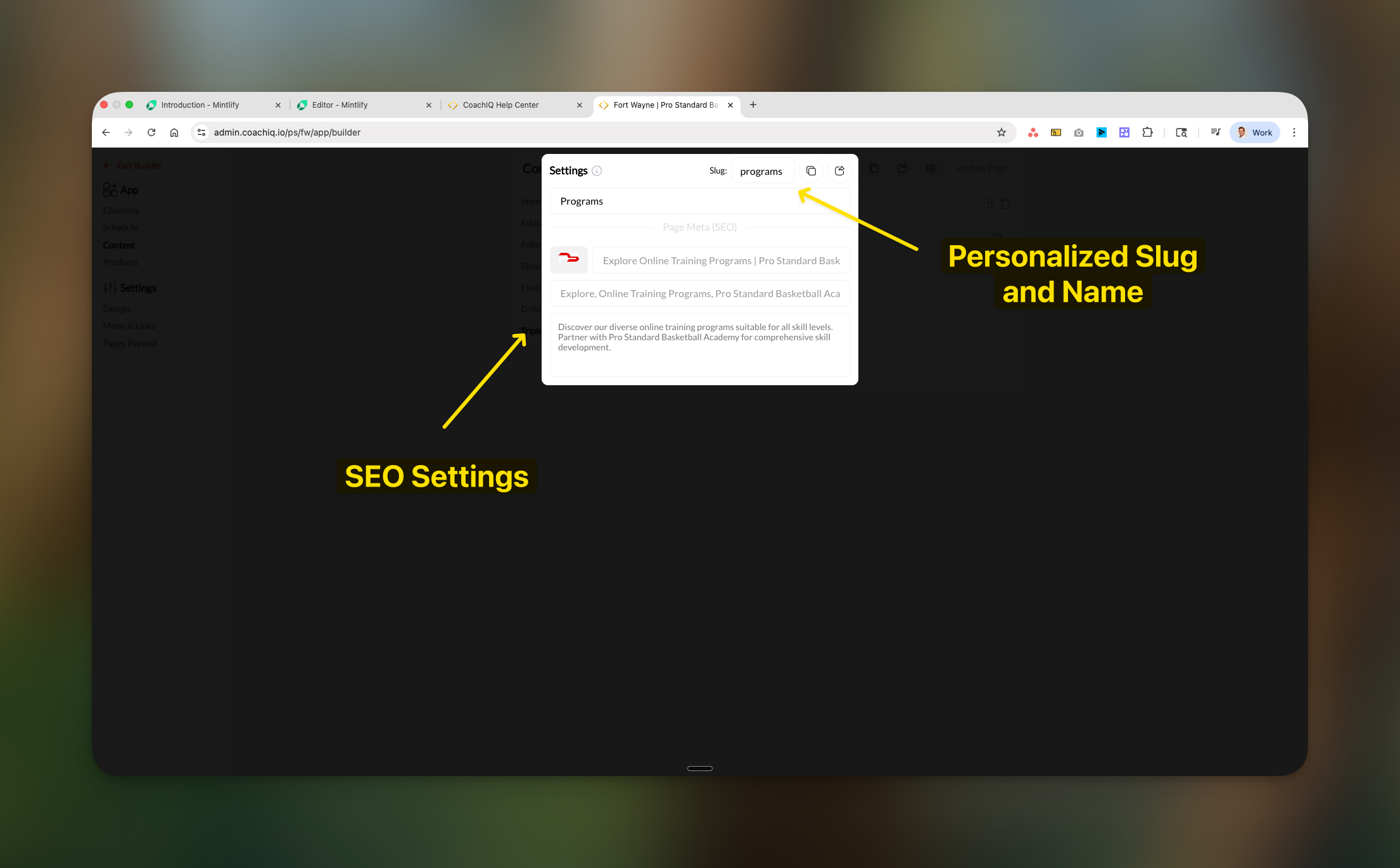 The first field at the top of the Settings panel is the **Page Name** — the display name athletes see as the tab in their portal. Update it to match your branding (e.g., "Training", "Content", "Resources").
The **Slug** field controls the URL path for this page (e.g., `/programs`, `/training`).
Add a **Description** for SEO context.
Click **Update Page** to apply settings.
## Previewing the athlete experience
Select **Preview Page** from the action menu.
Verification checklist:
* Section order correctness
* Thumbnail display quality
* Title and description clarity
* Welcome section prominence
Preview on:
* Desktop/laptop
* Tablet
* Mobile phone
## Publishing your changes
Verify sections, programs, and access levels.
Click **Update Page** to publish.
Changes apply immediately. Currently logged-in athletes see updates upon refresh or navigation.
## Common questions
Programs are created in **Content → Programs** in your main admin dashboard. The App Builder only controls display configuration.
Diagnostic steps:
1. **Programs page Active toggle** → Must be ON
2. **Program access setting** → Check if Private or Paywalled
3. **Athlete status** → Verify purchase or assignment
4. **Platform** → iOS/Android have purchase restrictions
No search/filter capability currently exists. Structure your sections thoughtfully for easy navigation.
Progress percentage = (completed items ÷ total items) × 100
Each lesson or media file completed counts toward the total.
Yes. Private program setting enables athlete-specific assignment for personalized content delivery.
Sections remain expanded for immediate content visibility on all devices.
## Troubleshooting
### Programs not appearing in selection modal
* **Verify**: Programs exist in Content → Programs
* **Confirm**: Programs are published (not draft)
* **Action**: Refresh App Builder page
### Athletes report missing programs
1. **Check**: Programs page Active toggle → Must be ON
2. **Check**: Program access type → Not Private without assignment
3. **Check**: Payment status → Purchase complete for paywalled
4. **Check**: Platform restrictions → iOS/Android restrict in-app purchases
### Thumbnails not displaying correctly
* Thumbnails configured in Program Builder only
* Cannot override in App Builder
* Verify proper aspect ratio in source
### Section organization issues
* Confirm drag handle engagement
* Test in different browser if needed
* Always Update Page after reorganizing
## Pro tips
**Organization hierarchy**:
Structure sections by progression:
1. Fundamentals
2. Skill Development
3. Advanced Training
4. Certifications
**Welcome Section optimization**:
Feature an orientation program explaining your training system and setting expectations.
**Naming clarity**:
* Include skill level: "Beginner: Ball Handling"
* Add duration: "30-Day Program"
* Specify outcome: "Master the Triple Threat"
**Access tier strategy**:
* **Elite**: Advanced tactical content (Private)
* **Youth**: Age-appropriate basics (Free/Paywalled)
* **Teams**: Competition prep (Private)
**Monthly maintenance**:
* Archive outdated content
* Adjust sections based on usage data
* Review completion rates
* Validate free/paid balance
## Related articles
* [Programs Overview](/content/programs-overview)
* [Sharing Programs](/content/sharing-programs)
* [Setting Up Paywalls](/athlete-portal/paywall-settings)
* [Client Profiles](/people/client-profiles/client-profiles)
* [Understanding the Athlete Portal](/athlete-portal/understanding-your-athlete-portal)
The first field at the top of the Settings panel is the **Page Name** — the display name athletes see as the tab in their portal. Update it to match your branding (e.g., "Training", "Content", "Resources").
The **Slug** field controls the URL path for this page (e.g., `/programs`, `/training`).
Add a **Description** for SEO context.
Click **Update Page** to apply settings.
## Previewing the athlete experience
Select **Preview Page** from the action menu.
Verification checklist:
* Section order correctness
* Thumbnail display quality
* Title and description clarity
* Welcome section prominence
Preview on:
* Desktop/laptop
* Tablet
* Mobile phone
## Publishing your changes
Verify sections, programs, and access levels.
Click **Update Page** to publish.
Changes apply immediately. Currently logged-in athletes see updates upon refresh or navigation.
## Common questions
Programs are created in **Content → Programs** in your main admin dashboard. The App Builder only controls display configuration.
Diagnostic steps:
1. **Programs page Active toggle** → Must be ON
2. **Program access setting** → Check if Private or Paywalled
3. **Athlete status** → Verify purchase or assignment
4. **Platform** → iOS/Android have purchase restrictions
No search/filter capability currently exists. Structure your sections thoughtfully for easy navigation.
Progress percentage = (completed items ÷ total items) × 100
Each lesson or media file completed counts toward the total.
Yes. Private program setting enables athlete-specific assignment for personalized content delivery.
Sections remain expanded for immediate content visibility on all devices.
## Troubleshooting
### Programs not appearing in selection modal
* **Verify**: Programs exist in Content → Programs
* **Confirm**: Programs are published (not draft)
* **Action**: Refresh App Builder page
### Athletes report missing programs
1. **Check**: Programs page Active toggle → Must be ON
2. **Check**: Program access type → Not Private without assignment
3. **Check**: Payment status → Purchase complete for paywalled
4. **Check**: Platform restrictions → iOS/Android restrict in-app purchases
### Thumbnails not displaying correctly
* Thumbnails configured in Program Builder only
* Cannot override in App Builder
* Verify proper aspect ratio in source
### Section organization issues
* Confirm drag handle engagement
* Test in different browser if needed
* Always Update Page after reorganizing
## Pro tips
**Organization hierarchy**:
Structure sections by progression:
1. Fundamentals
2. Skill Development
3. Advanced Training
4. Certifications
**Welcome Section optimization**:
Feature an orientation program explaining your training system and setting expectations.
**Naming clarity**:
* Include skill level: "Beginner: Ball Handling"
* Add duration: "30-Day Program"
* Specify outcome: "Master the Triple Threat"
**Access tier strategy**:
* **Elite**: Advanced tactical content (Private)
* **Youth**: Age-appropriate basics (Free/Paywalled)
* **Teams**: Competition prep (Private)
**Monthly maintenance**:
* Archive outdated content
* Adjust sections based on usage data
* Review completion rates
* Validate free/paid balance
## Related articles
* [Programs Overview](/content/programs-overview)
* [Sharing Programs](/content/sharing-programs)
* [Setting Up Paywalls](/athlete-portal/paywall-settings)
* [Client Profiles](/people/client-profiles/client-profiles)
* [Understanding the Athlete Portal](/athlete-portal/understanding-your-athlete-portal)